
With Marketing Cloud Next, there a are different types of Flows you can use, depending on what you want to automate. In this article, we present the 8 most commonly used types.
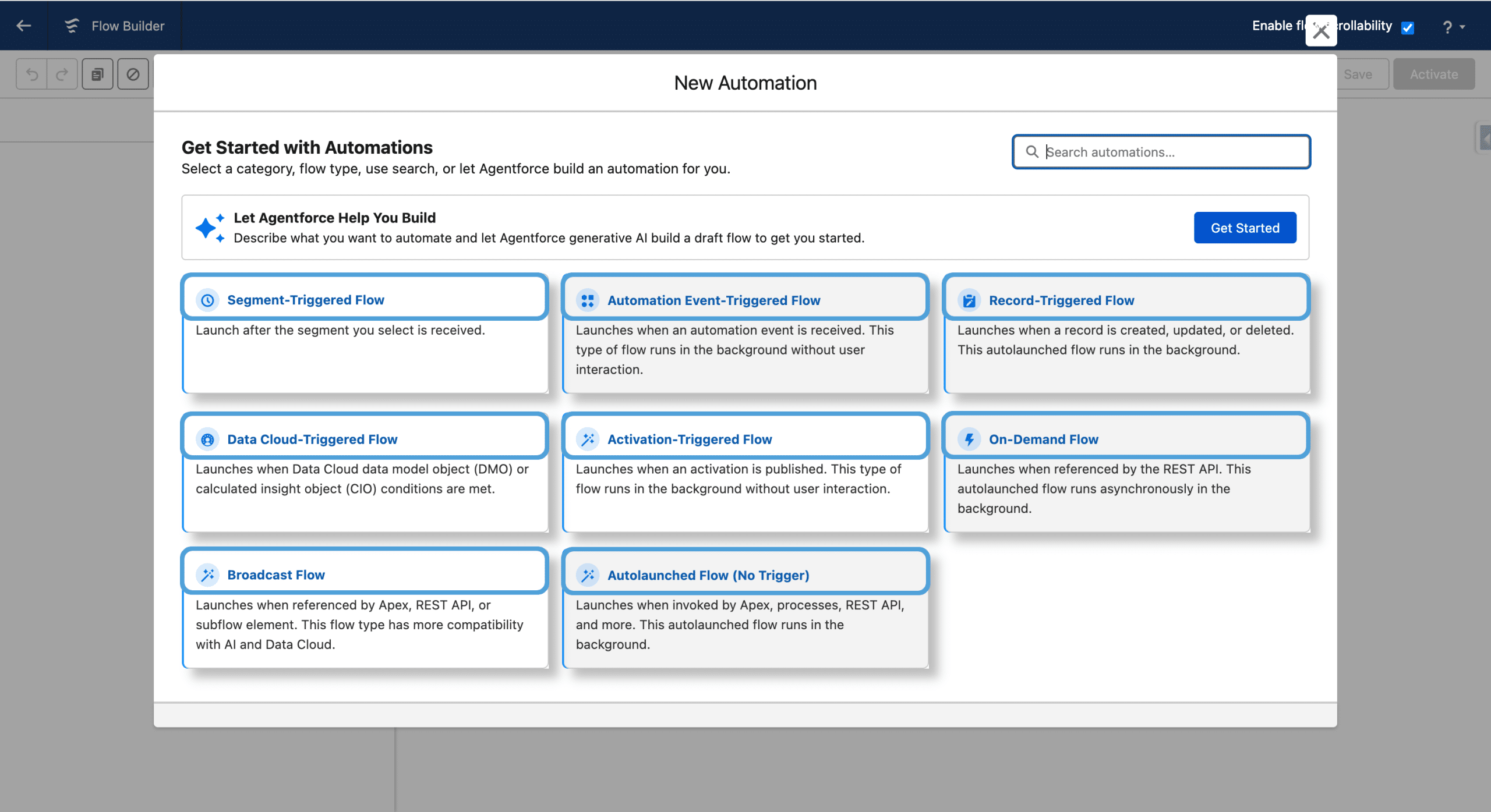
Creating Flows
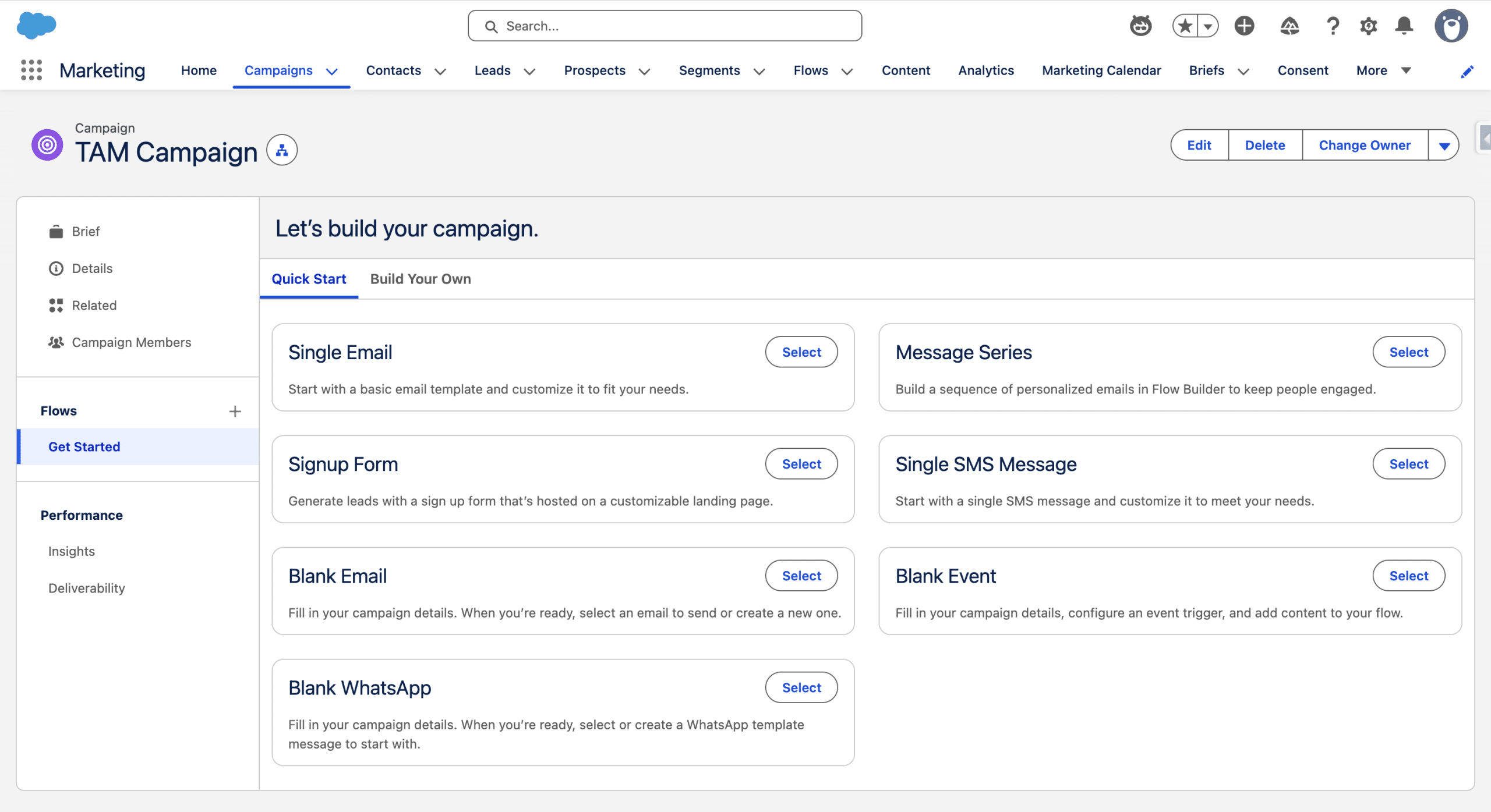
There are 3 standard ways to create a new Flow in Marketing Cloud Next:
- From the Flow list: this has been the standard way for Admins
- From a Campaign: when you create a MC Next Campaign, you can add one or multiple Flow (in that case, the Flow is related to the Campaing thanks to Flow’s Field called “Associated Record”) to it. Different Flow types are available. For example “Single Email” adds a Segment Triggered Flow, and Sign-up Form an Automation Event Triggered Flo.
- From the Campaign Creation Agent: this agent creates a Campaign and adds a Segment Triggered Flow to it, plus several Assets.
1. Segment Triggered Flow
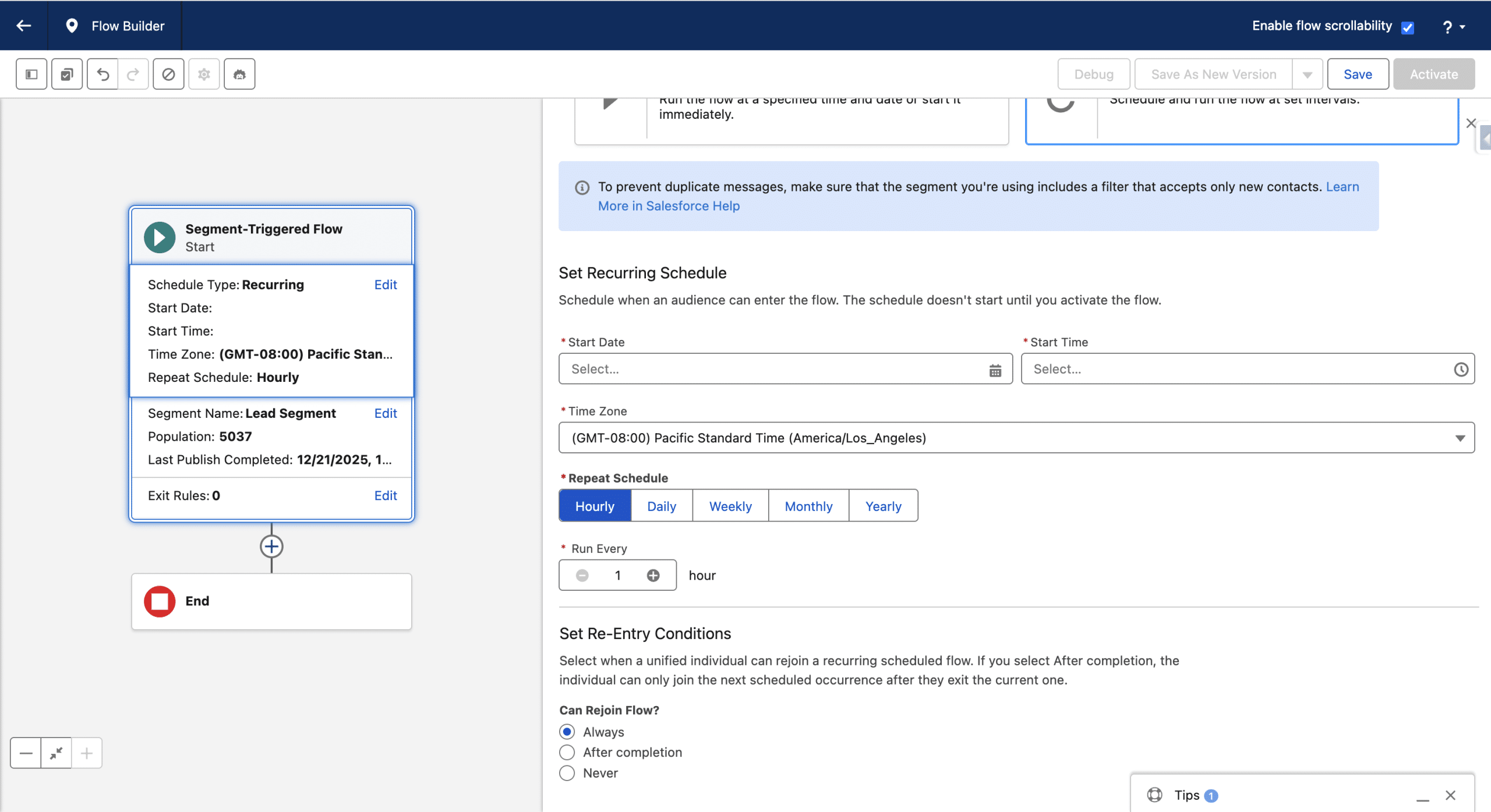
This is the most Campaign Flow type, and actually it is a scheduled Flow. When a Segment Triggered Flow runs, the records in the related Segment are injected in the Flow. You can select if a Segment Triggered Flow should recurring or not, if so, you choose the re-entry condition (always, never or after completion). A record can exit the Flow if it matches the Exit Rules, but leaving the Segment does not remove the recod from the Flow. A Segment can be refreshed by the Flow (Immediately before running this flow) or by itself (on the segment’s publish schedule).
Triggering Segments can be made of Unified Individual, and since the Spring ’26 release, they can also be records of the Individual or Engagements DMO (in that case you’ll need to define the Contact Points). You can select how often the Flow runs (from once an hour to once a year).
The Campaign Creation Agent creates this type of Flow, and from a Campaign, the Following predefined Flows as well: Single Email, Message Series, Single SMS Message, Blank Email, Blank WhatsApp.
Typical use-cases:
- a one-shot email send to a specific list of recipients
- recurring sends, like birthday emails.
2. Automation Event-Triggered Flow
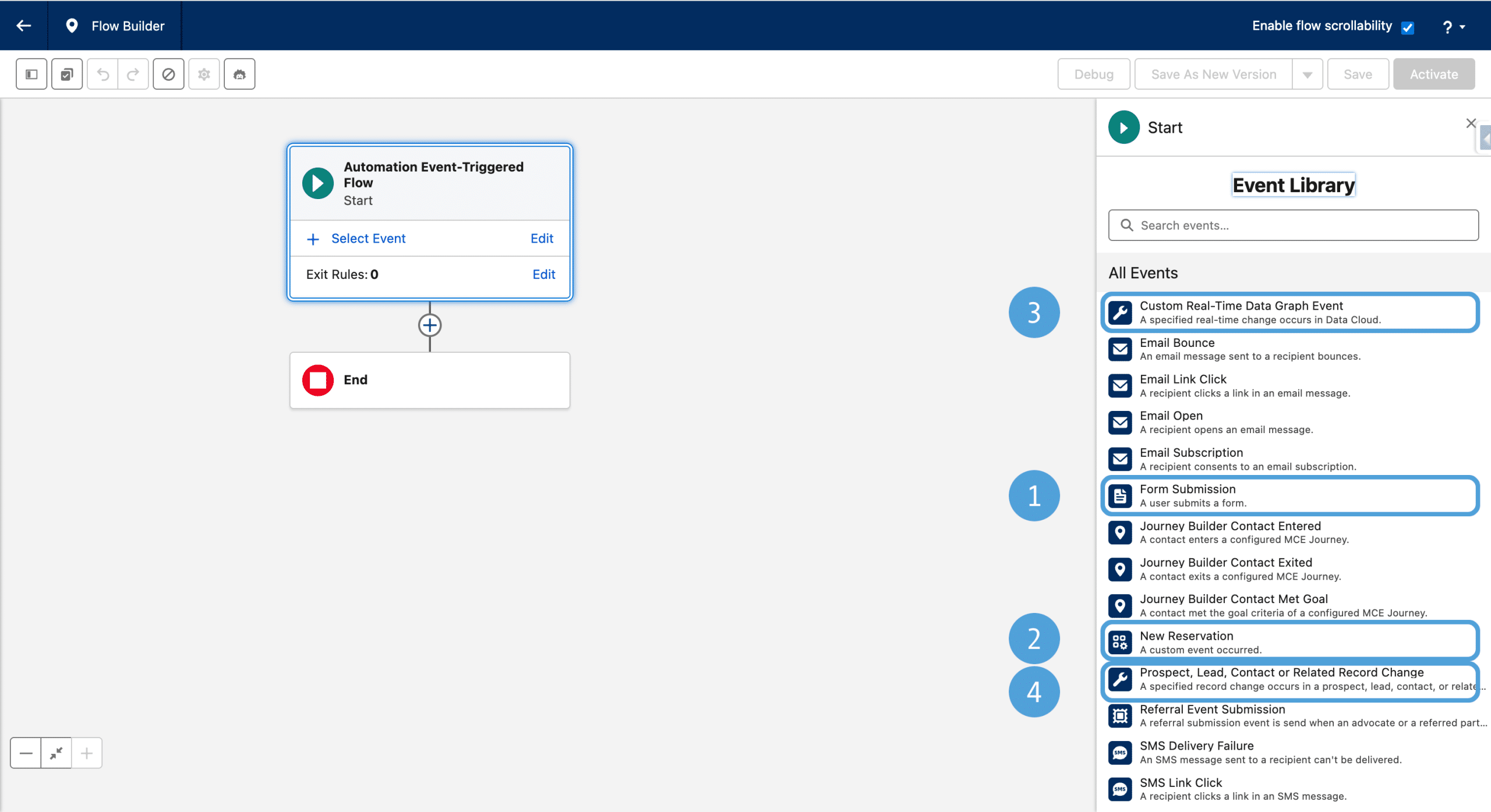
This type of Flow is very common too, it is triggered when a predefined event happens. Standard events are already created, like a link click in a email or a form submission (in that case, it will be referred to as Form Triggered Flow, a Signup form from a Campaingn is that kind of Flow). From a Campaign, a Blank Event Flow creates a Flow of this type, related to the originating Campaign.
You can create your own events, using Engagement Signals from any engagement DMO. If you have the Sub-Second Real-Time Profiles & Entities add-on license, you can react in real time to Data Graph changes. In Spring ’26 was introduced the Individual Related record event (aka Prospect, Lead, Contact and related Record change) triggered when a person related record is changing in the Salesforce plateform.
Typical use-cases:
- add a clicker to a Campaign (see here for a camparaison with Wait Until Event)
- send a personalized welcome email.
- generate an auto-responder containing a file or link
Record Triggered Flows
There are two types of Record Triggered Flows, depending where the triggerring Record is located.
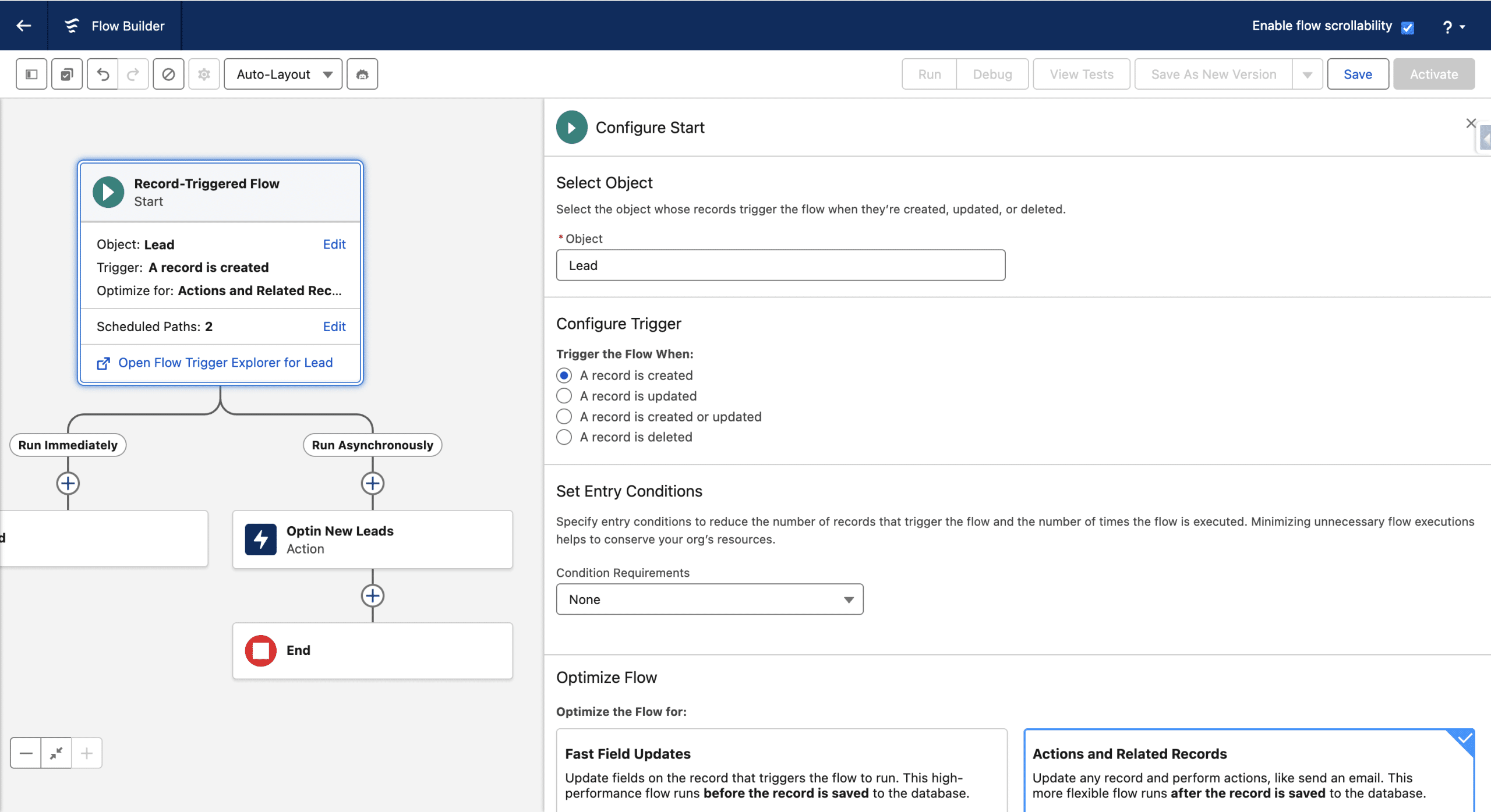
3. Salesforce Record Triggered Flow
This type of Flow is not exclusively a Marketing Cloud Next Flow, and Salesforce Admins have been leveraging it for years. Such a Flow is triggered whenever a Salesforce record is created or updated and satisfies specific criteria you define. It may seem similar to the Prospect, Lead, Contact or Related Record Change event in an Automation Event-Triggered Flow that we already described, however, a Salesforce Record Triggered Flow can be triggered from any Salesforce Object and you won’t find the Send Email Message as an available activity for example.
Note that on this type of Flow you can create an Asynchronous branch.
Typical use-cases:
- notify the Marketing or Sales Team that a Lead or Contact was created
- declare a new Lead or Contact Consent using the MessagingConsentV2.MessagingConsent Flow action.
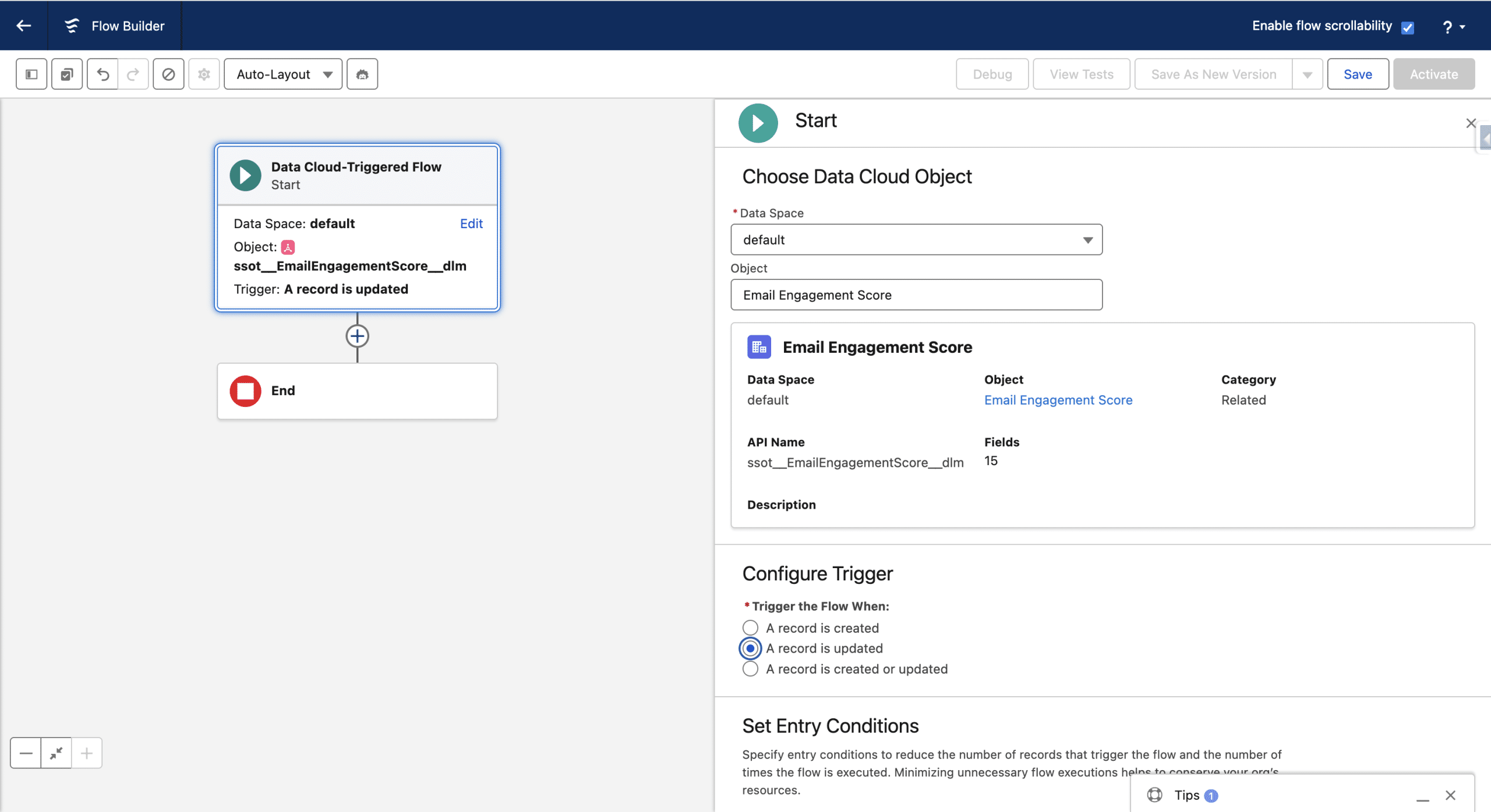
4. Data Cloud Record Triggered Flow
A Data Cloud Record Trigger Flow is triggered when a new record is updated or created in a Data Model Object (DMO) or a Caculated Insight.
Typical use-cases:
- Add an Individual into a Campaign when the Calculated Life Time Value reaches a given Threshold
- Convert a Prospect into a Lead when the Engagement Score is high enough
- Leverage the Create Consent activity
API Triggered Flows
5. On-Demand Flow
This type of Flow must be called using a call to the REST API (from a 3rd Party App, Apex or another Flow). An External Client App handles the Auth and you can specify which profiles are allowed to use each Flow. Once called they execute quite in real time. The underlying HTTP POST call is made of the following values:
| Input | Parameters description | Mandatory |
|---|---|---|
| EmailAddress | The individual’s contact email address | No |
| IndividualId | The identifier for the individual DMO | Yes |
| TelephoneNumber | The individual’s contact phone number | No |
| ProcessingPriority | The priority assigned to the bulk request | No |
Here is an example of body payload that can be used, for example to send an email in the On-Demand Flow:
					{
"inputs":[{
    "EmailAddress" : "test@example.com",
    "IndividualId" : "18-digit Salesforce ID"
    }]
}
Note: if you use the Send Email Message in an On-Demand Flow, you must pass the EmailAdress parameter, and the email will be sent to that email address, even if it is not a Contact Point related to the Individual Id you passed. If you send a Promotional email, the Consent related to the EmailAddress parameter is checked at sent time: the email is sent in case of OPT_IN, the Flow errors otherwise.
Use the following end-point:
POST /services/data/v65.0/actions/custom/flow/FLOW_API_NAME
You must define the Profiles allowed to run this Flow the API, using “Edit Access” from the Flow list (other than Recently Viewed)
You can get the Individual Id passed as a parameter from the Flow Profile > Attributes > Individual Id. If you passed an the Email Address, you can access its value in the Flow using the Flow Profile > Contact Points > Email (same is true for the Phone number).
Since Spring ’26, in an On-Demand Flow, you can pass data to a message using the same Apex Personalization we used in Individual-Related Record Event.
Typical use-case: Send a SMS message that triggers after a user signs up for a membership program.
6. Broadcast Flow
As On-Demand Flows, Broadcast Flows are triggered via the REST API. While On-Demand Flow are triggered for a specific Individual, Broadcast Flow are related to an entire Segment. The Segment must be a Dynamic Segment type. This type of Segment cannot be normally refreshed, is composed of Individuals and combines static conditions and Dynamic conditions: values that are determined at execution time based on variables passed by the flow.
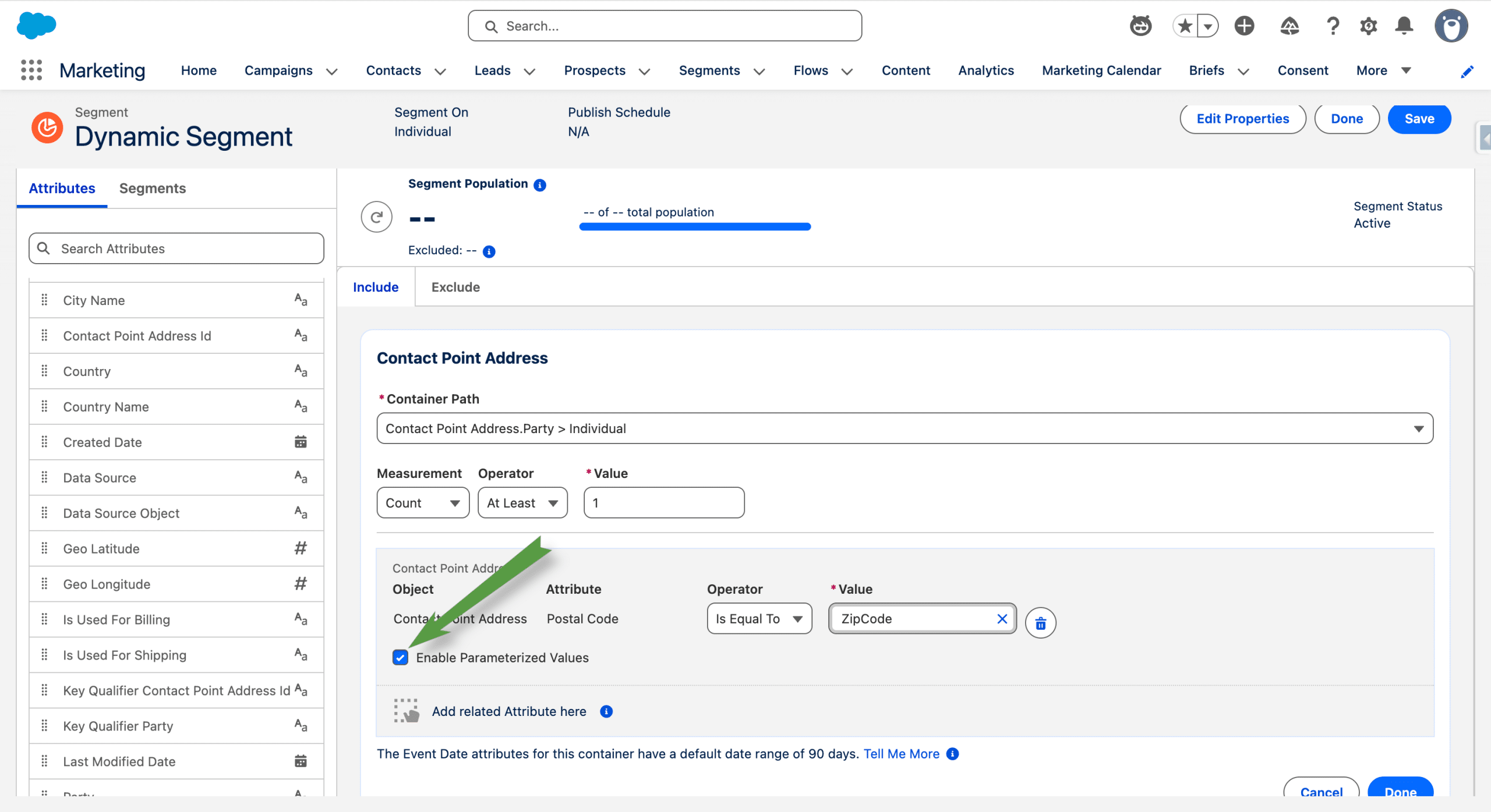
On a Dynamic Segment Criteria, you can activate the “Enable Parameterized Values” option. For example, here on the Postal Code attribute, this options means that we won’t create the Segment based on a static Postal Code, but rather, its value will be passed to the Dynamic Segment from the Flow, as a variable called ZipCode.
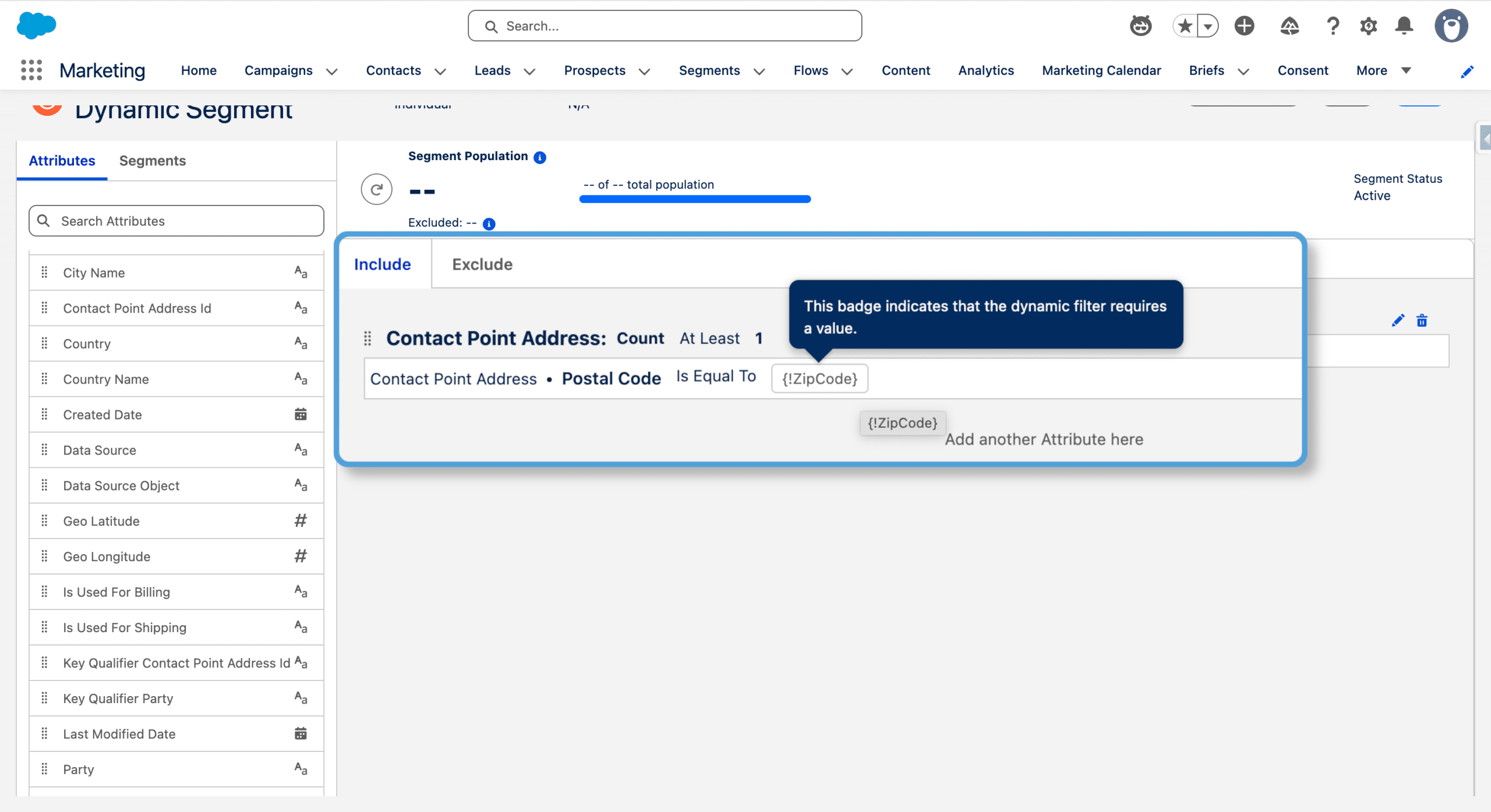
A Broadcast Flow must be associated with a Dynamic Segment. When triggered by the REST API (3rd Party App, Apex or another Flow), the following happens:
- The Flow passes the parameter/s the Dynamic Segment expects
- The Segment is refreshed and contains Individuals matching its criteria, including the dynamic ones (Postal Code in our example)
- Every individual is injected in the Broadcast Flow
POST /services/data/v65.0/actions/custom/flow/FLOW_API_NAME
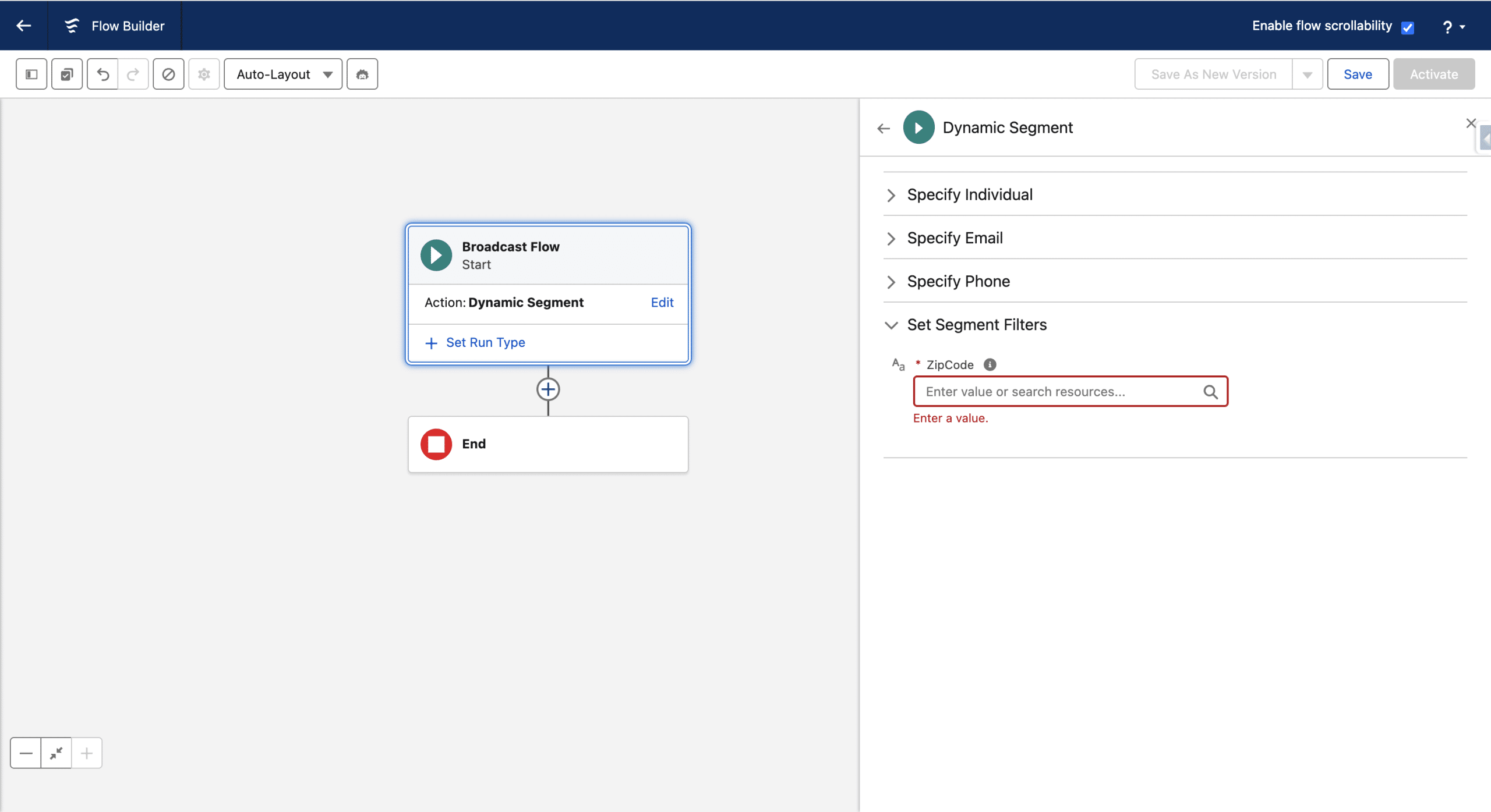
The value of the Segment Filters can be anything, but most likely it is a values passed to the Flow when triggered (use one or more Variable with the same name as the JSON paylod parameter and check “Available for input”). In our ZipCode example, we would create a Variable with name ZipCode and the “Available for input” attribute. It will be’ used to refresh the Segment (and for Email personalization using Apex for example). The JSON paylod would look like this:
					{
"inputs":[{
    "ZipCode" : "Your Code"
    }]
}
Broadcast Flow can either run in Synchronous or Asynchronous mode. Use this latter option if you want to use Wait activities in the Flow. If you use the Send Email Message in the Flow, you need to define a Contact Point Email DMO, in the Specify Email section of the Dynamic Segment and check the Included toggle next to it.
Typical use-case: notify affected customers in a specific town of a network outage.
7. Activation-Triggered Flows
An activation-triggered flow is a special type of background automation that runs when a Data Cloud activation is published, meaning when a segment or data model object is activated for delivery to a target. In Marketing Cloud Next, this can be when a Segment of Unified Individuals or of Individuals is Published.
Before we use a Segment to trigger an Activation-Triggered Flow, we need to create an Activation Target in Data Cloud, this is simply the definition of a target to send data to. There are multiple various targets, like a file storage or an advertising plateform. To trigger a Flow, we create a Data Cloud Activation Target.
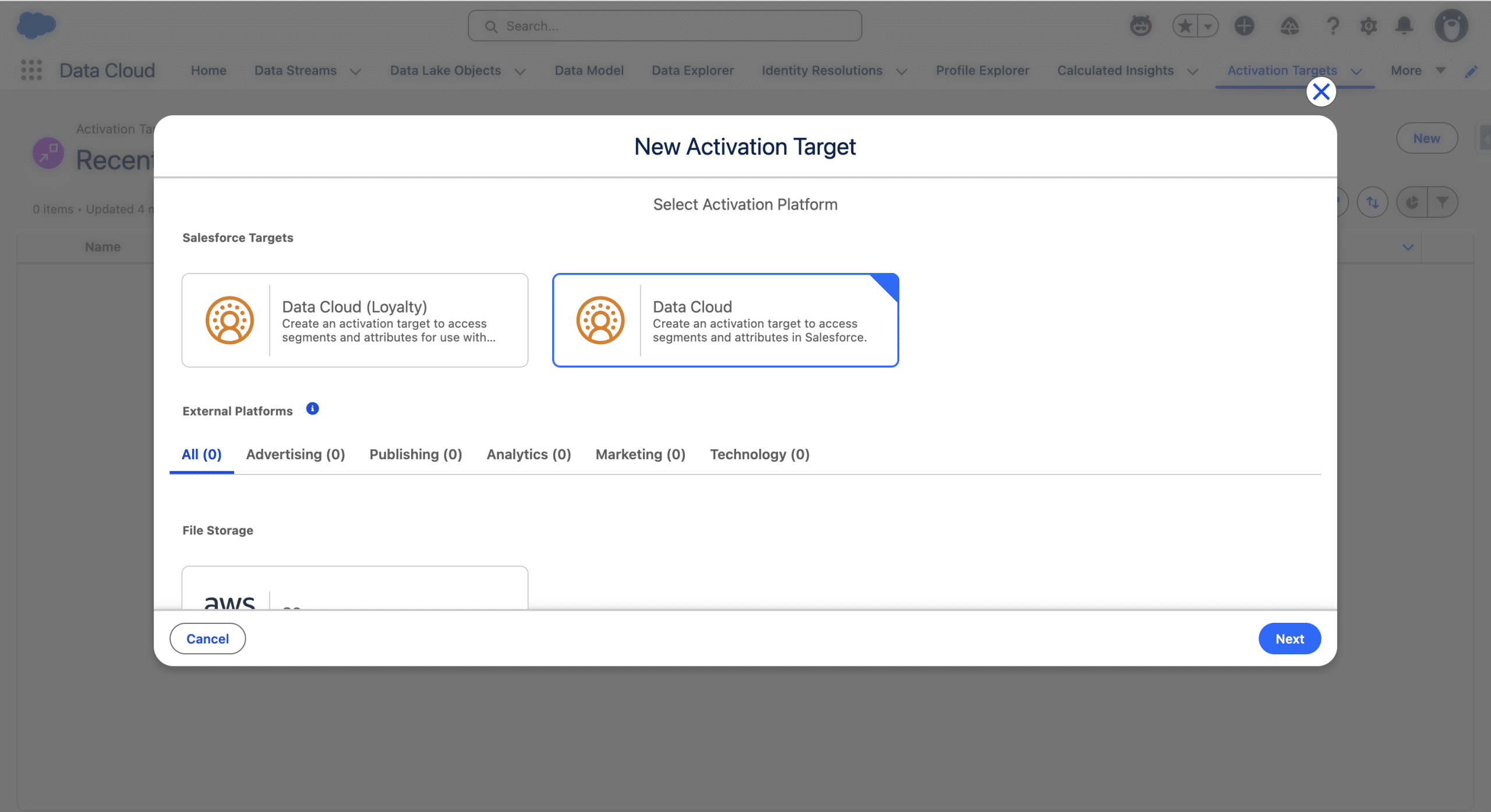
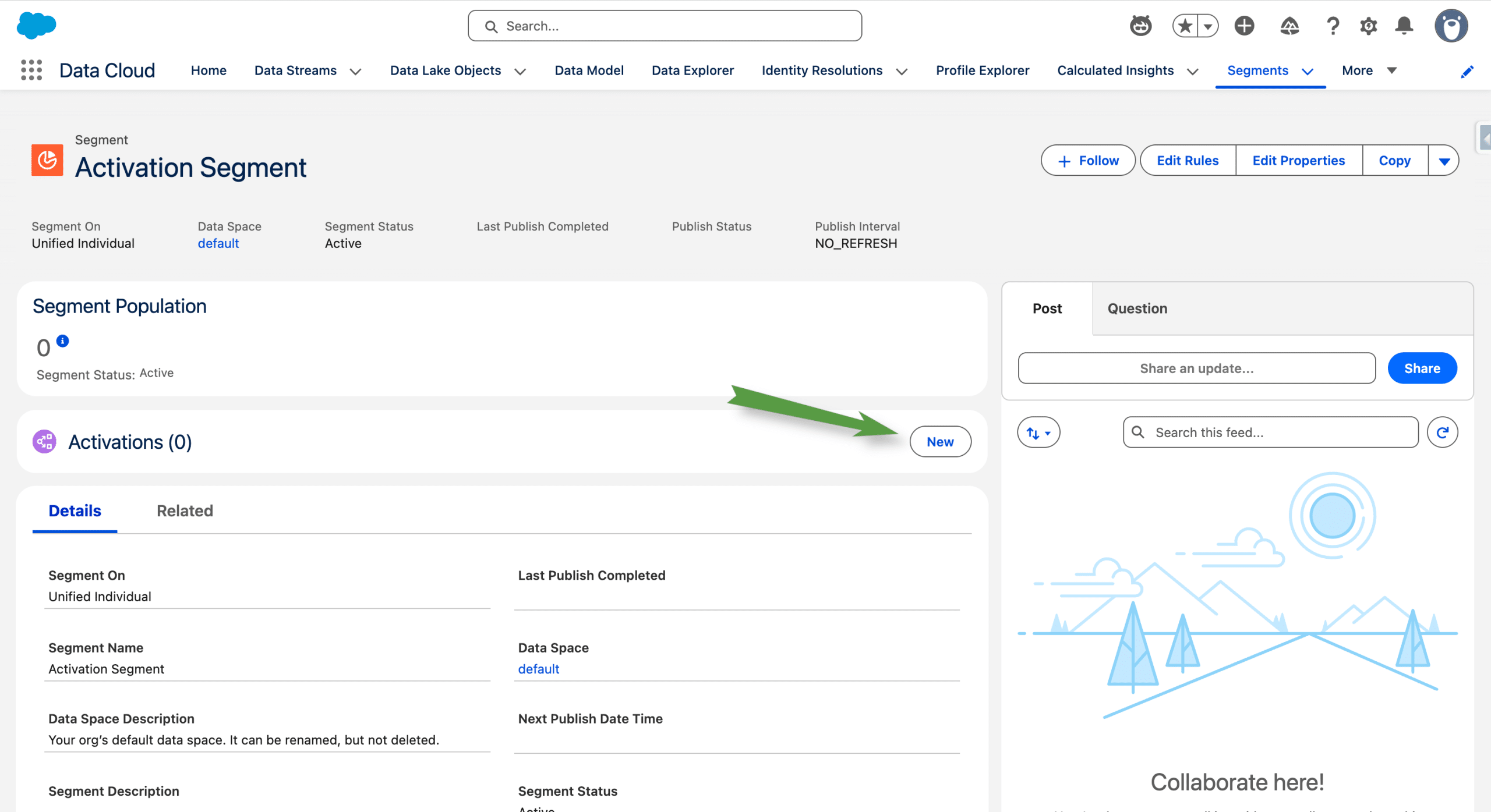
We give a name and specify the Data Space, then we save it. We can now use it from a regular Segment by creating a Activation.
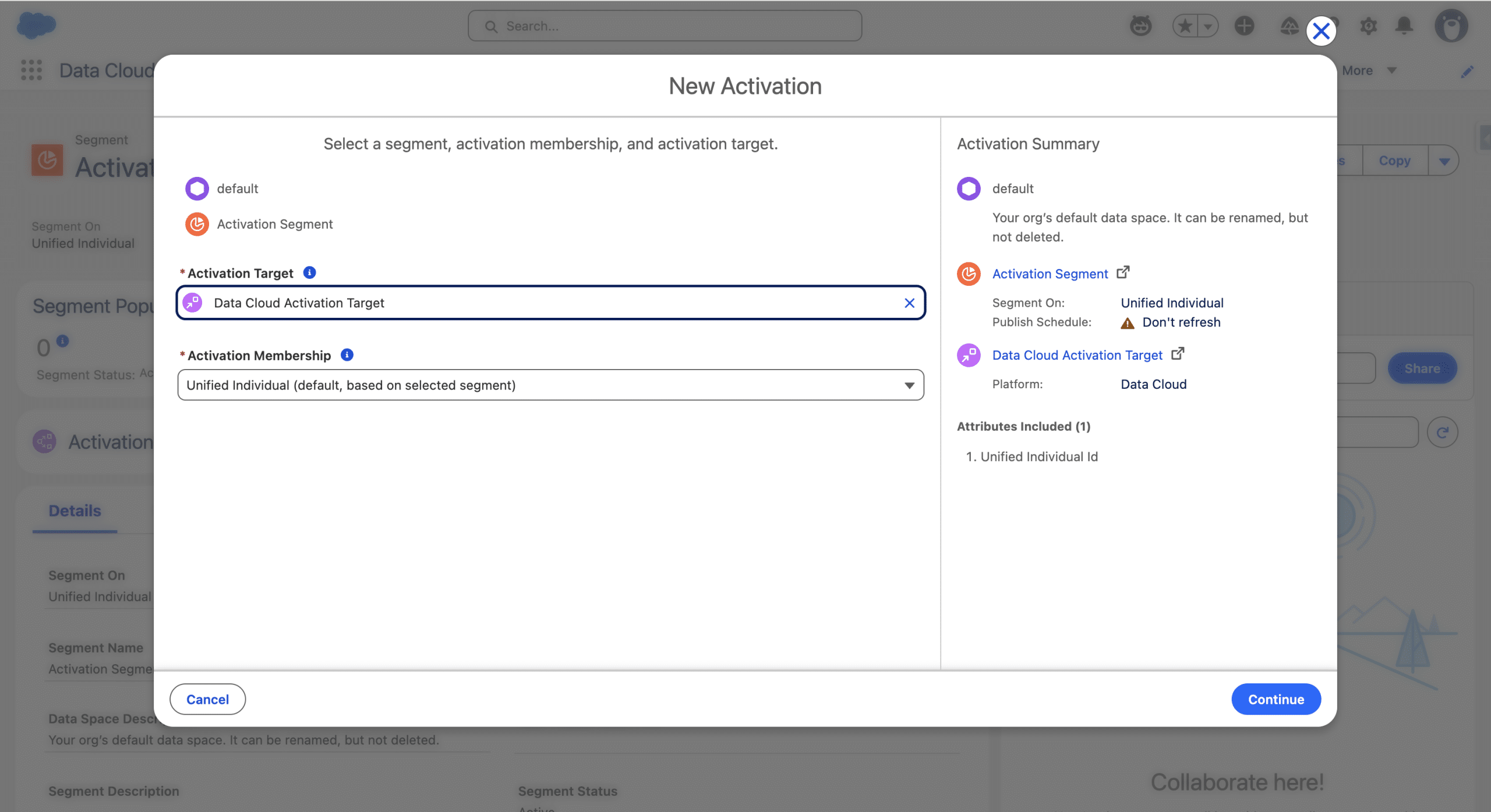
Then we select our previous Data Cloud Activation Target (the Activation Membership is left as-is).
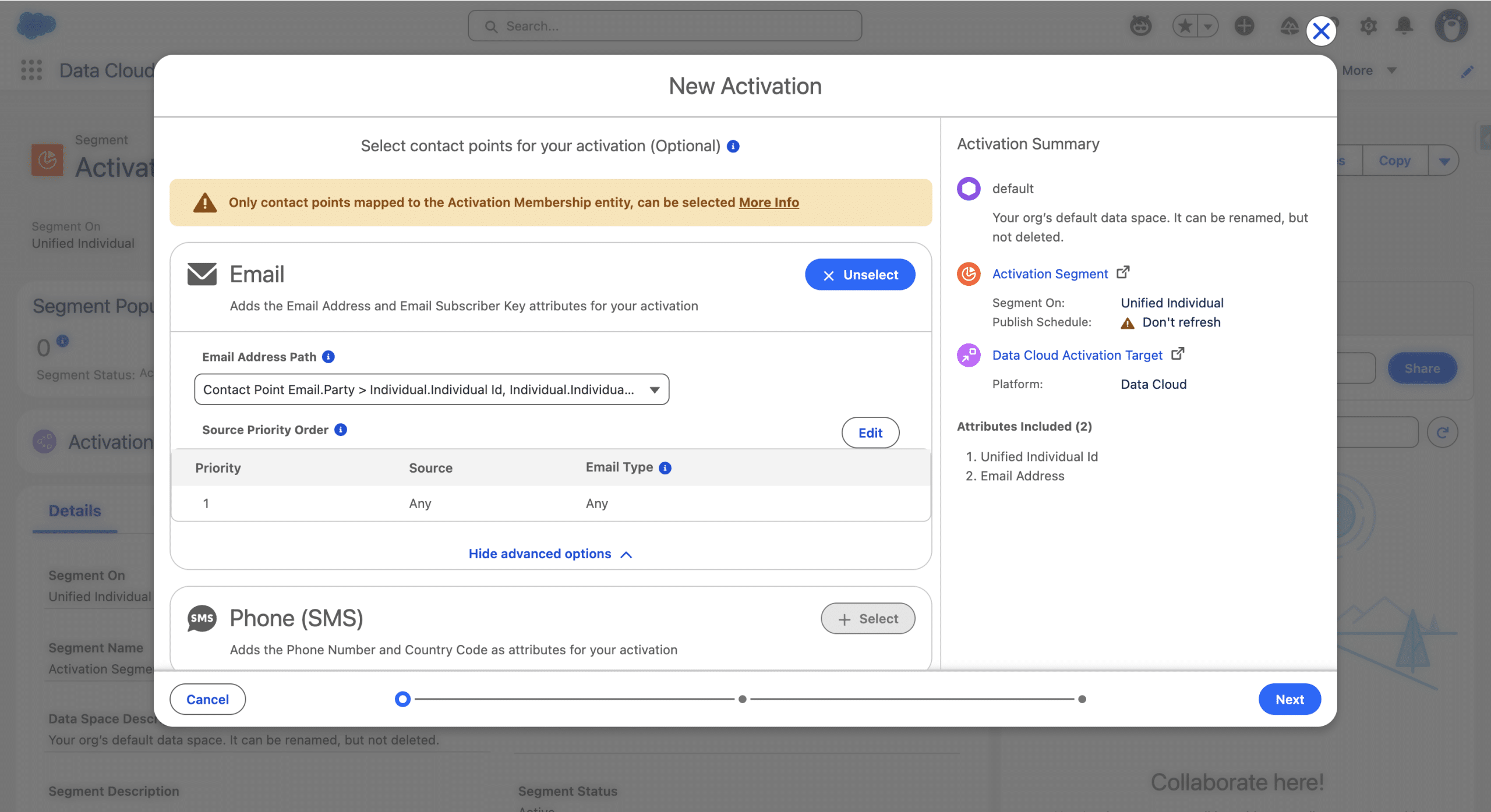
Then we select a Contact Point that the Flow will use.
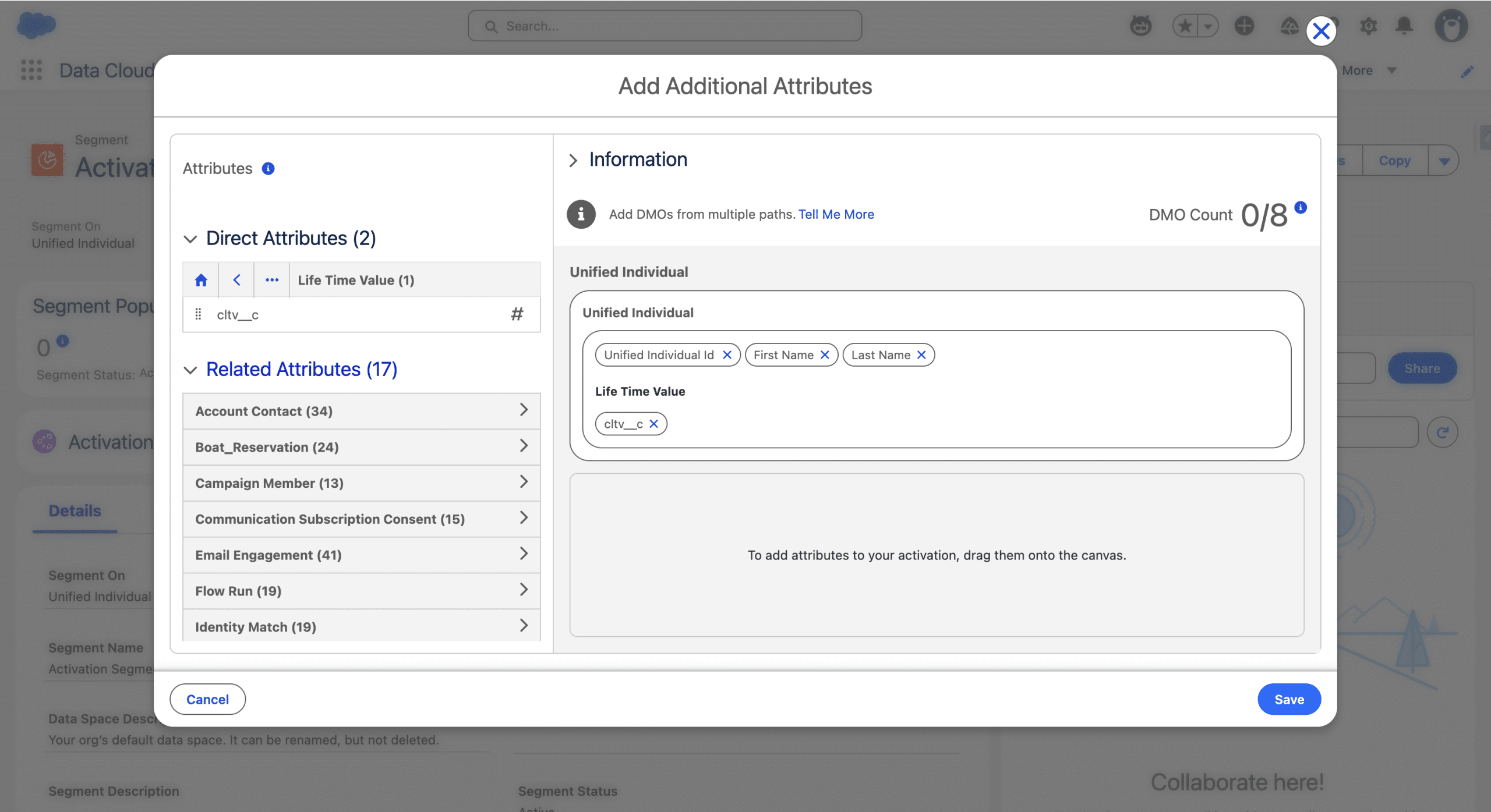
We can also specify which attributes we want to make availabe to the Flow (for message personalization and Flow decisions). We can use Fields from the DMOs or Calculated Insights.
Our Activation is now ready to be used in an Activation-Triggered Flow.
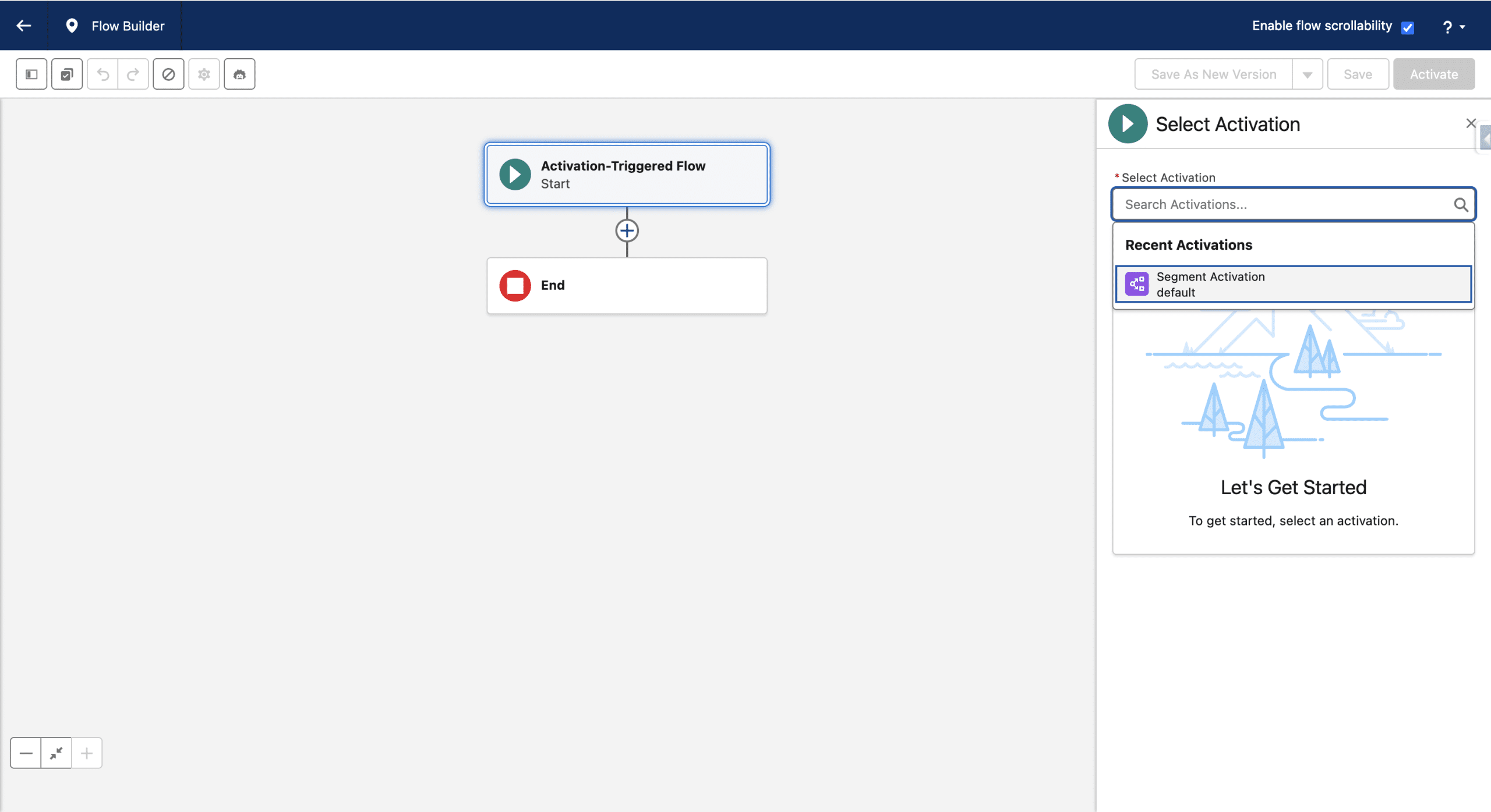
In the Flow, you can access the Attributes, for example in a Decision Split using the $ActivationData variable.

If you want to access the attributes from an email sent from the Flow, add a new Data Source types, choosing the Activation Data Provider type. You can then use the data from the Activation as you would with a regular Data Graph or Apex Class Data Provider.
Every time the Segment is Published (refreshed), either manually or during a scheduled publish (options are every 12h or 24h), the Flow will run, and you can define how you want a given Segment member to rejoin the Flow (Always, After Completion or Never).
Typical use-cases:
- Trigger a message send simply by publising the Segment
- Personalize your messages to Unified Individuals without relying on the Data Graph
8. Autolaunched Flows
Not Marketing Flows per-se, Autolaunched Flows are very handy. From another Flow, they can be triggered as Sub Flows, input parameters can be passed and outputs can be accessed from the calling Flow. This is a perfect way to create a library of reusable Flows. We did this in Campaign Members for Unified Individuals. Another example is Upsert a Record for a Person, which is a Flow template that can be used as a sub Flow and is available in Marketing Cloud Next.
Typical use-case: enrich your flow actions with sub flows covering common needs
Final Thoughts
Omni Channel Flows orginated as routing facilities from Service Cloud. They are not Marketing Flows per-se, but they play a role in customer facing Agents, like Inbound Lead Generation Agent.
In this article, we focused on the types of Flows that a Marketer should know about. We did not dive into the Marketing Activities. Every Flow has standard Actions available (Logic, for example Assigments or Data, like Create Records, etc.) and Marketing Cloud Next adds a set of Marketing-oriented actions. Here is the List of such elements. Each Flow type and Activity type has its own rules, for examples see common errors in Form Triggered Flows.