
Augment your Data Cloud Model, to streamline the segmentation process and easily use new data from Salesforce.
New to Data Cloud? Start with the survival guide
Unified Individuals are created by the Identity Resolution Process, and from all the matching Individual Fields, a Unified Individual is created, and the Field values are determined by the Reconciliation Rules.
Individuals are created in the Individual DMO, which, thanks to the mappings, is feed with Contacts, Leads, Prospect (which was introduced in the Spring ’25 release) and anonymous (site visitors) data.
To be usable by MCG/A, Segments must made of Unified Individuals, and the process of Segmenting is defined by the Criteria you add.
There are 3 types of criteria that you can use to segment your Unified Individuals :
- Direct Attributes : those are Unified Individual Fields. In this article we’ll see how to add one.
- Related Attributes : those are Fields from DMOs having a relationships with the Unified Individual DMOs.
- Calculated Insights : Computed Fields related to the Unified Individual (for example a Score).
Step 1: Add a Field in Salesforce
Let’s say you a have created a Form Triggered Flow in MCG/A. In that type of Flow, it is best to create or check for an existing Record (Prospect / Lead or Contact). Actually, if you are sending an MCG/A Email from such a Flow, that step is mandatory, and it must be the first activity of the Flow Interview.
In that Form, we’ll gather feedbacks from a recent event of ours, so we’ve sent an Email, using a Segment Triggered Flow, with a Call to Action, redirecting to a Landing Page embedding the Form. So we need to create a Field, for instance on the Lead Object in Salesforce. Let’s call it “Event Comment” and make it a Text Field.
Step 2: Allow Data Cloud to access this Field
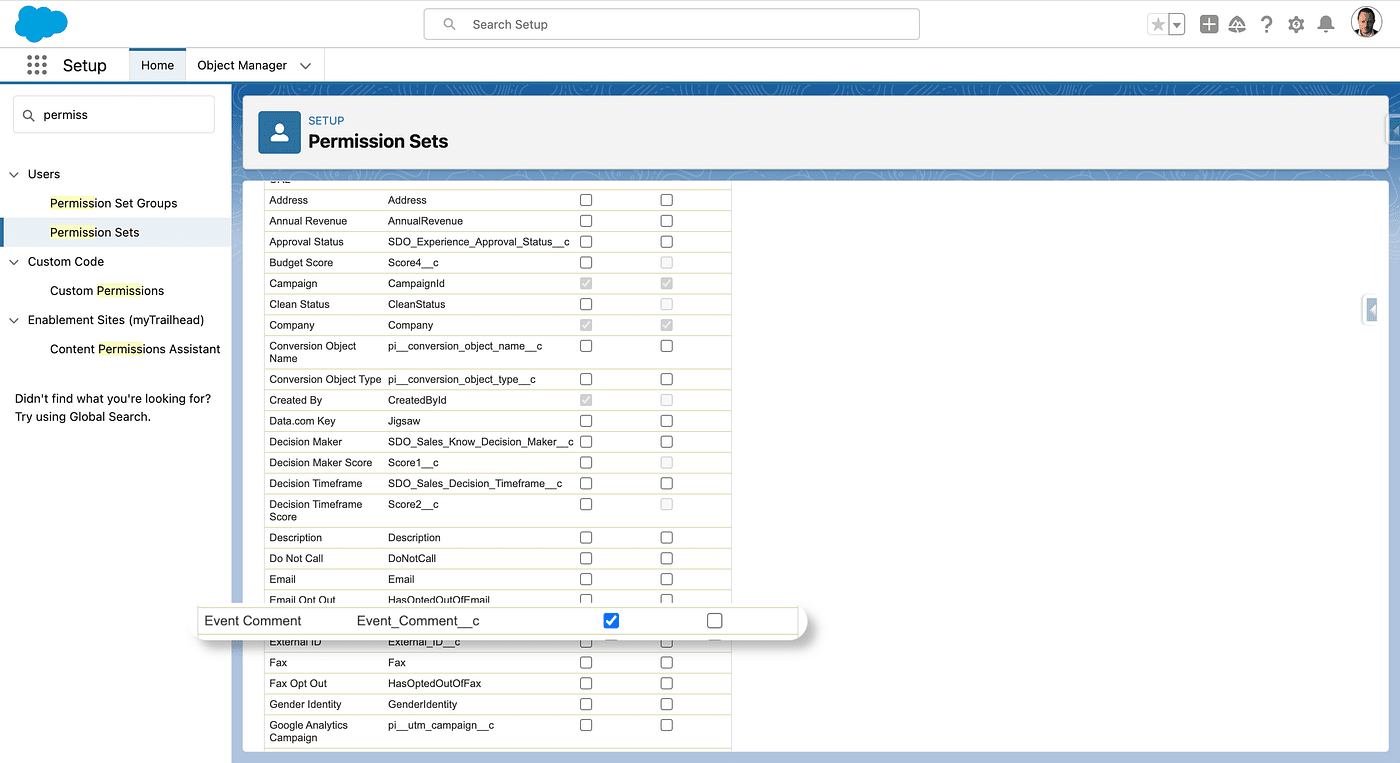
For this, you need the Permission Set “Data Cloud Salesforce Connector”, and click the Object Settings link and open the Leads Object, Edit it and set the Read Access to the Permission Set.
Step 3: Create a DSO Field
Out of the Box, Data Cloud has a Data Stream Object called “Lead_Home” mapped with some Fields from the Salesforce Lead Object.
For this we will click “Add Source Fields” and select our new Field. You may then perform a Refresh of the DSO if you want your new Data Cloud Field to be filled with the values of your Lead Records from Salesforce.
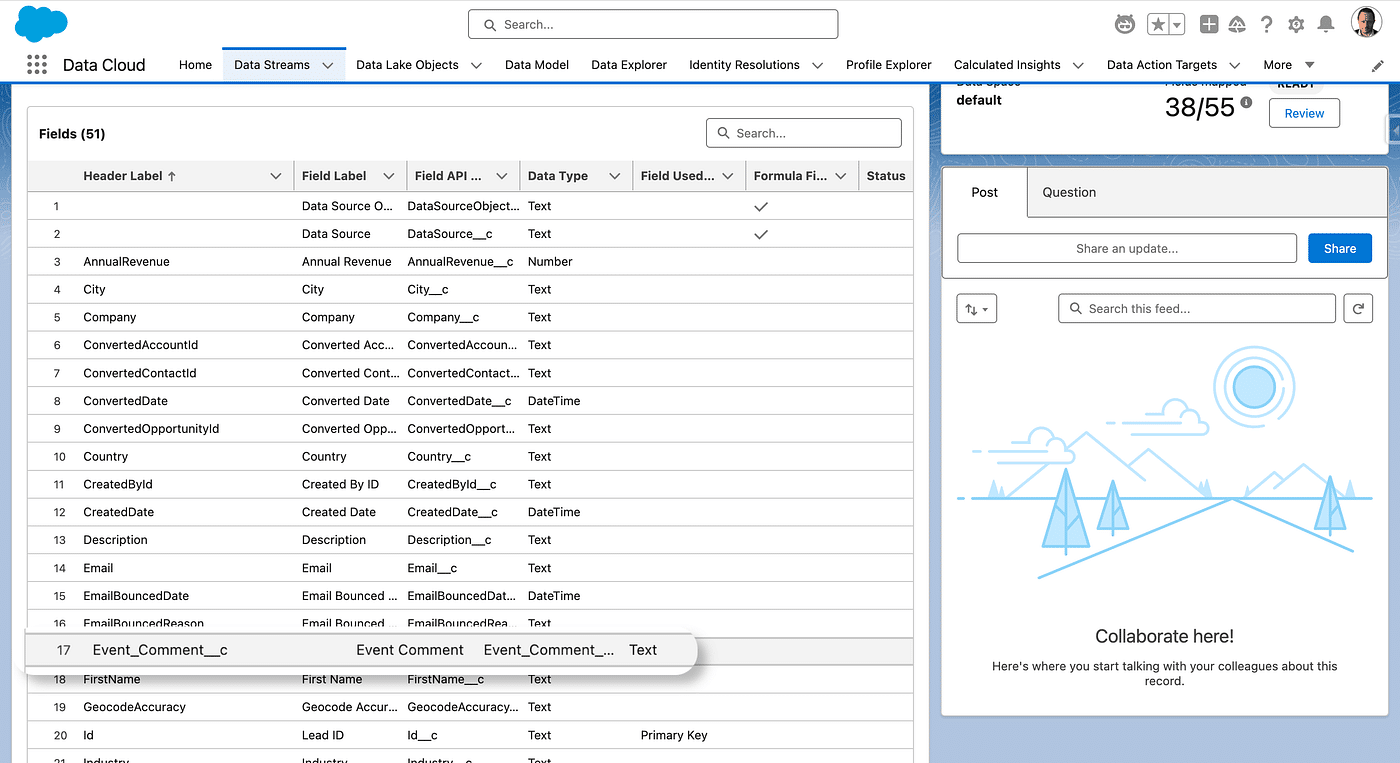
You could do the exact same operation on the Prospect or Contact object.
Step 4: Map our DSO to the Individual DMO
We now want our data to go one step further into Data Cloud. The Lead Object is mapped to the Individual DMO, which Unified Individuals are aggregations of. So, we will edit the Lead_Home DSO mapping by clicking the Review button.
On the left side, we have our unmapped Field “Event Comment” and we want to be mirrored in a new Individual Field. We could pre-create the Field at the Individual level, or create a new one directly from there, which is the option we’ll choose. On the right side, click the Unmapped section of the Individual DMO. All unmapped Fields are presented, along with a link to create a new Field.
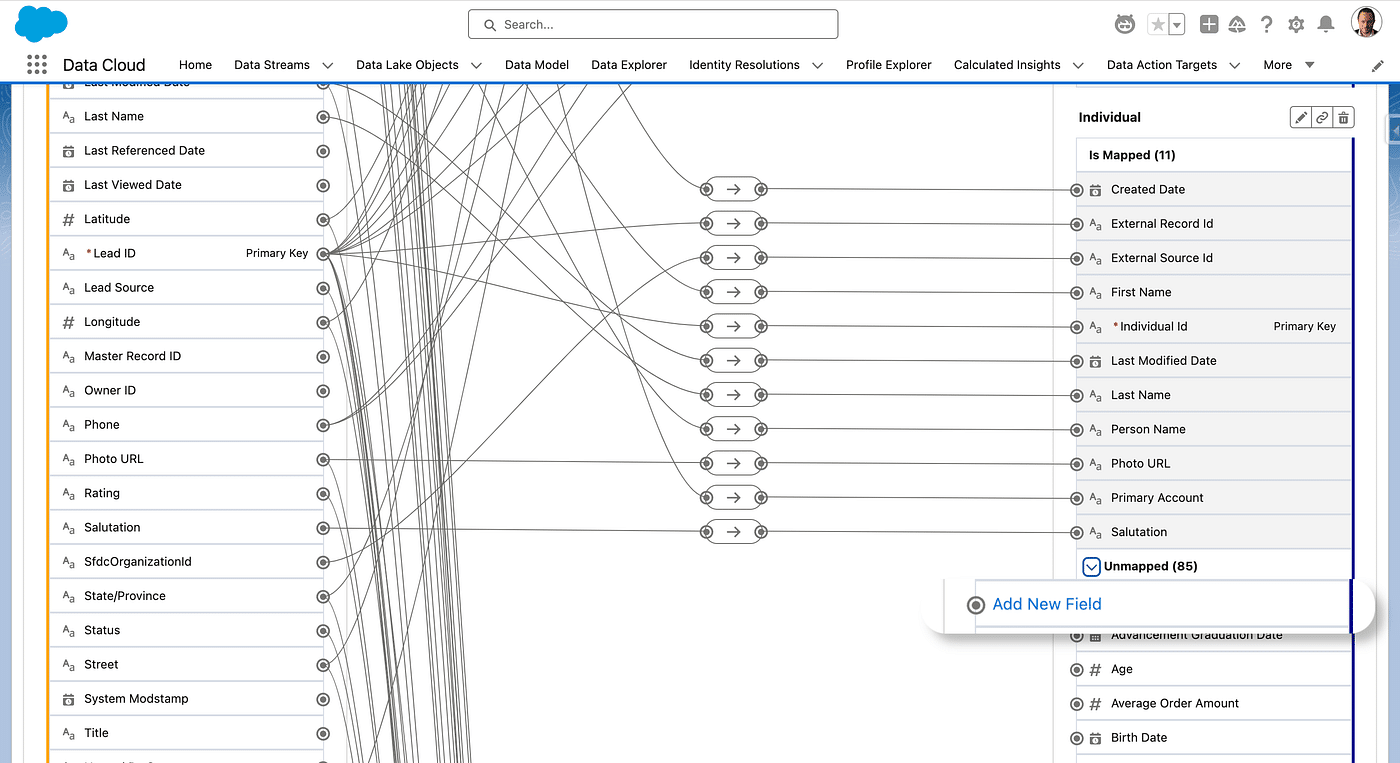
We’ll call it Event Review, or whatever name you like (even Event Comment, same as the original Field), and use a Text format for it. Then we click on the original field on the left side (DSO) and on the new Field on the right (Individual DMO) which creates a link betwen the two fields. Save the mappings, and now, whatever you add in the Event Comment in Salesforce will eventually be the value of Event Review in Data Cloud’s corresponding Individual.
You could now map the Event Comment in Contacts and Prospects and map them to the Individual Field Event Review (no need to create a new Field, unless you want separate storage depending on the synced DSO).
Once fields exist, you can enrich Unified Individuals
Step 5: there you have it
Once the Field is created and mapped at the Individual Level, it is available at the Unified Individual level as a Field, which can be used for segmenting, can be displayed back on the Lead layout (Data Cloud copy Field feature), used as Merge Field (just modify your Data Graph to embed it).
If add a value or modify it on a Lead Record, then, the Unified Individual will get the updated value, once the Lead_Home DSO is refreshed and once the Identity Resolution process has run (once a day).
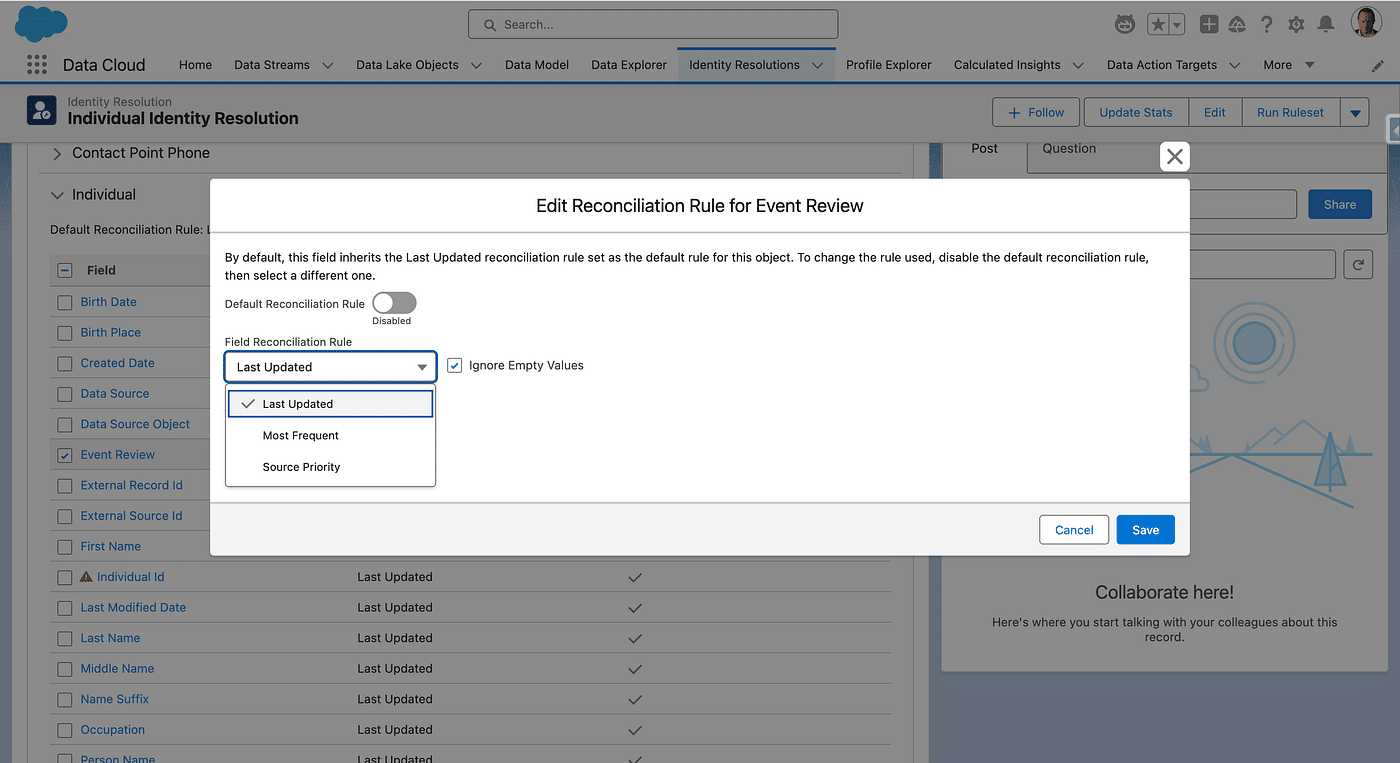
Finally, in case you have several Individuals (Prospects, Leads or Prospects), you need to tell Data Cloud Identity Resolution process which one to choose. This is done at the Reconciliation Rule level, which we discussed at the beginning of this article : there are 3 options once you leave the default DMO-based rule:
- Last Updated: the individual which was last updated on that field will be the reference.
- Most Frequent: in case you a predefined set of values (not the case in our Text Field example) you may use the most used value as the reference.
- Source Priority: Choose and select the order in which of Contact, Lead, Prospect and Anonymous will impact the reference.
Final Thoughts
If you want to keep all values of you Individuals, and be able to use them in a Unified Individuals, regardless of the Reconciliation Rules, then create a new DMO and add whichever value from your DSOs using a Data Cloud Transformation. Create a relationship between Individual and your new DMO. In the example below, our Prospects, Leads or Contact can have one or more Workshops.
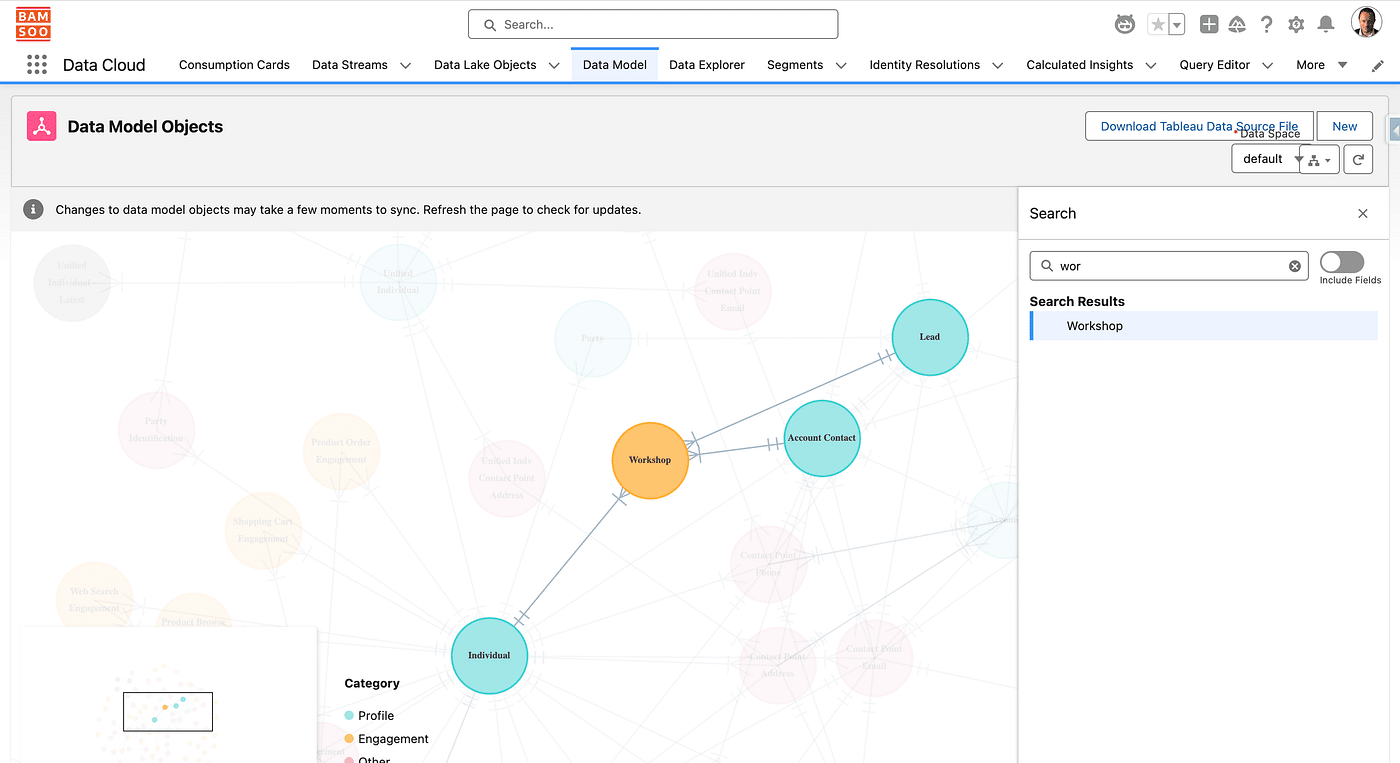
At the Leads, Contacts or Prospects Layout, you will then be able to display all Workshops the Unified Individual the current Record is linked with has. This is done using a Related List called Data Cloud Profile Related Records.