If you use Marketing Cloud Account Engagement and MC Next (Agentforce Marketing) at the same time, it is important to have a sync mechanism for email Consent between the two tools. In Winter ’26 Consent Matching was introduced for this very purpose.
Consent Matching
How does it work?
When you activate Consent Matching from Account Engagement Optimizer, a new Subscription is created in Marketing Cloud Next. Then:
- when the Consent status changes in MC Next (Consent Import, manually from the Privacy Consent component, or when a recipient uses the Preference Center) for that new Subscription, the global Opted Out in Account Engagement is modified accordingly.
- When Opted Out is modifed in Pardot (Import, Manually, click Unsubscribe link), the Consent status in Agentforce Marketing is changed to reflect the new value.
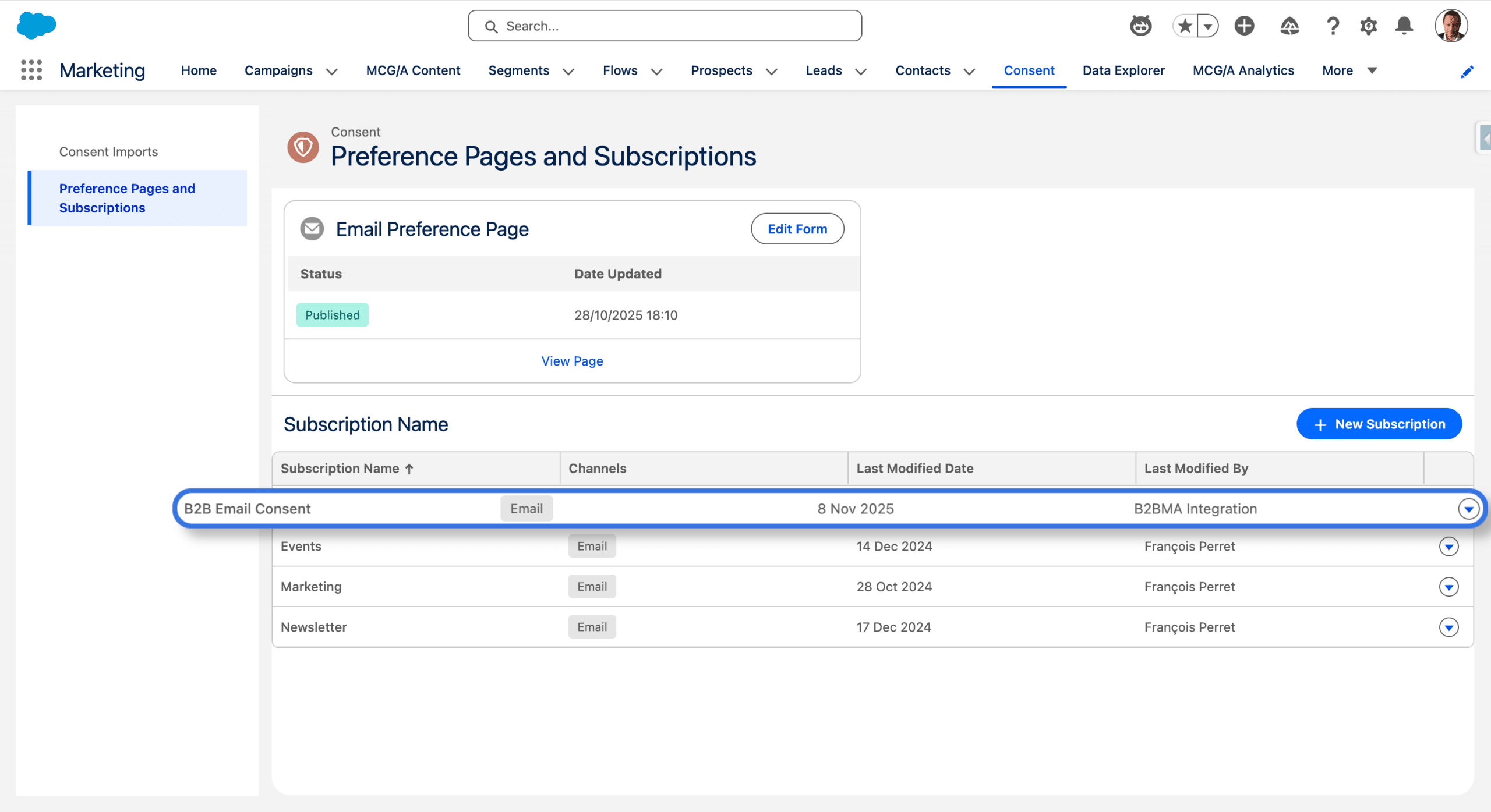
When activating the feature for the first time, a Consent Subscription called “B2B Email Consent” is created (see Consent Management in Agentforce Marketing if you need a refresher on Consent Subscriptions) and Consent Status records are created for that Subscription (Email Channel): OPT_IN or OPT_OUT, depending on the current value of the Opted Out field in Pardot for each Prospect. The email address is the matching key used between the two systems.
Configuring Consent Matching
First, to enable Consent Matching, you must define which Account Engagement Business Unit you want to keep in sync with MC Next, since the feature can only be activate in one Pardot Business Unit.
In Account Engagement Settings, select the Busines Unit you want, then Optimizer > Enable Marketing Cloud.
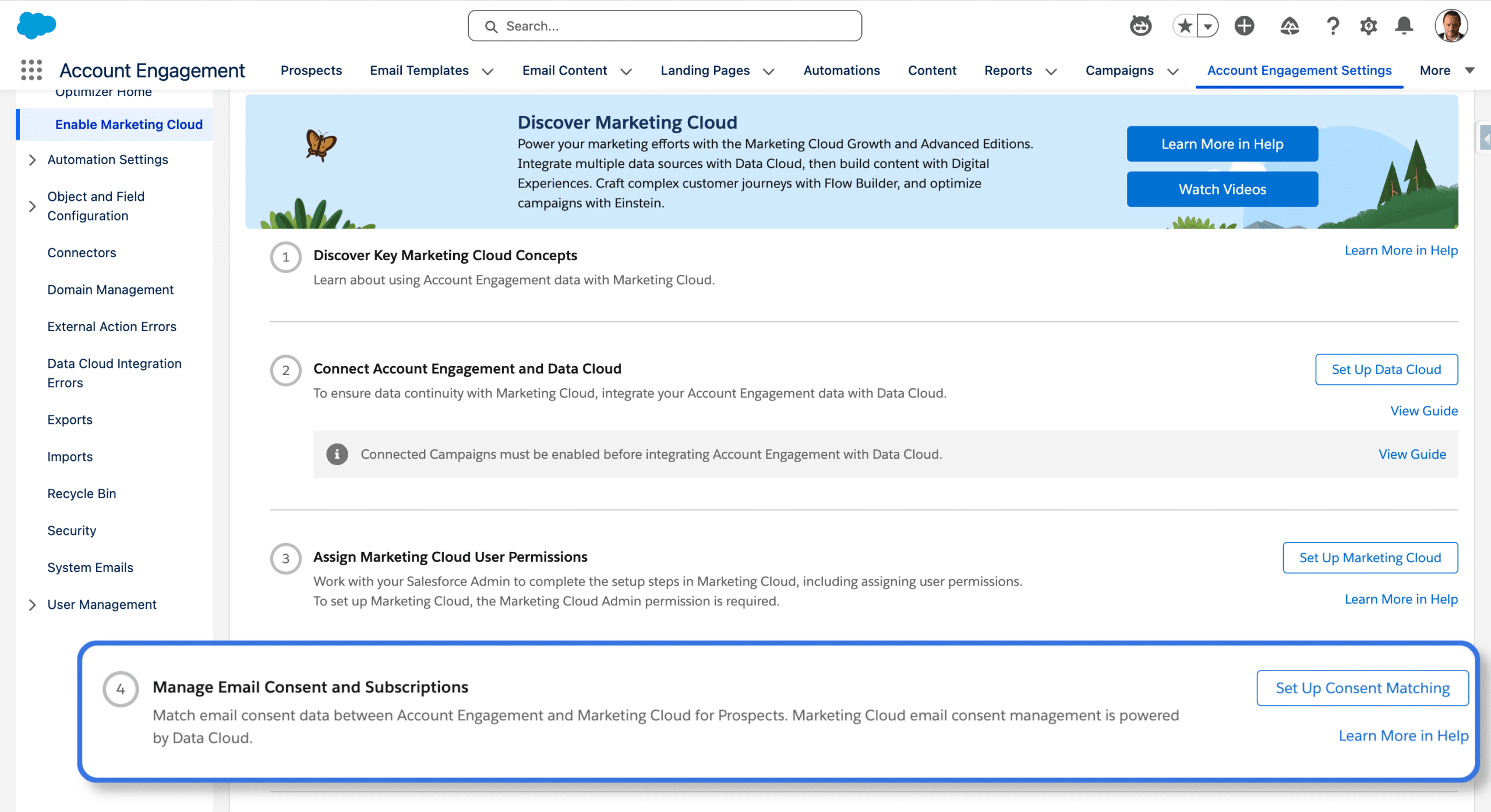
Click Setup Consent Matching and then Edit, and choose Prospect Email Opted Out as a Match Option.
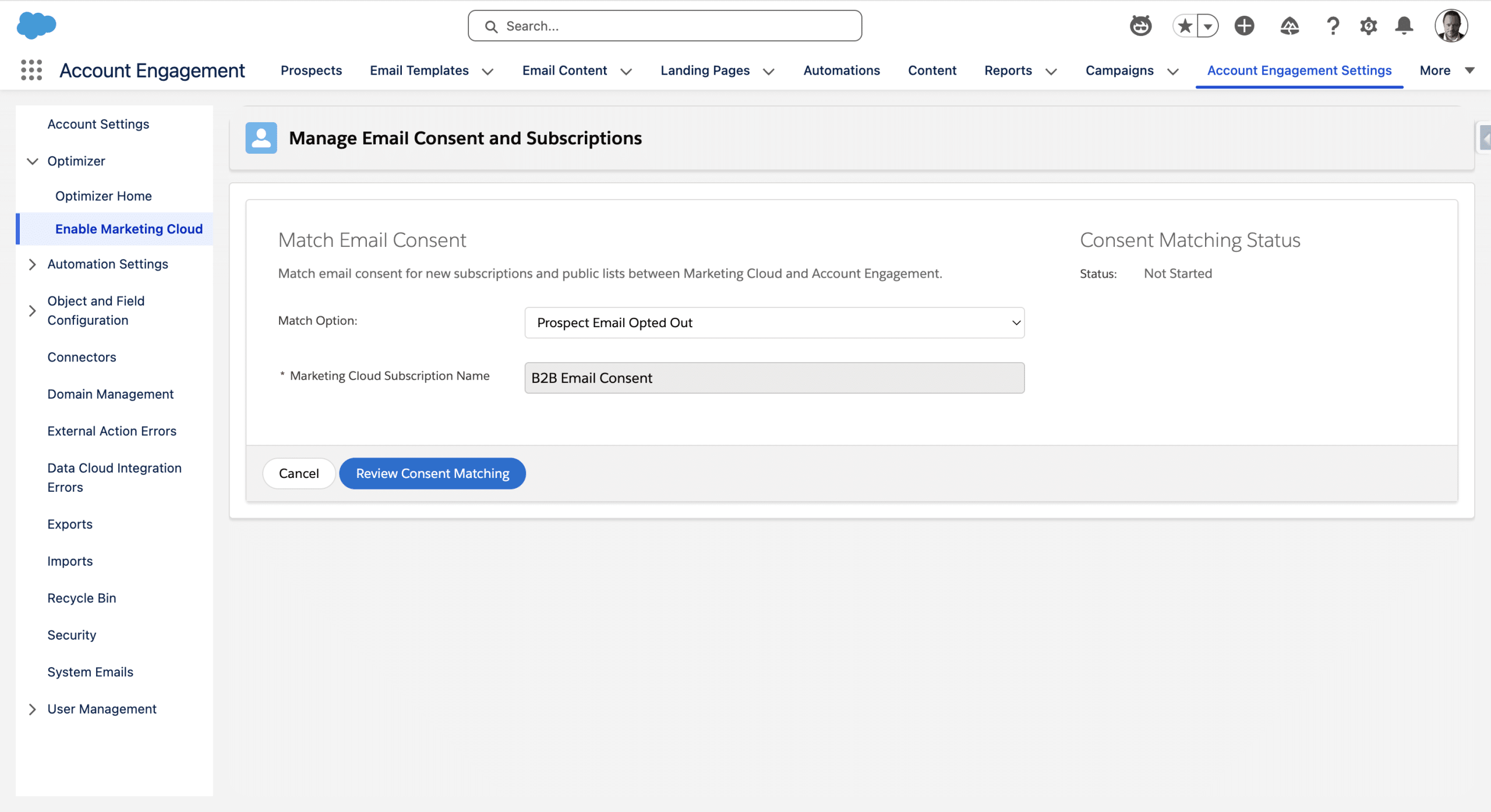
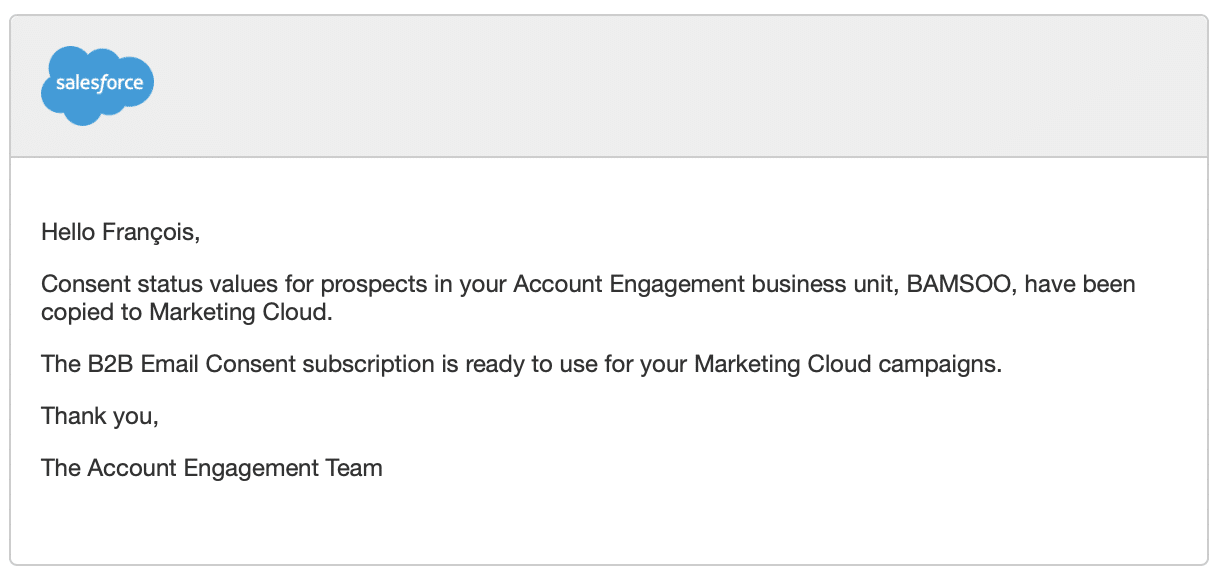
Finally, click Review Consent Matching then check “I understand and accept the behavior change.” from the pop-up and then click Match Consent. After some time, you should receive an email:
You may then ensure that the Subscription has actually been created in Marketing Cloud. Also from Account Engagement change the Opted Out value and ensure the tied Lead or Contact’s Subscription is changed accordingly (this is not immediate). Finally, change the Lead or Contact’s Subscription and check the corresponding Pardot’s Prospect mailability field.
Stop Consent Matching
You can stop the Consent Matching at the same place we configured it. The Consent will then stop syncing.
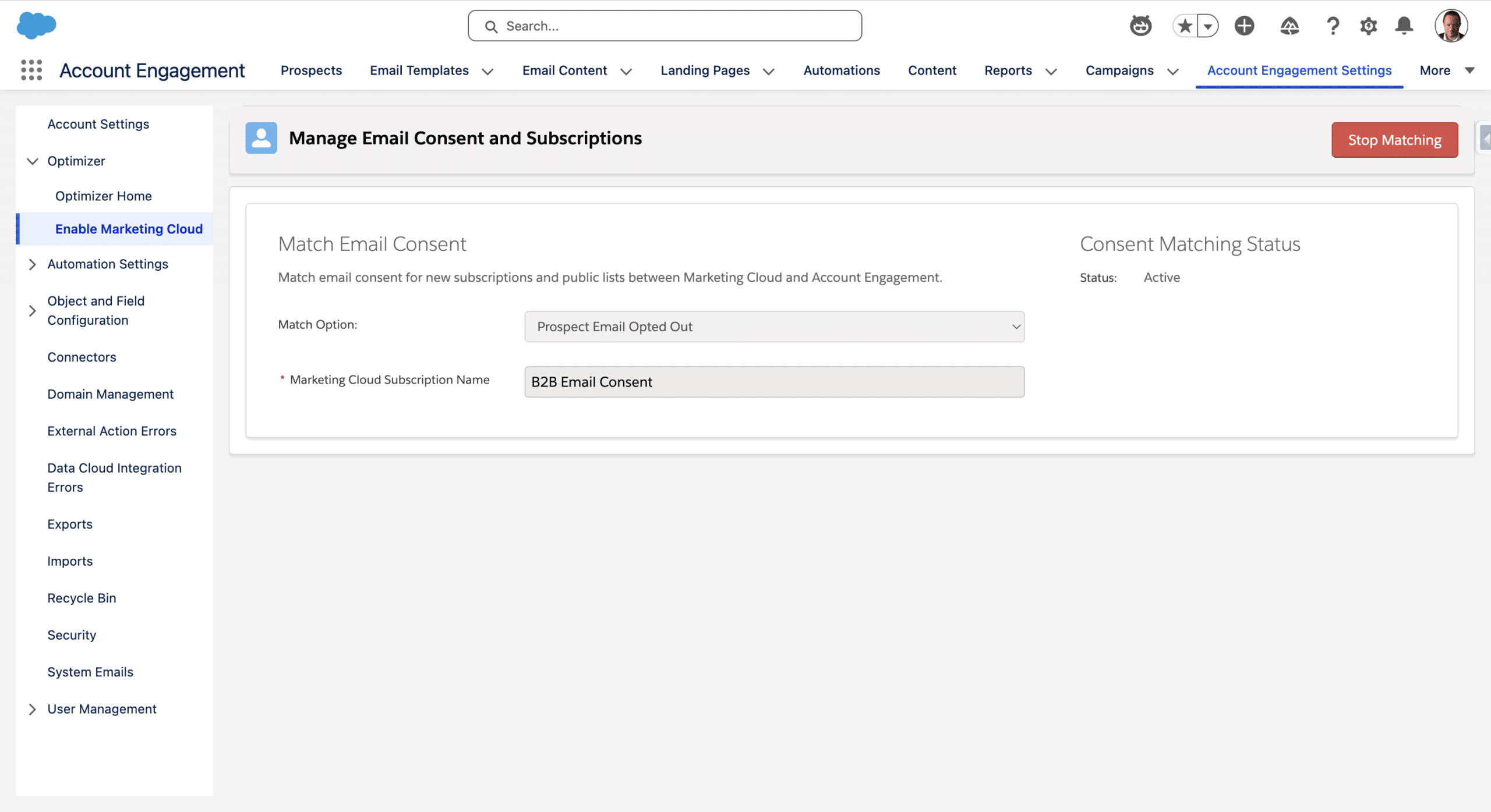
However, notice that, to restart the Consent Matching, you will need to remove the B2B Email Consent Subscription and then replay the whole setup.
Final Thoughts
Basically, Consent Matching keeps in sync the default (and global) Pardot Opted Out Field and a specific MC Next’s Subscription. But, Account Engagement also has a Public List feature, to handle Consent in a more granular way, something similar to Subscriptions. You can export a Public List from Account Engagement (or use the API) and use the exported data to import the Consent in any MC Next Subscription.
The MC Next Subscription will be in sync the Public List at the time of the import. This can be a good way to transfer Consent Data from Pardot to Agentforce Marketing, if you are migrating from one tool to the another, for example.
But if you want a Public List to be always in sync with a given MC Next Subscription, then you would need to recreate a two-way sync (from Pardot to MC Next, you may find some inspiration in Create Core Prospects from unassigned Pardot Prospects, and use a Automation Tirggered Flow based on Subscription changes for the other way).
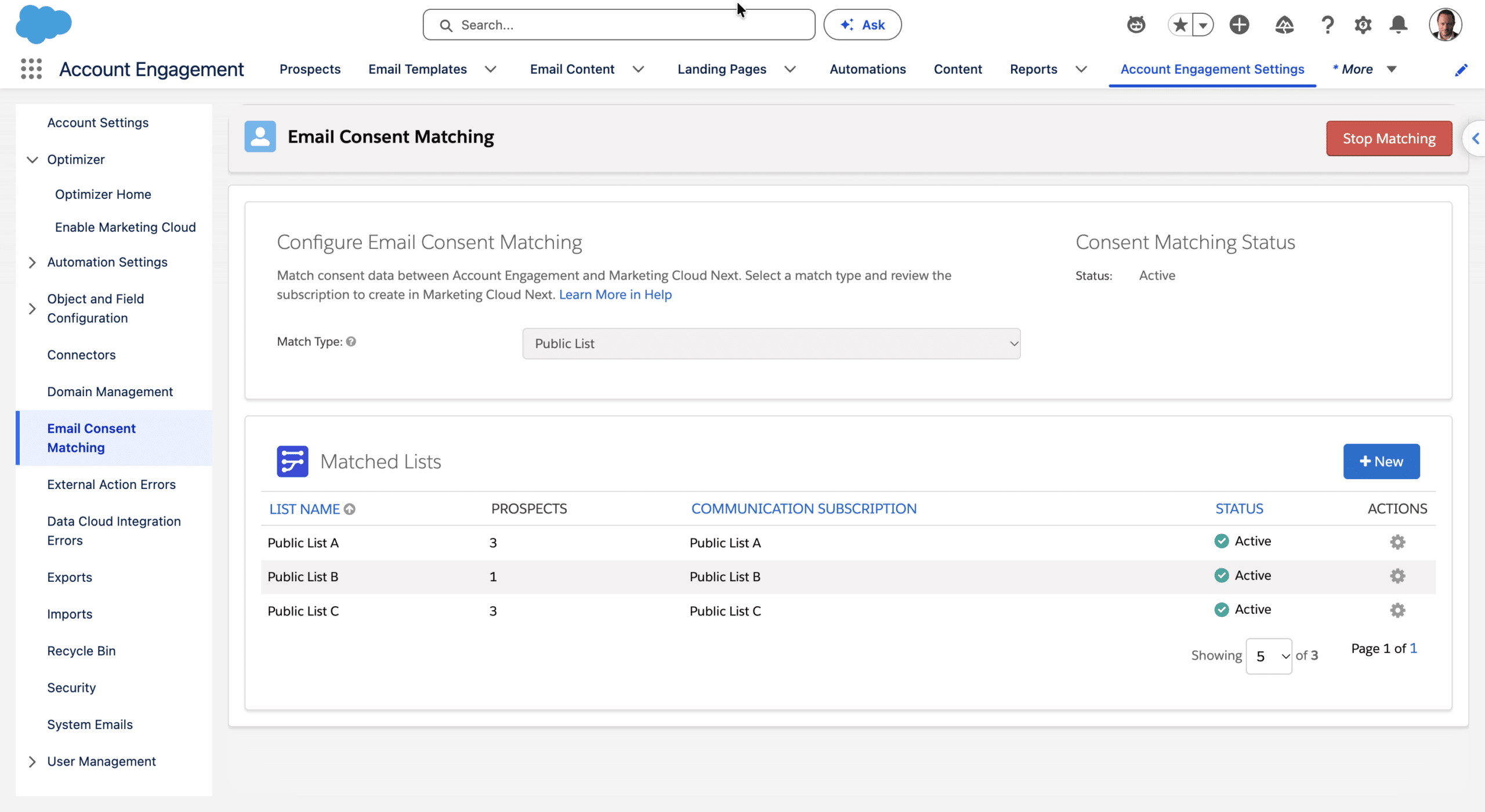
[Edit 2026/10/15] Consent Matching now handles Account Engagement Public Lists. You have the option to sync Opted Out to a new List, or, sync or more Public Lists to new Subscriptions.