
We have already talked about Campaign Creation and Content Builder Agents which are handy tools to create whole emails or refine paragraphs, but when using them, the final output often relies on traditional personalization like merge fields or repeaters, which can leave the core message looking similar for every recipient.
In this article, we’ll use Flex Prompt Templates from Agentforce to dynamically (that is at send time) generate email content. We’ll call the Prompt from a Flow and pass the AI generated outuput (grounded in recipient’s data) using the Apex Personalization we previously described to the email, which will then add it to the email as a simple Merge Field.
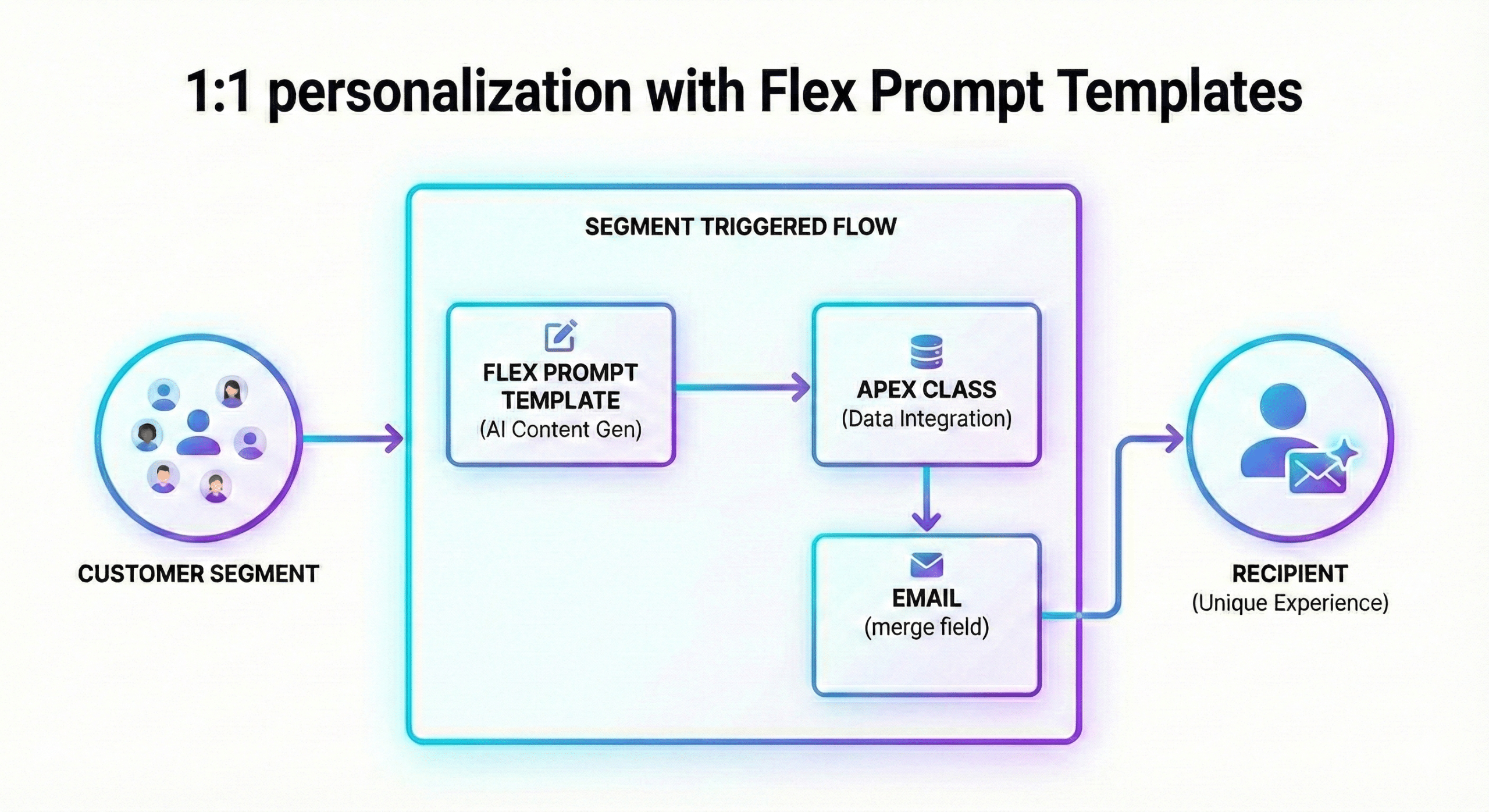
To illustrate this technique, we’ll send a birthday email to our customers (Contacts), containing an anecdote related to the birthdate of today’s celebrants.
Building the Segment
We’ll create a Standard Segment of Unified Individuals (as an alternative we could use a Segment of Individuals, which will be usable as Segment Triggered Flows in the coming Spring ’26) using the Visual Builder. We’ll keep the Publish Schedule with the default value of “Do Not Schedule” as we’ll have the Flow publish the Flow before each of its scheduled executions.
The Unified Individual DMO mirrors the structure of the Individual DMO and that latter DMO has a Birth Date Field, which type is DateTime and is mapped to the Lead, Contact and Prospect DSOs Birthdate Field. At first we thought we’d use the “Is Anniversary Of” operator in Data 360’s Segment Builder, applied to the Birth Date Field of the Unified Individual DMO. However it seems that this operator only works with Field with the Date Format, and not with the Date Time Format.
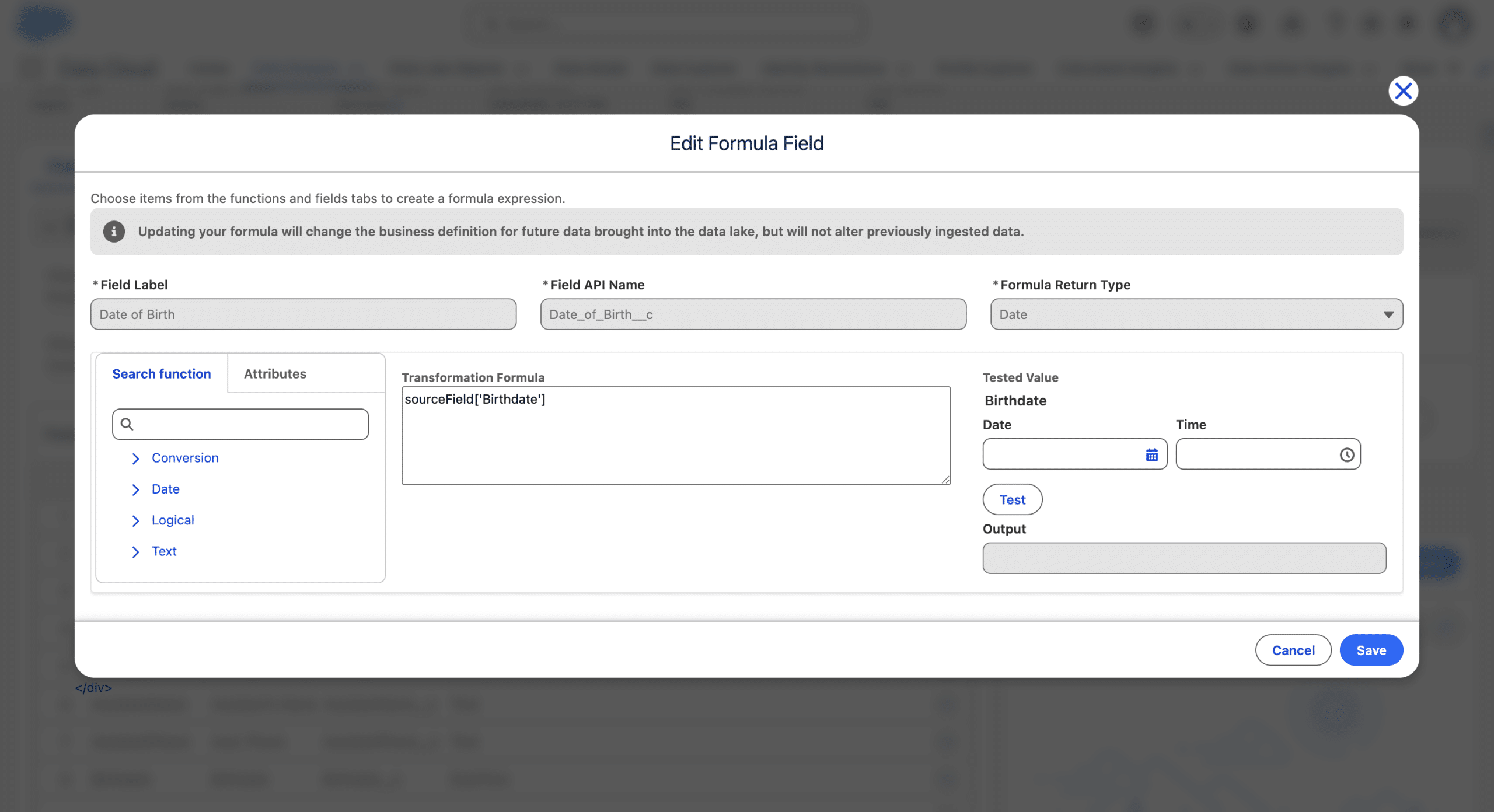
For this reason, and since we want to target only existing customers (that is Unified Individuals with at least one related Account_Contact), we’ll simply create a new Field we’ll call Date of Birth on the Account_Contact DMO and use it as a Segment criteria. First we create a Formula Field on the Contact_Home DSO, with the Date type, and use a formula Field to cast the initial Field into a simple Date.
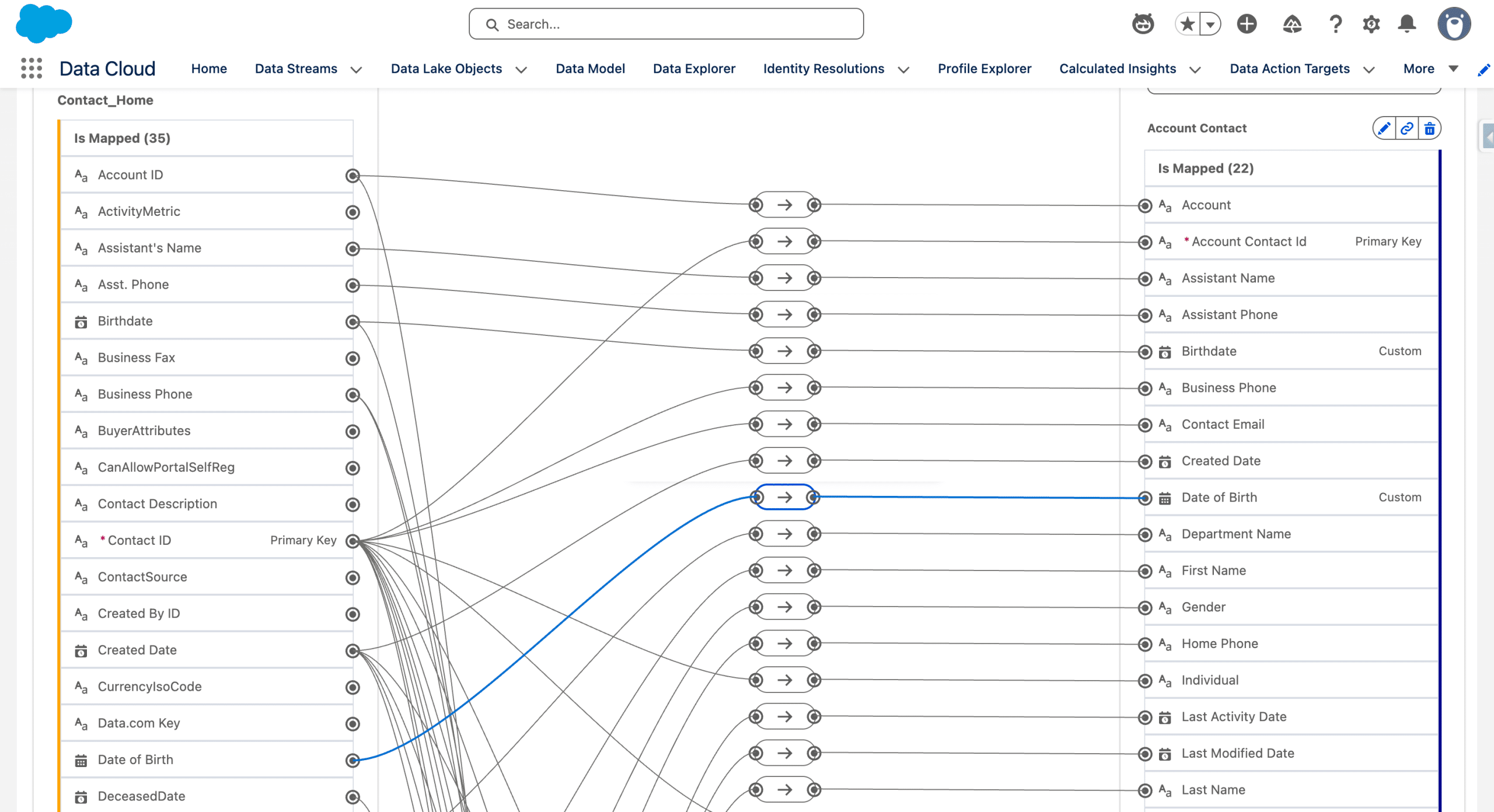
Then we map that new Field to a new Date Field, using the same name on the Account_Contact DMO.
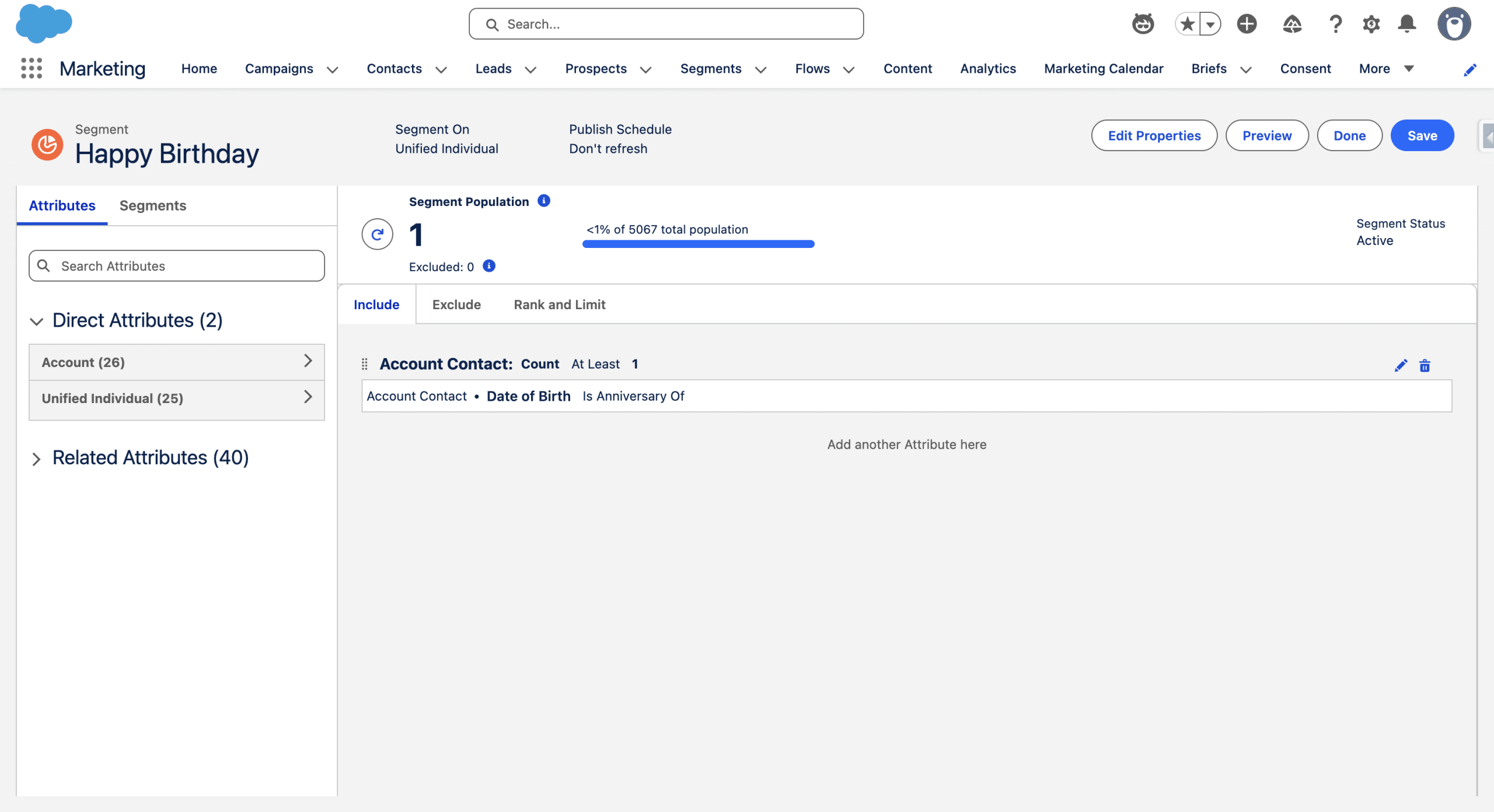
Next, we perform a Full Refresh on the Contact_Home DMO, so that our Formula Field is evaluated on each Contact, and so that our Field on the Account DMO is populated with a Date. In our Segment, we now drag our new Field and apply the “Is Anniversary Of” operator.
Preparing the 1:1 Personalization
The Apex personalization Class
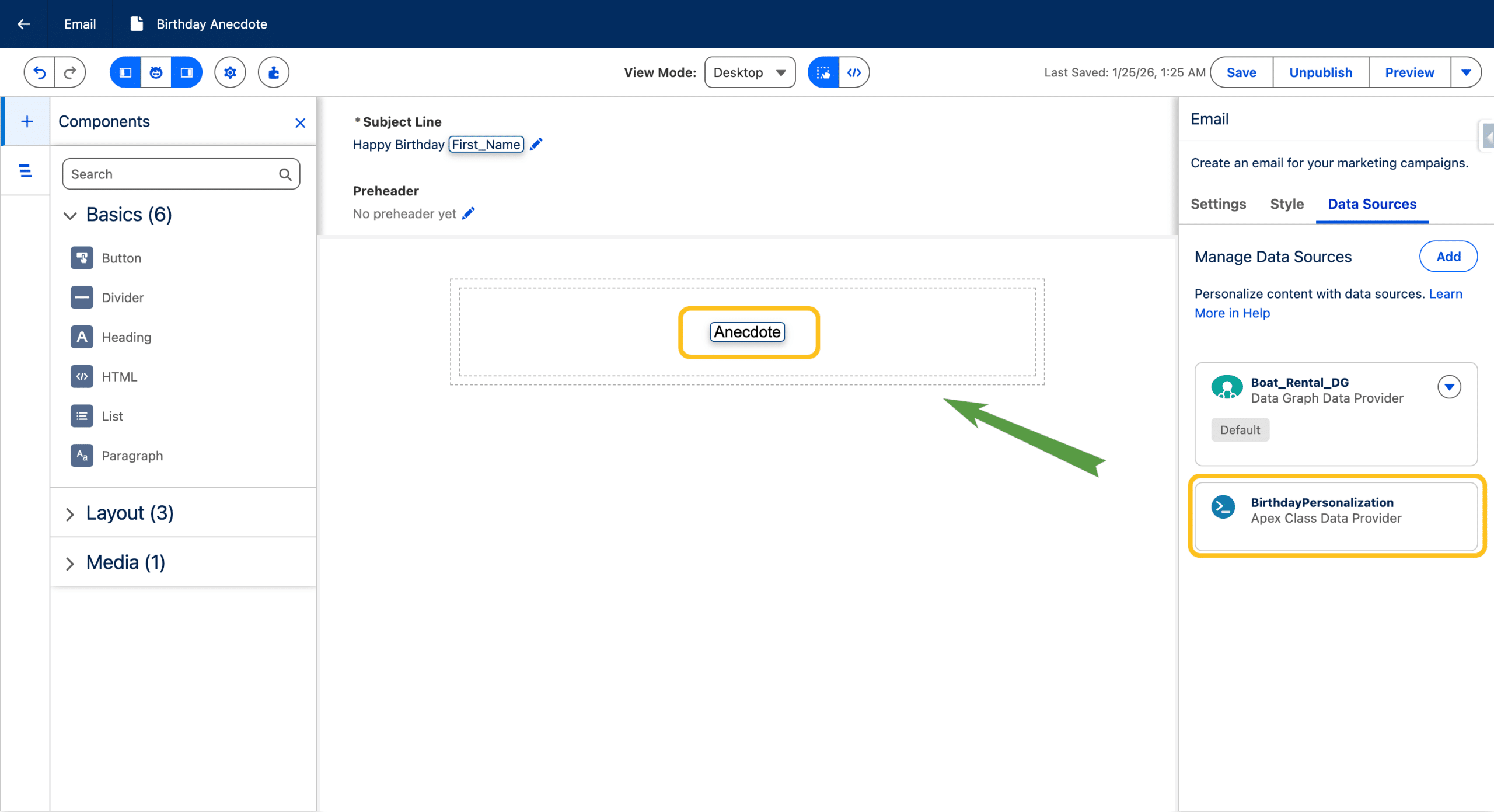
We’ll use an Apex class with just a field, in which we’ll store the output of the Flex Prompt Template from the Flow and reference it in the Email as a Data Source. We’ve describe this technique applied to Individual-related record triggered Flows and we will use it in a Segment Triggered Flow here. Here is the Apex class (you don’t need developers skills to use this):
					public class BirthdayPersonalization {
    @AuraEnabled public String Anecdote;
}
The content stored in the Class, generated by the Flex Prompt, will only exist in the Flow and we won’t store in a Field in the data model, albeit this can be done, for debug reasons for example or simply to analyse what has been sent.
Birthday Email
We’ll keep it very simple. In a Segment Triggered Flow, when the Segment is composed of Unified Individuals, we can use both the Data Graph and the Apex Class as a Source. So we’ll just a paragraph and a merge field to display the anecdote from the class, added as a data source from the Email Builder.
The Flex Prompt Template
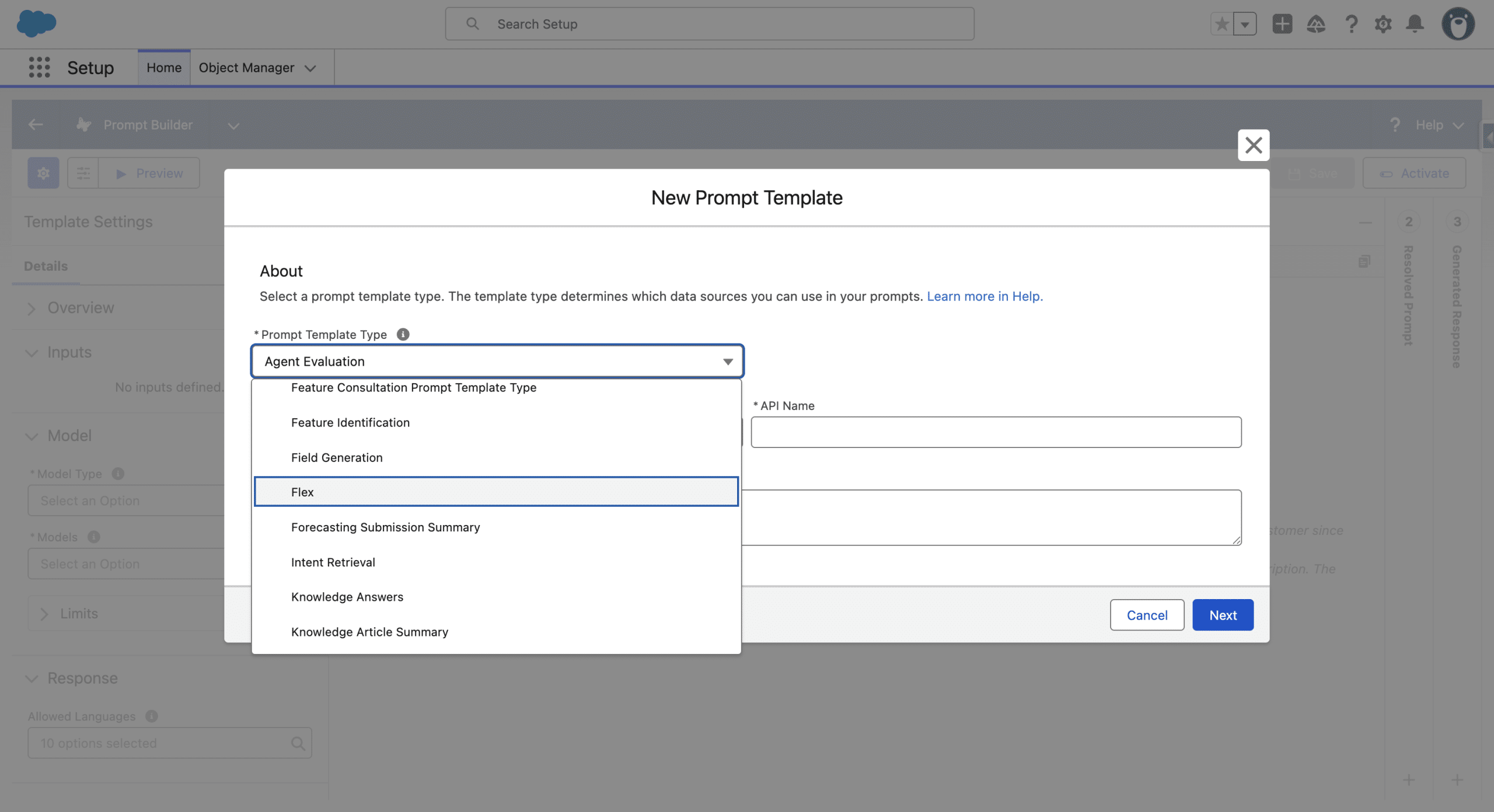
From Setup, we open Einstein > Einstein Generative AI > Prompt Builder, then +New Prompt Template.
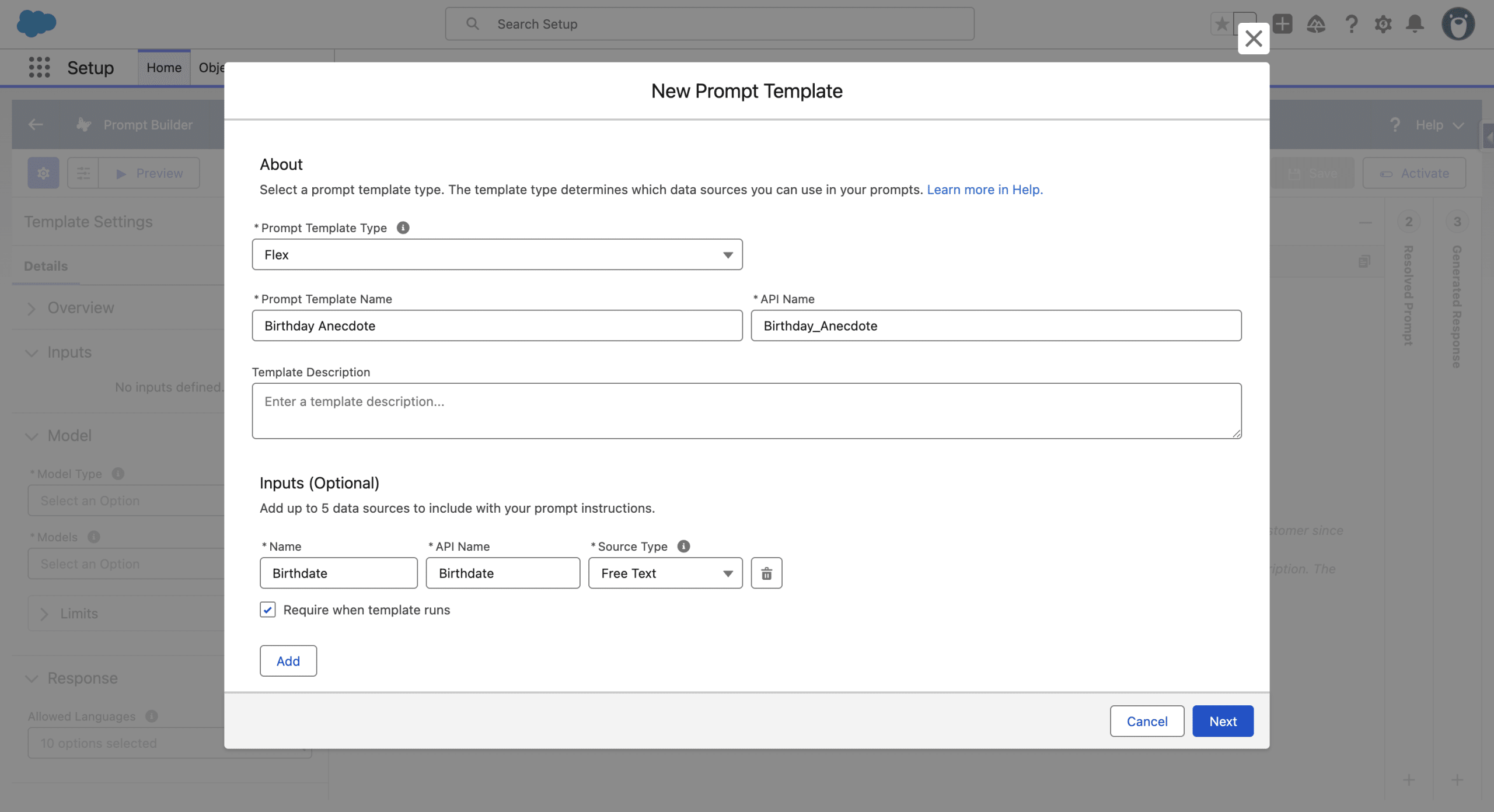
Then give it name, here Birthday Anecdote, and under Inputs (optional) we click +Add and add a Free Text and check Require when the Template runs. We could add much more input data, or even retrieve data directly from the Flex Prompt to ground the Prompt to the recipient’s data. For our example, we’ll just the Contact’s bith date from the Flow.
+Next. We then select the LLM model we want to use Gemini 2.5 and add the Following Prompt:
					You want to please your customer by telling them a funny anecdote that happened on the day of their birth.
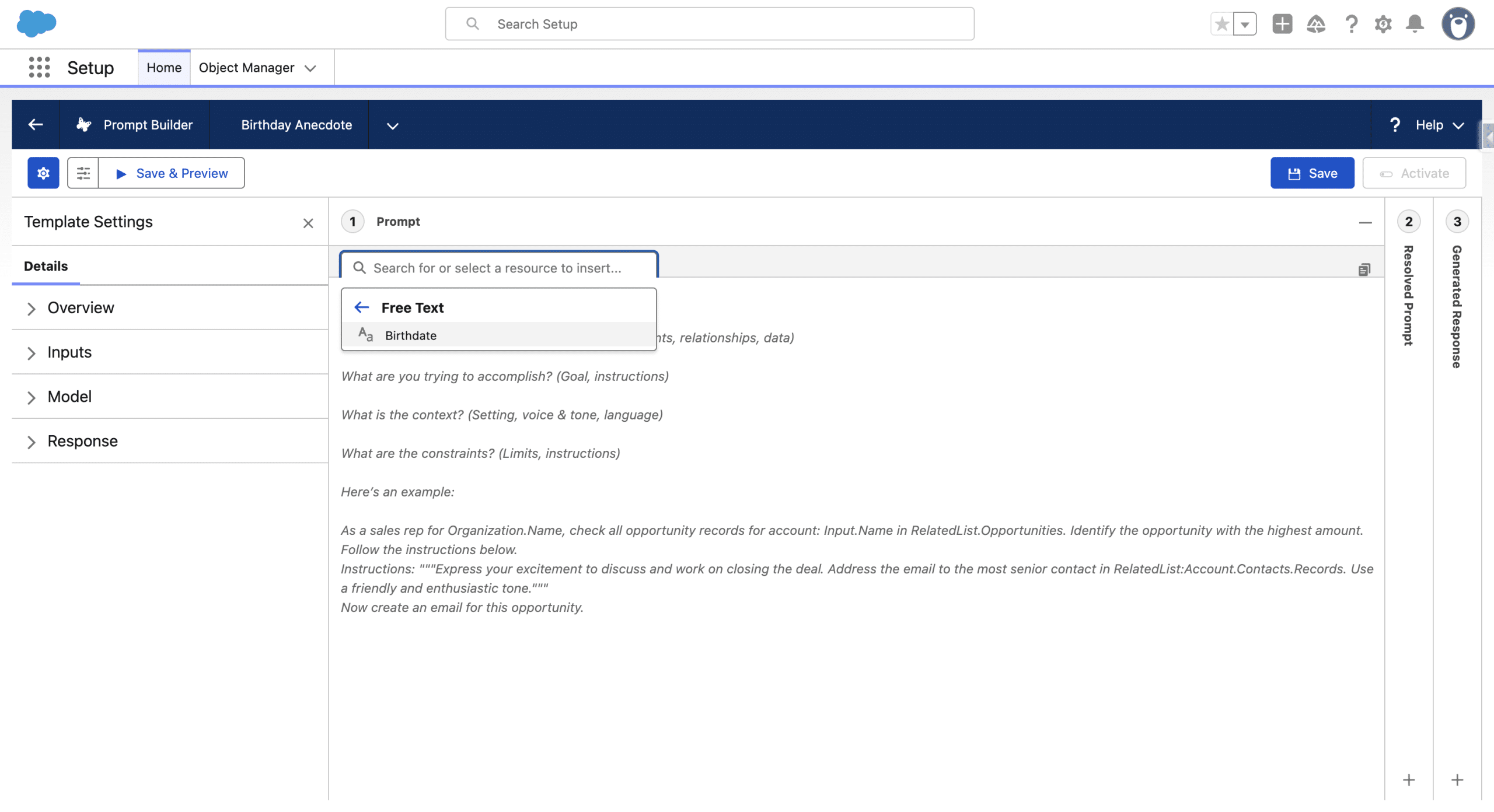
You will receive a text input, which is the date your customer was born: {!$Input:Bithdate}

Instructions:
"""
Generate a text message, minimum 50 words, with emojis.

Use a funny tone.

Add the following information to the text message: a funny anecdote that happened at the day of their birth. If you can't find any anecdote that happened the exact day, try to find one the same day but the year before or after.
If still nothing create a generic birthday email.
Do not add any signature or reference any dates.
"""

Now generate the text message to your customer.
The birth date is added using +Insert Ressource .
You can then test the Flex Prompt Template by clicking +Preview and manually add a birthdate.
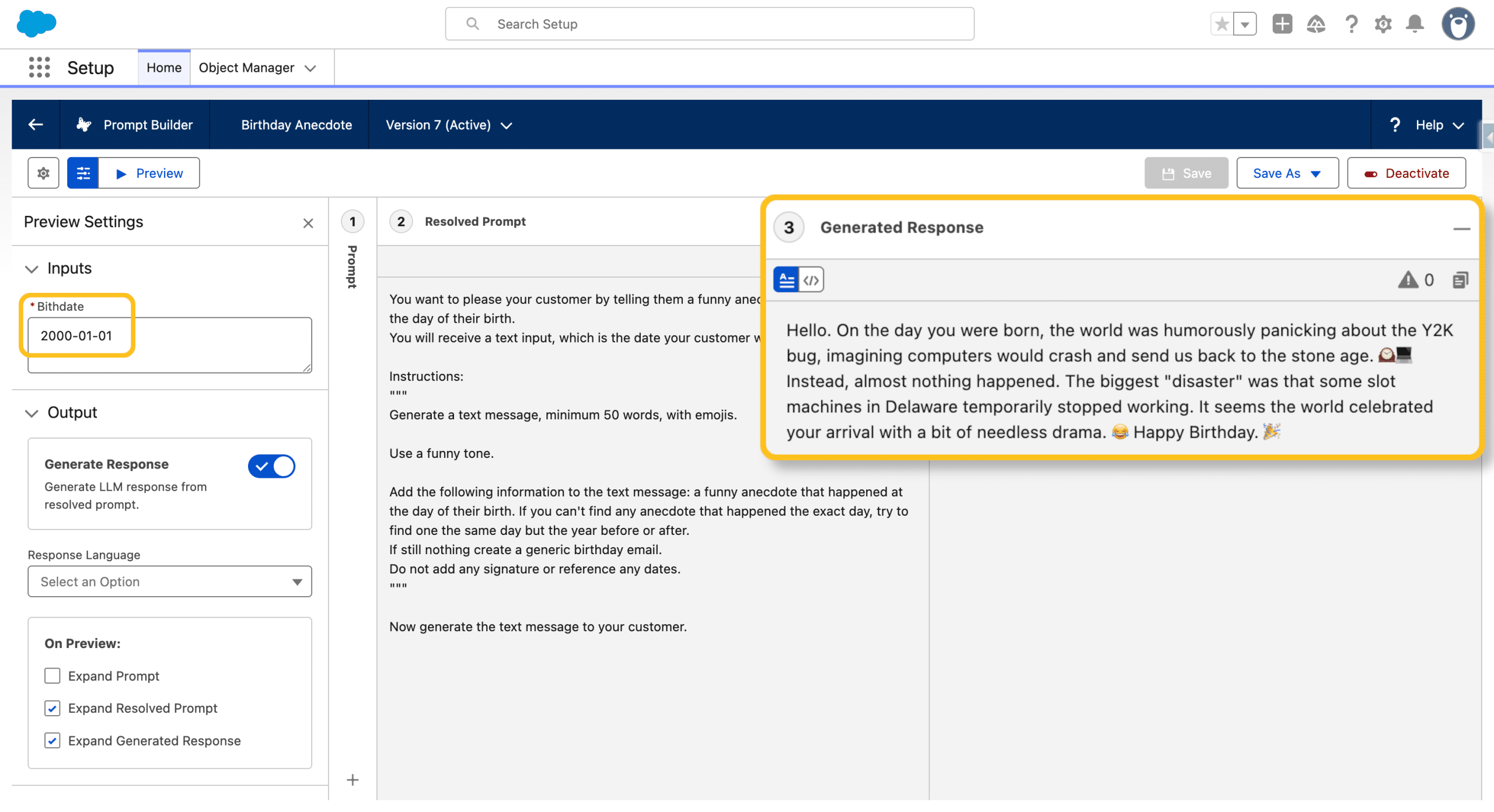
Once the Prompt outputs the expected results in Preview, we can +Activate it.
Let’s Build the Flow
Triggering Conditions
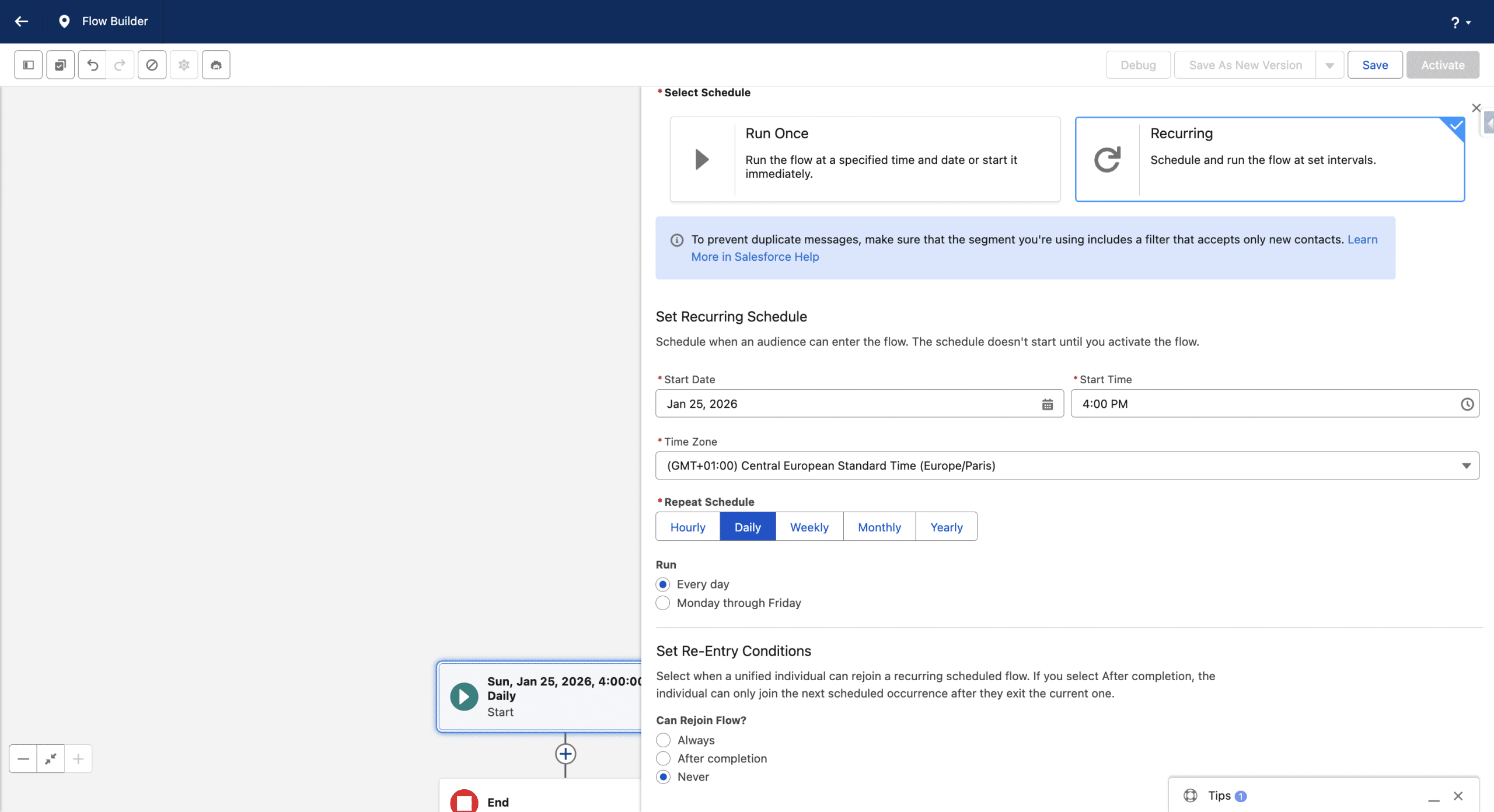
We’ll use a recurring Segment Triggered Flow. We define the Start Date and Time. As a Repeat Schedule, we’ll use Daily (Note, since Spring ’26 we can schedule hourly Flows), run it every day and select Never for Can Rejoin Flow as we want to send the anecdote only one time to our customers.
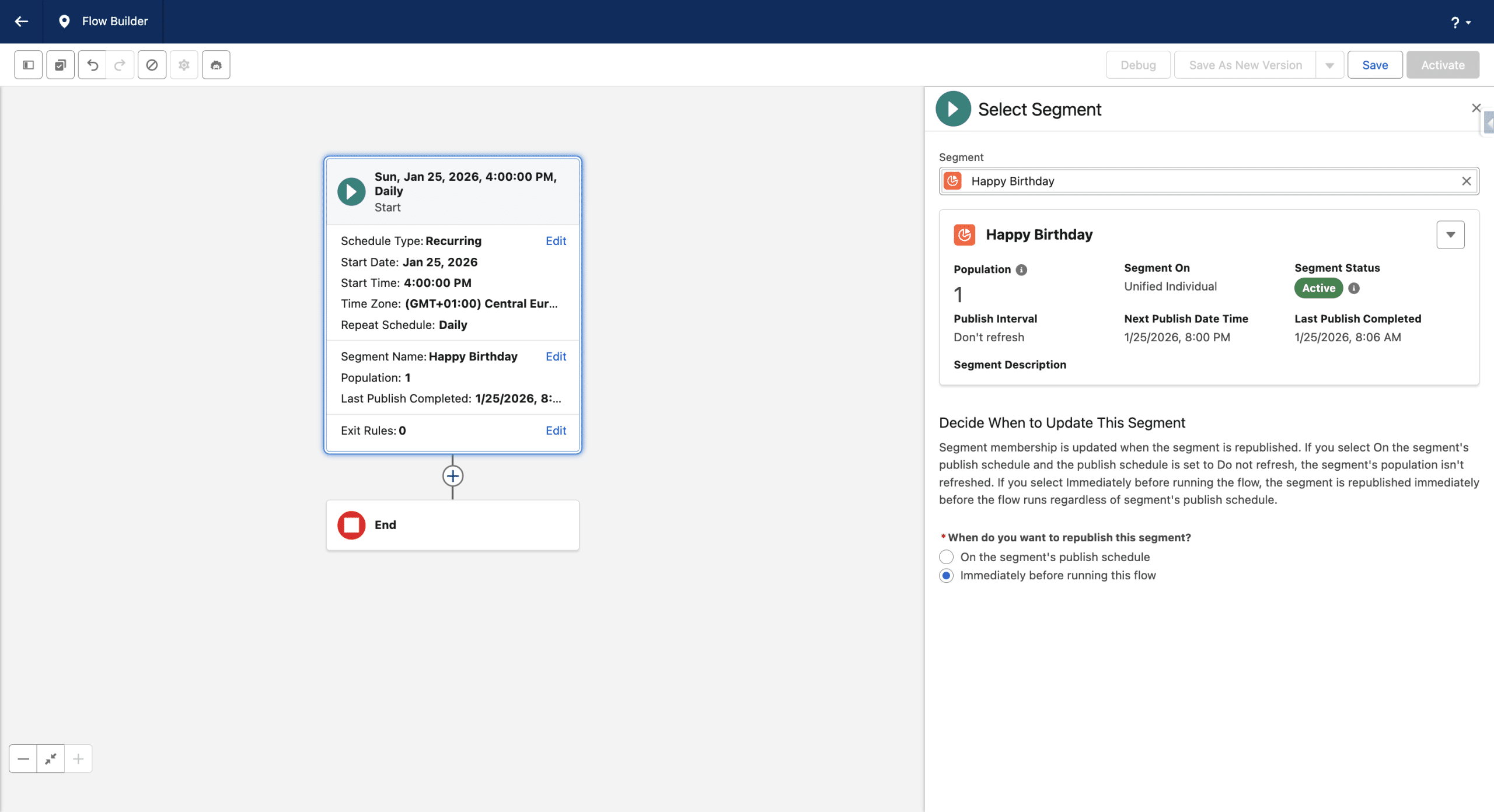
Then in +Select Segment, choose the Segment we created earlier and select “Immediately before running this flow” as we want the Flow to refresh the Segment prior to each execution.
Accessing the Contact
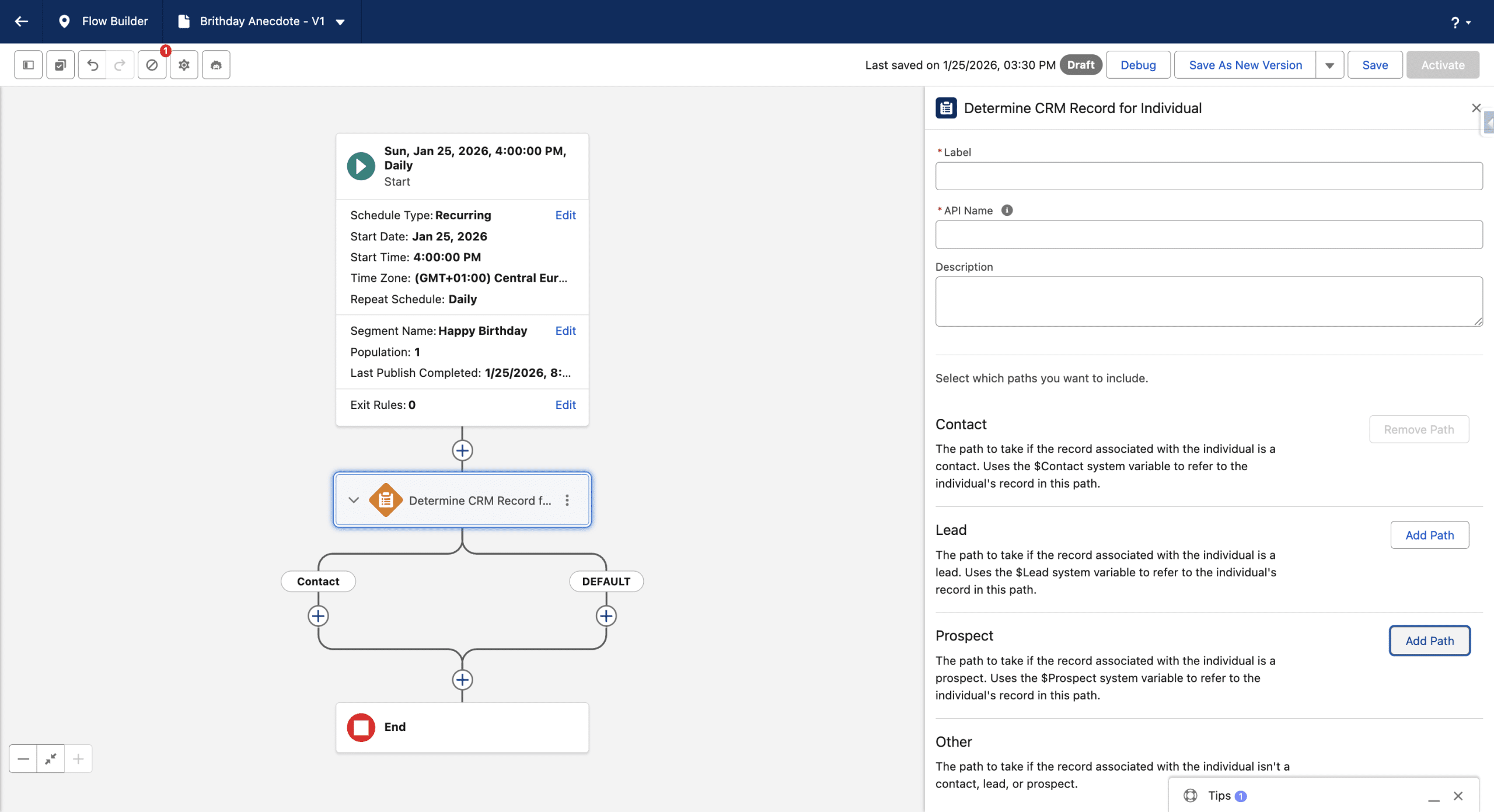
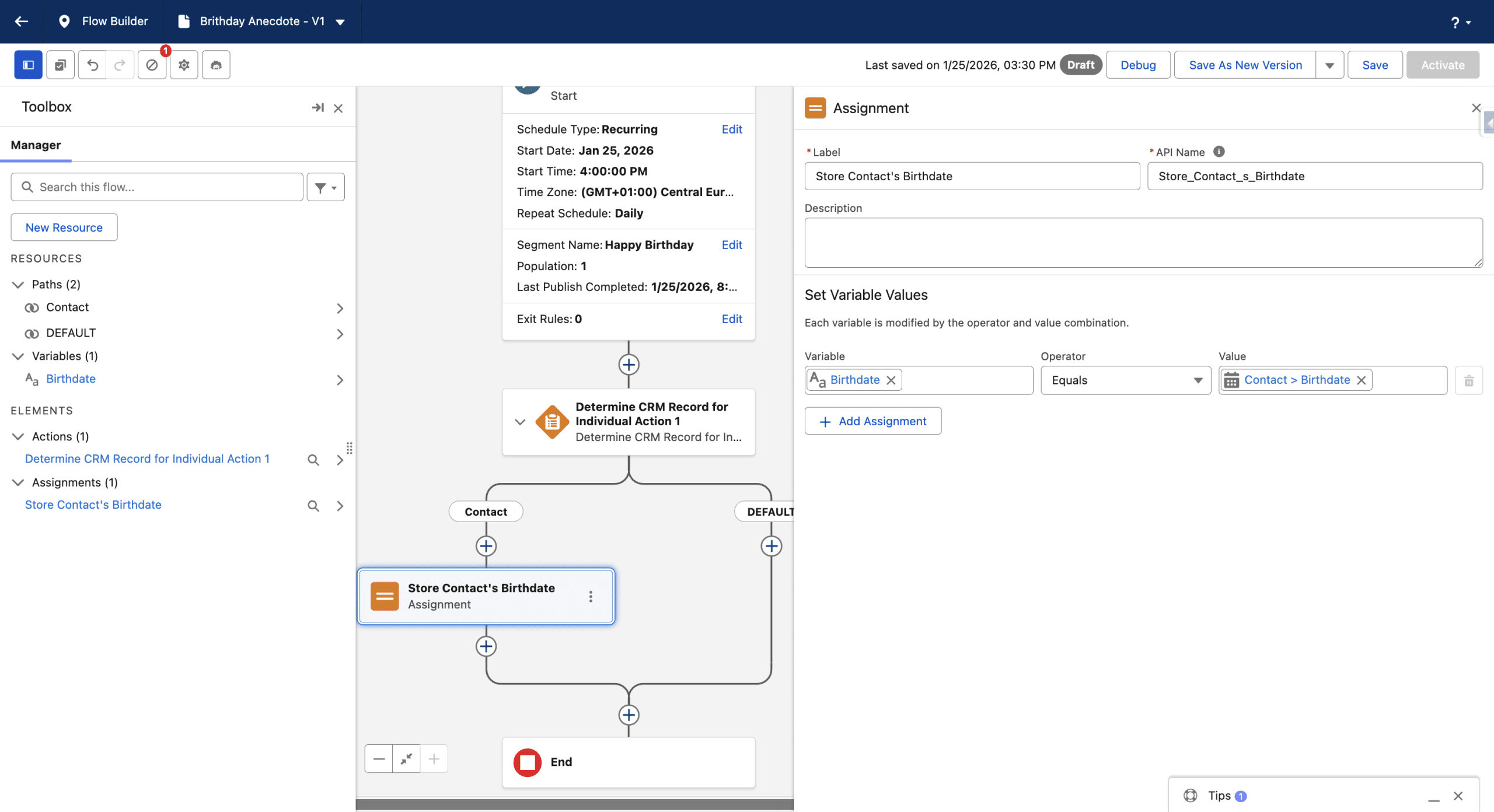
By design our Segment has at least one Contact whose birthday is today. We’ll get it by adding a Determine CRM Record for individual element in the Flow. We will only keep a Contact branch.
In the Contact Branch, we’ll store the birthday in a new Text Variable, using an Assignement Activity.
Calling the Flex Prompt Template
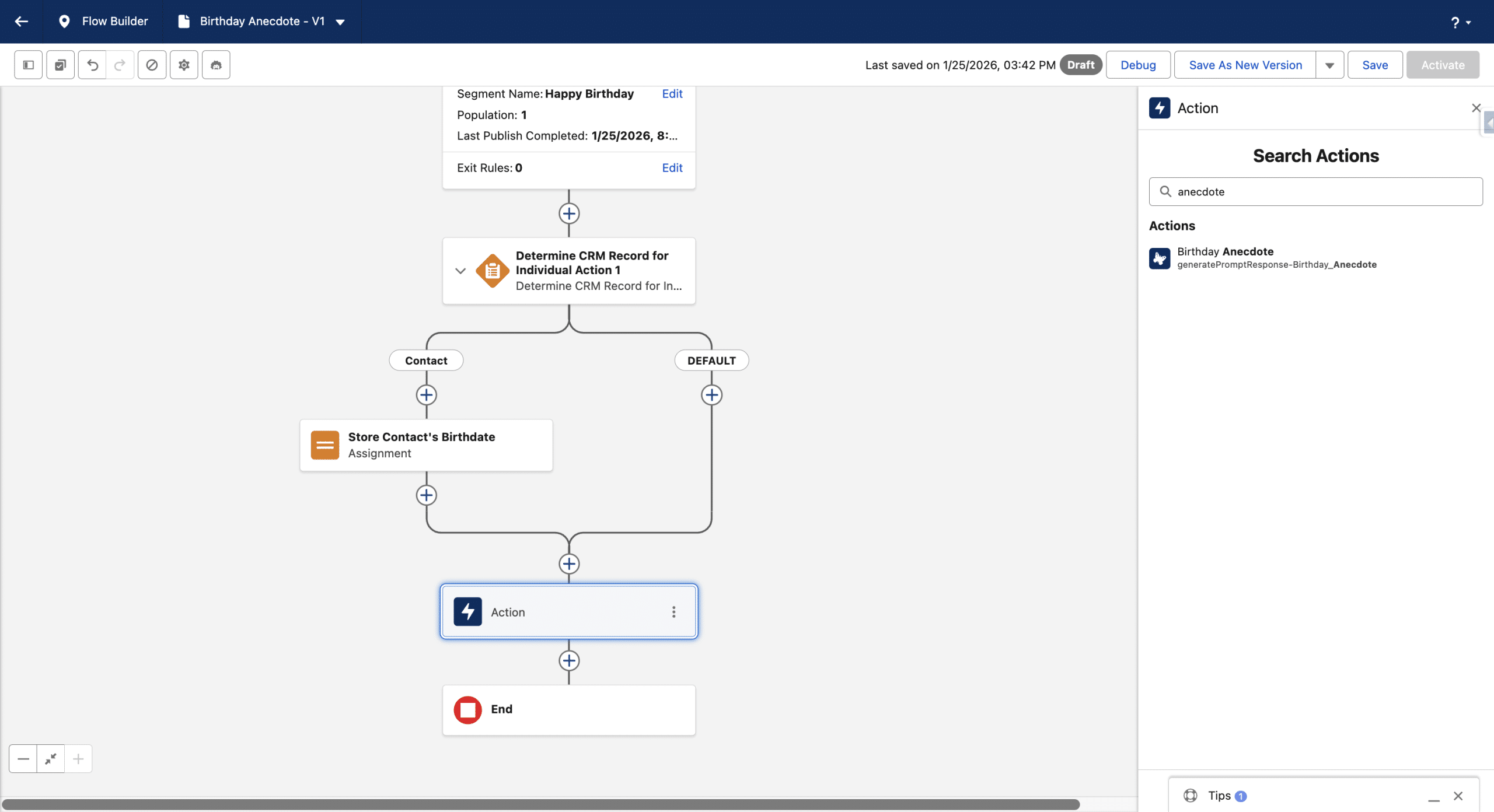
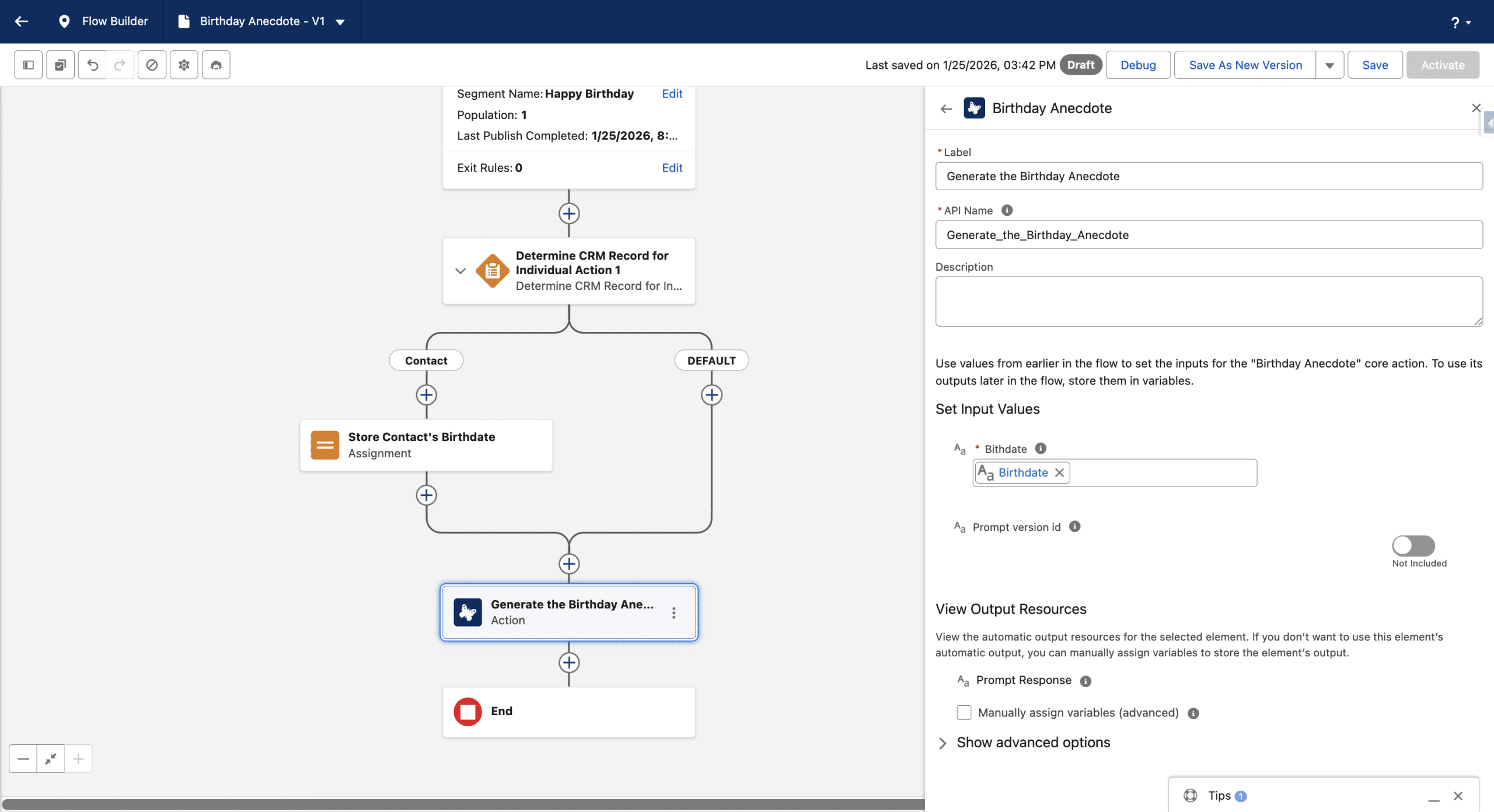
The beauty of Flex Prompt Templates is that once activated, they are made available to Flow builder as a simple Action Element.
We just need to specify the actual birthdate by defining the Prompt’s input with our previous Text Variable.
Sending the Email
Loading the Apex Class
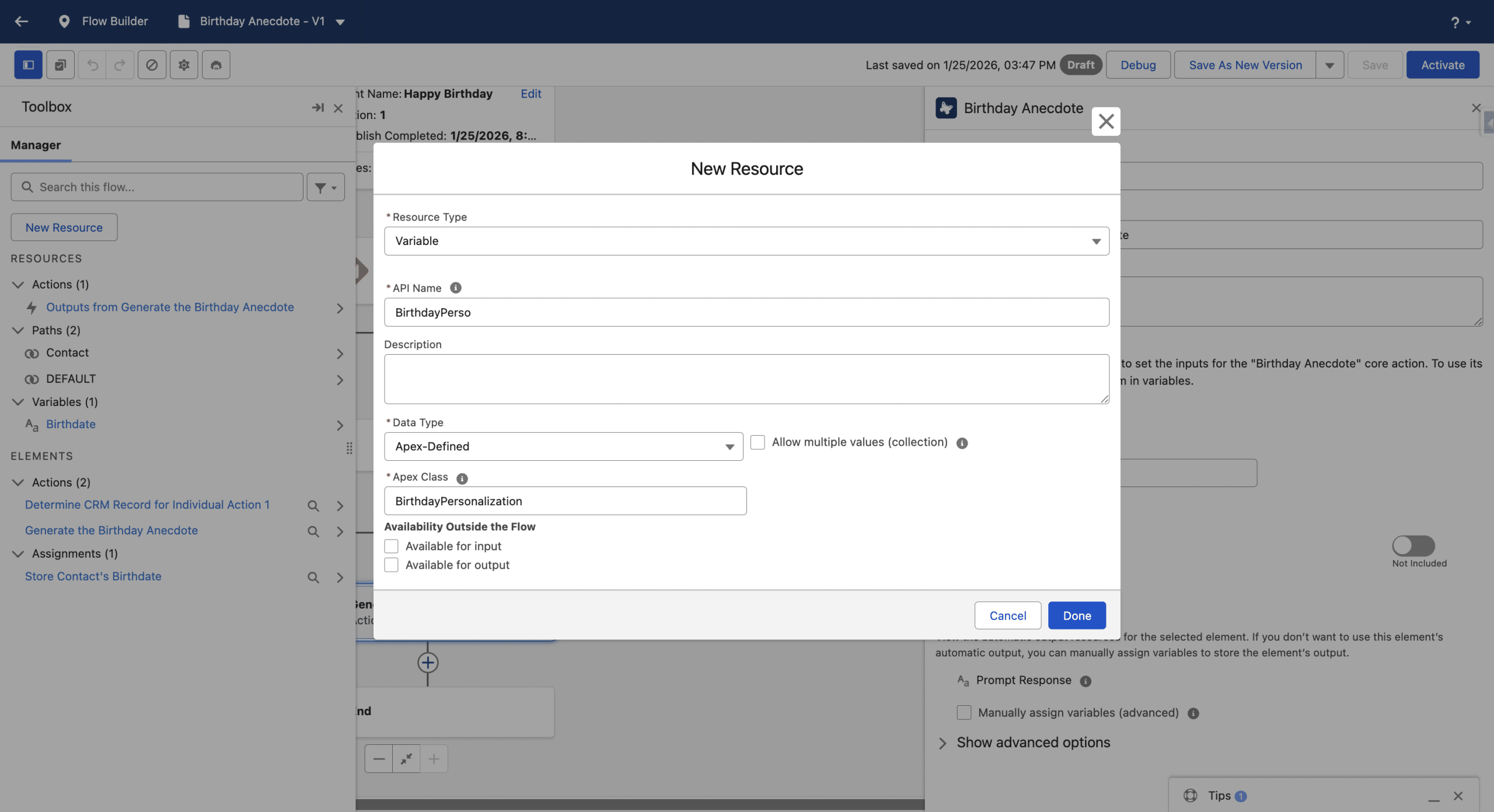
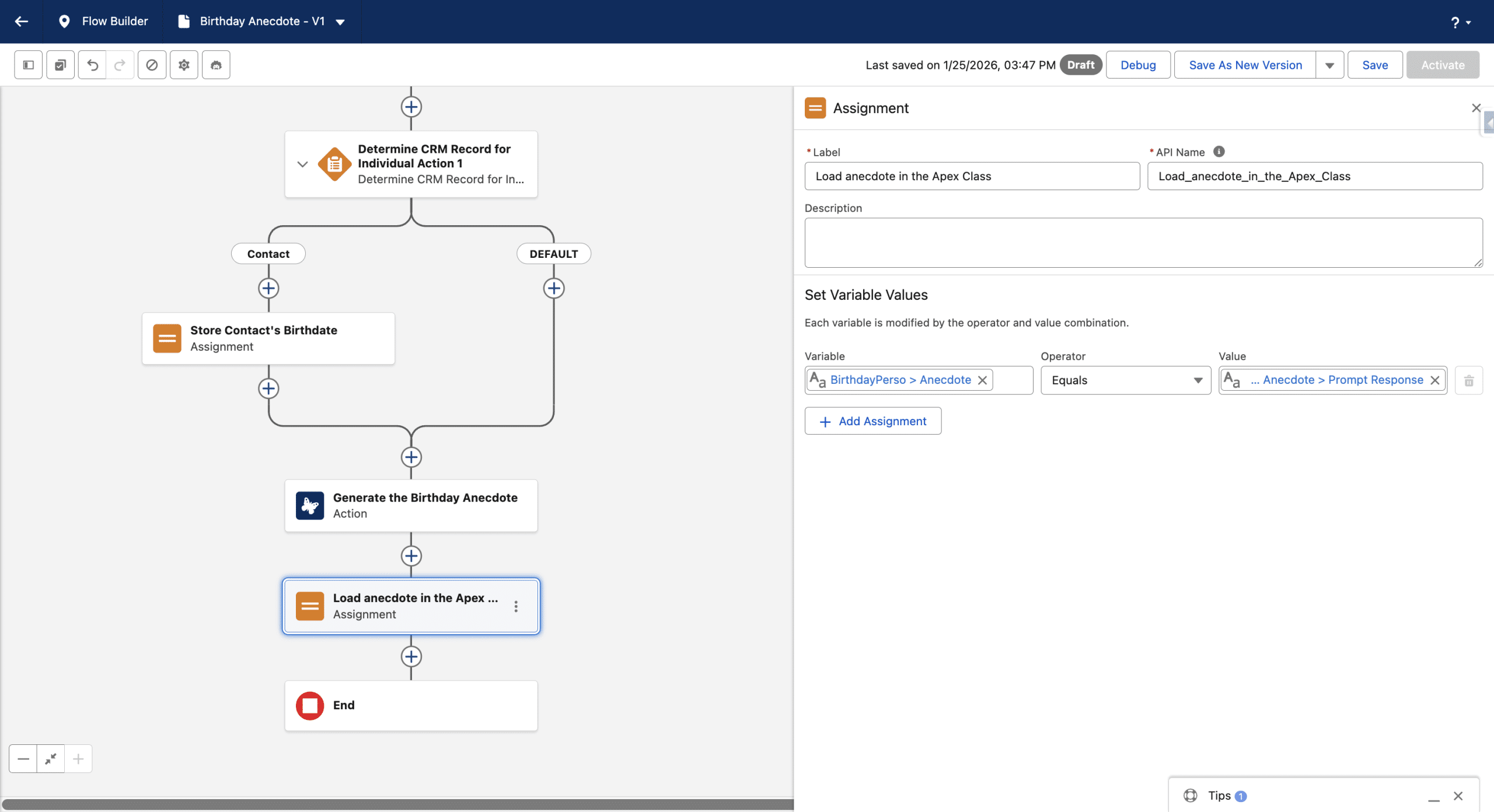
Before sending the email we previously built, we need to assing the anecdote from the previous step to the field in our class. For this we create a new Ressource, a Variable with the Data Type Apex-Defined.
We now add a new Assignement activity in the Flow to load the value in class, so that the Email can use it. The value is the Prompt Response of the output of the previous Flex Prompt Template.
Sending the Email
Our final step is to add a Send Message Activity to the Flow, defining the Sender and the Communication Subscription to use.
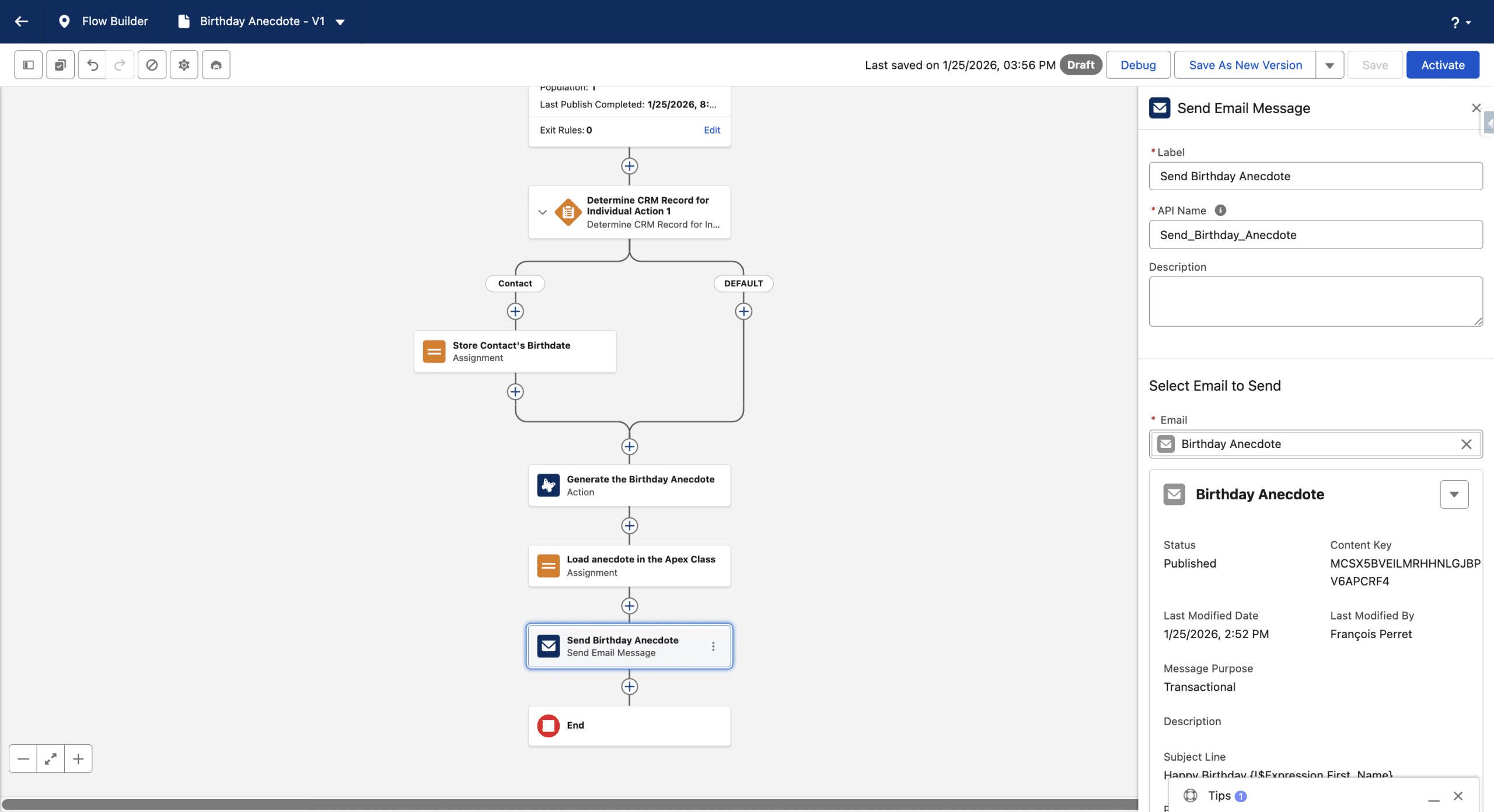
And that’s it, our Flow is finished, we just need to activate it.
Final thoughts
We presented a simple use case, but, this is a very powerful technique. You can change it to pass the Birth Place to the Flow, so the anecdote is more personal.
We can pass more data from the Flow to the Flex Prompt Template, up to 5 sources, not just simple text variables, but complete records as well. Flex Prompts can themselves call Flows, and so the possibilities are endless.
We can also tell our Prompt to generate HTML, not just text, to create complex layouts. A kinf of grounded, email vibe-coding.
Finally, keep in mind that Prompt Template execution consumes Data 360 credits. One parameter used to compte the credit consumption is the Prompt length. So keep an eye on your consumption cards and perform small batches to start.