
A Form Triggered Flow is triggered whenever the Form (or Form Handler) it is related to is submitted. When saving a Form Trigerred Flow or its related Form, you may encounter several types of errors.
Flow Element Related Errors
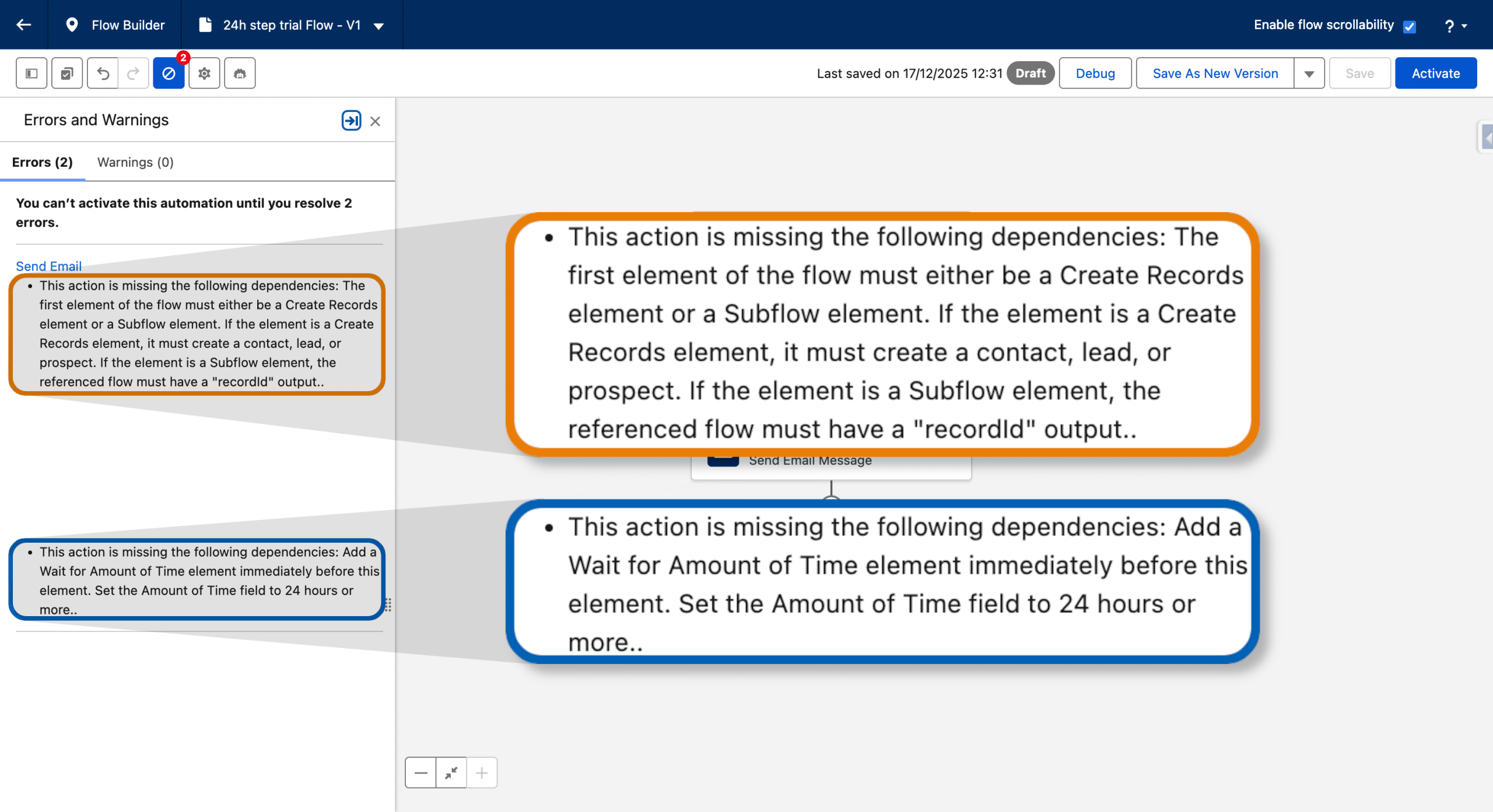
There are two types of errors related to Elements in the Flow.
Data Graph Related Error
This error will be displayed if you have this type of issue:
This action is missing the following dependencies: Add a Wait for Amount of Time element immediately before this element. Set the Amount of Time field to 24 hours or more
What does it mean?
In a Form Triggered Flows, chances are you are creating a new Lead (or Contact) Record. A Data Graph is tied to a Unified Individual, and for the Data Graph to be created for your new Lead, here are the Steps involved:
- An Individual (and Contact Point Email) must be created in Data Cloud, which happens thanks to mapping when your new Lead is Ingested in the Lead_Home DMO, around 10-15 minutes the actual creation in the Form Triggered Flow
- The Indentity Resolution must run, to generate the Unified Individual (or link your new Individual to an existing one). This happens once a day, and at most 3 times a day.
- The Data Graph must be refreshed, which depends on how you set it up (max 1 time per hour)
So if you ever reference the Data Graph in a Form Triggered Flow, the Flow will require a 24h waiting step just before the element doing so, to ensure the Unified Individual and the tied Data Graph are created and up to date.
How to fix it?
If you want the Flow not to be paused, you need to remove all references to the Data Graph, there is no workaround.
You may reference it directly in the Flow for example in a Decision Element or Get Record Element as a matching criteria.
You can also have a Send Email Message activity with Merge Fields from the Data Graph. You will have to remove them too, in the Email as well (and sometimes, you’ll need to restart from a new email, because of sticky references). This does not mean you cannot personalize your Email (like in a welcome message), but you’d need to add your Form as a new Data Source, and use the Merge Fields from that latter only).
From the Email, on the right sidebar open the Data Sources tab, then Add.

Then Save. You should now see your Form’s Data Source along with the default Data Graph (which you can’t neither remove nor use here, if don’t want to add a 24h waiting step). Then when adding a Merge Field, choose the “Event Data provider” to access the Form’s inputs (you may have to scroll to see it below “Select Data Graph Attribute”)
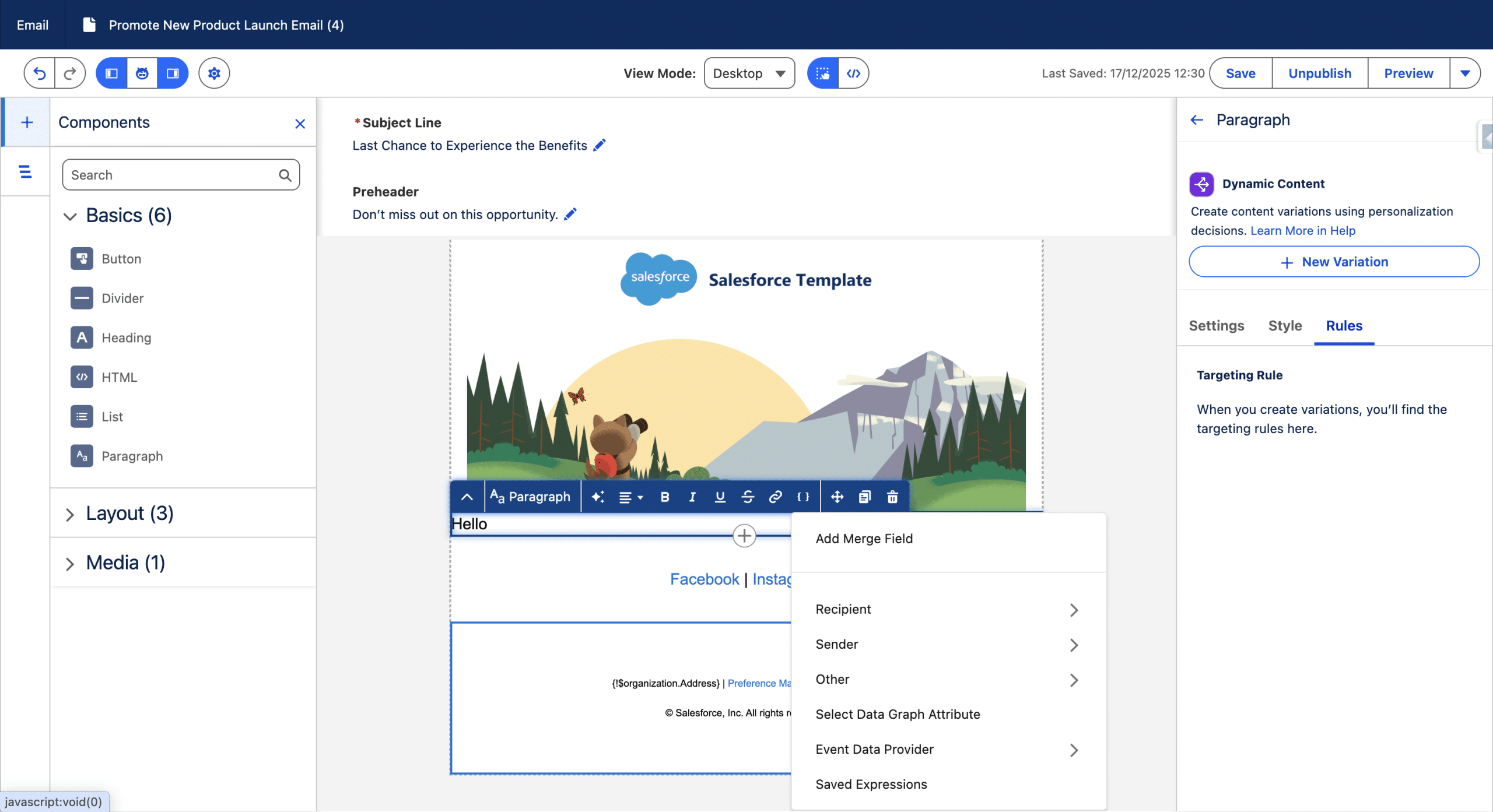
Then select your Field (it is a Form’s input Field) and add it as you would normally do with any Merge Field for personalization. Don’t forget to publish the Email.
Initial Create Element related Error
This error will be displayed if you have this type of issue:
This action is missing the following dependencies: The first element of the flow must either be a Create Records element or a Subflow element. If the element is a Create Records element, it must create a contact, lead, or prospect. If the element is a Subflow element, the referenced flow must have a “recordId” output
What does it mean?
This happens when you use the Send Email Message activity in a Form Triggered Flow. As opposed to what this element does in a Segment Triggered Flow (sending to all Unified Indv Contact Point Email related to the current Unified Individual, provided they are OPT_IN for the chosen Subscription) this Element uses by design the Email Address from the Prospect, Lead or Contact created (or matched) from the First Element in the Flow.
How to fix it?
You need to add a Create Element and create a Prospect, Lead or Contact out of the infomations coming from the Form upon submission.
You may also leverage the more powerful Flow template Upsert a Record for a Person. See how to create or use existing person records in a Segment Triggered Flow.
Form publishing management related Error
You have this issue if you you see the Following when trying to Publish a Flow.
The form ‘…’ has been edited, so it needs a new flow version. Open the form’s flow, save it as a new version, and activate it.
What does it mean?
A Form Triggered Flow must be associated with exactly one Form, and a Form can be associated with at most one Flow. If you make changes to a Form, then the a new version of the Flow must be created (use “Save As new Version” from the Flow). To ensure the Flow references existing Form inputs, any changes on the Form must be checked by the Flow (you’ll see an error on the Flow if you remove the First Name on the Form for example and still reference it in the Create element, for example).
How to fix it?
You must remember that the Form must never be published on its own, the Flow needs to Publish the Form, and for an active Flow, you need a new version to activate it again.
Note: when the Flow is activated, the Form is being published, which can take several minutes. You’ll receive an email when the Form is actually published. The publication Activity also gives you the current publishing status, triggered by the Flow). This is important to publish the Landing Page when the Form is Published, otherwise, the Landing Page will try to publish the From, which will lead to the same initial issue.
So here are the safe steps :
- Activate the Flow
- Wait for the Form to be published
- Publish the Landing Page