
A dedicated subdomain is recommended for marketing email to help separate marketing sending reputation from everyday corporate email. The goal is to minimize the potential impact of marketing deliverability issues on the company’s main domain (although this doesn’t guarantee complete reputation isolation).
But how do you maintain that separation when sending marketing emails on behalf of individual sales representatives?
Let’s meet Sharing Is Learning, a company specializing in professional training and collaborative learning. Sharing Is Learning uses sharing-is-learning.com for everyday corporate email. Its sales representatives communicate with prospects and customers through addresses such as [email protected].
For marketing email, the company has authenticated a dedicated subdomain in Marketing Cloud Next: mail.sharing-is-learning.com. The marketing team wants to send personalized emails on behalf of each prospect’s sales representative, while keeping marketing sends on that dedicated subdomain. Replies should reach the representative’s regular corporate inbox.
| Purpose | Address |
|---|---|
| Send marketing email from the authenticated subdomain | [email protected] |
| Receive replies in the sales representative’s corporate inbox | [email protected] |
That is the goal of this Tip from the Trenches: send from the marketing subdomain, while directing replies to the sales representative’s regular email address.
Dynamic From and Reply Addresses make this possible. However, the two addresses follow different rules: the sending domain must be authenticated, and the reply domain must be authorized.
This Tip from the Trenches article uses an Audience List based on an Actionable List of Leads, with a List Flow. This allows us to access the sales representative’s information through the Lead’s owner relationship. Segment Flows need a different approach to make the same values available, which we’ll cover when creating the custom sender field.
Start with the record owner’s email
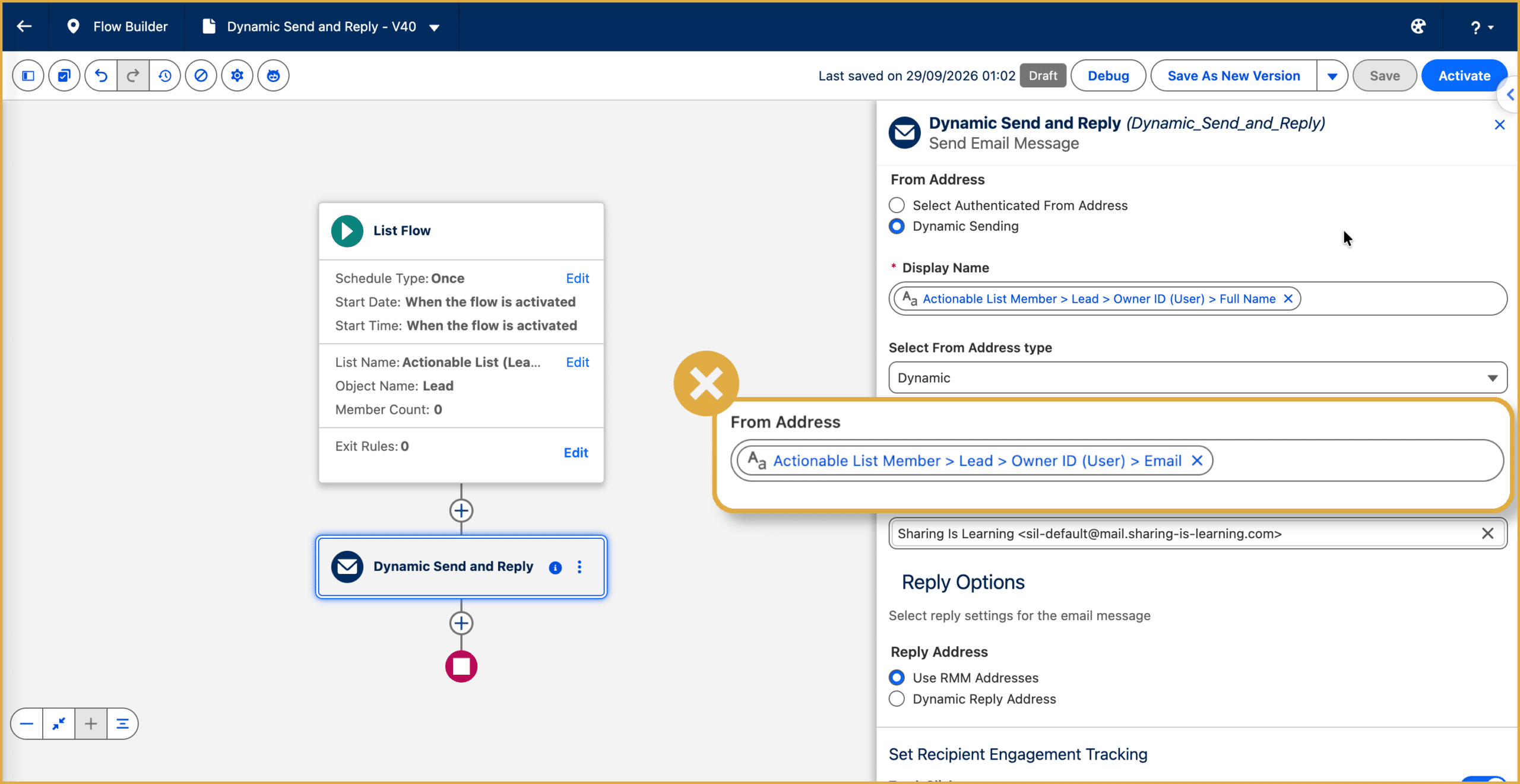
The team starts an email send from the Actionable List. In the sender configuration, they select Dynamic Sending and use the Lead owner’s Full Name as the display name. For the dynamic From address, they select:
Actionable List Member → Lead → Owner ID (User) → Email
For our example record, this resolves to: [email protected]. It looks like the right choice. The record owner is the sales representative, and the field contains their email address.
But the received email uses the configured fallback sender.
Why? Sharing Is Learning authenticated mail.sharing-is-learning.com, while the representative’s address uses sharing-is-learning.com.
Authenticating the marketing subdomain doesn’t make the corporate domain an authenticated sending domain.
Salesforce confirms that a dynamic From address uses the fallback when its domain isn’t authenticated for sending. Salesforce troubleshooting guide
Prepare a sender address on the marketing subdomain
The team wants to preserve the separation between marketing and corporate email. They therefore keep the authenticated marketing subdomain and prepare an address for each representative that uses it. The transformation is simple:
[email protected] becomes [email protected]
They don’t need to register every representative’s full address individually as an authenticated sender (registring a given sender email full email address is mandatory for static sending). The resolved address must use the authenticated sending domain.
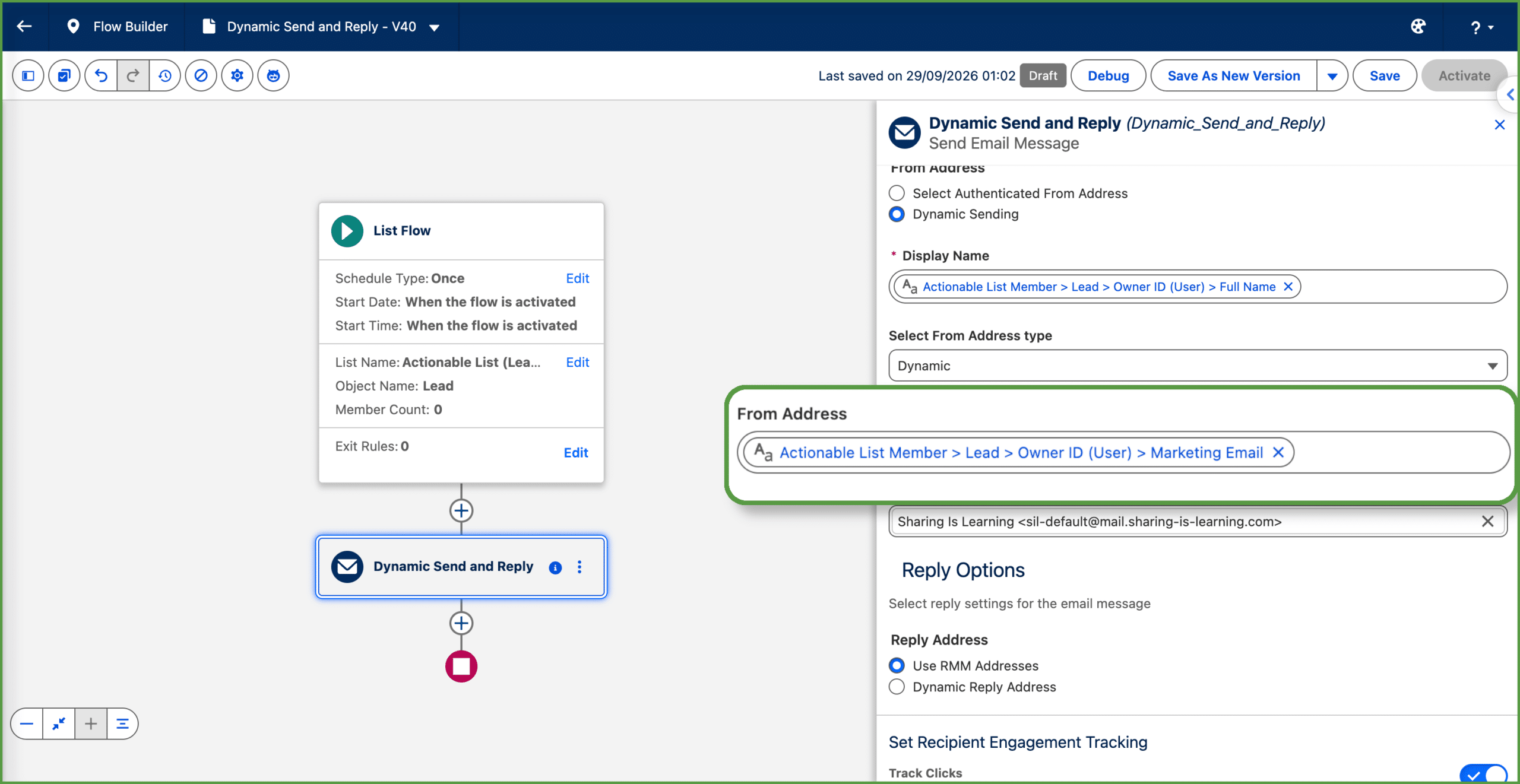
Marketing Cloud Next doesn’t perform this transformation inside the dynamic address setting. The complete address needs to be available in the selected field. Salesforce documents a custom User field containing an authenticated subdomain address as an alternative to using a static sender. Salesforce configuration FAQ
For Sharing Is Learning, a formula field on the User object with a Text return type can provide that value:
					IF(
  ENDS(LOWER(Email), "@sharing-is-learning.com"),
  SUBSTITUTE(
    LOWER(Email),
    "@sharing-is-learning.com",
    "@mail.sharing-is-learning.com"
  ),
  ""
)
This formula only transforms addresses belonging to the company’s corporate domain. Other addresses return a blank value, leaving the configured fallback to handle those cases. Flow or Apex could also populate a dedicated field if the company needs more complex rules. The marketing team then selects the new field through the Lead owner relationship as the dynamic From address.
Adapt the field for Segment Flows
In this List Flow, we can access the custom field directly through the Lead’s owner. For a Segment Flow, the value needs to be available through the data model and data graph used by the flow.
For example, expose the owner’s custom marketing email value on the Lead and Contact source records, then include those fields in ingestion. Map them to the corresponding Lead and Contact DMO fields and, where appropriate for your data model, to a custom field on the Individual DMO. Make that field available in the data graph used for personalization.
The objective stays the same: the dynamic From setting must resolve to a complete email address on the authenticated marketing subdomain. The next live send uses the expected sender:
The marketing email now comes from the dedicated subdomain. Next, the team needs to configure where replies go.
Use the representative’s corporate address for replies
The new field provides a sending identity. It doesn’t create a mailbox. The sales representative still receives email at:
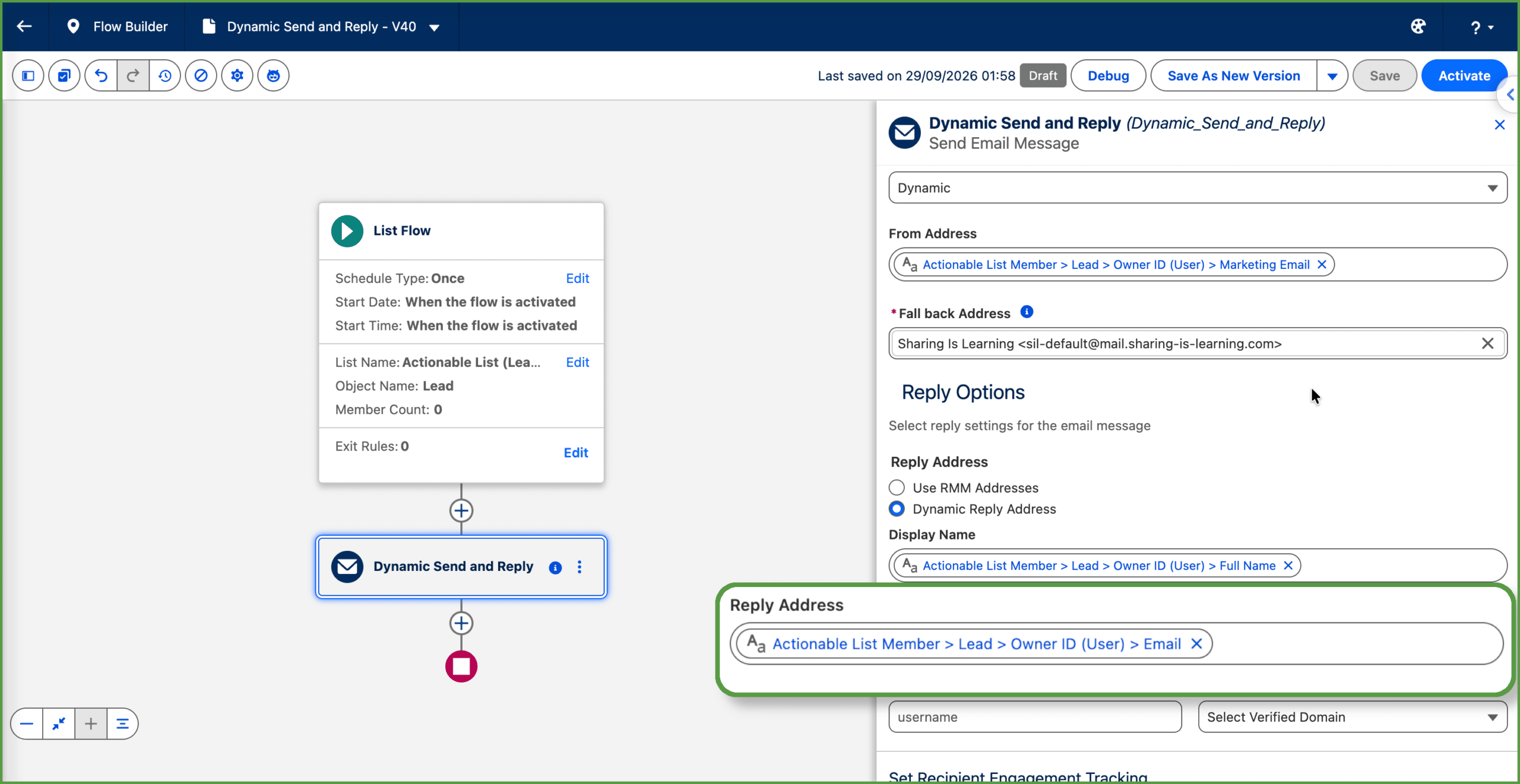
In the reply settings, the team selects Dynamic Reply Address and chooses the Lead owner’s original Email field. Notice that the two settings use different fields:
| Setting | Selected field |
|---|---|
| Dynamic From Address | Lead owner’s custom marketing email field |
| Dynamic Reply Address | Lead owner’s original Email field |
Direct dynamic replies bypass Reply Mail Management processing. This matters if your existing setup relies on RMM to process or route responses. Salesforce overview. For more background, see Reply Mail Management deep dive article.
Check the actual Reply-To address
During testing, the received message still shows a generated reply address like:
sales-rep+reply-……@reply.mail.sharing-is-learning.com
This isn’t the representative’s corporate address. A generated address is normal when RMM handles replies. Its presence doesn’t mean RMM is broken. Here, however, the intended result is a direct reply to the representative, so the configuration needs another check.
The team has authenticated the marketing subdomain for sending. They haven’t yet authorized the corporate domain for dynamic replies. These are separate requirements.
Authorize the corporate reply domain
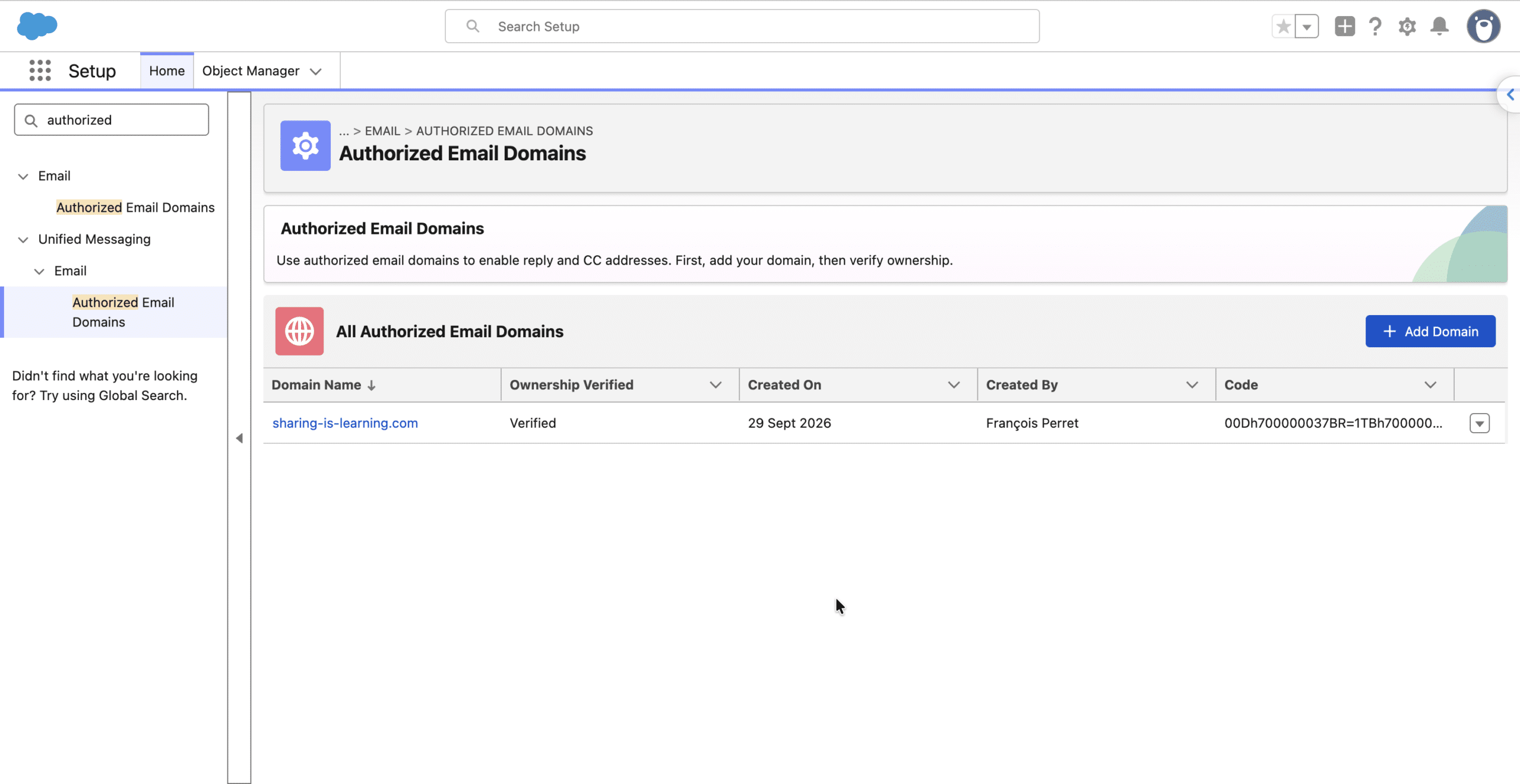
In Setup, open Unified Messaging → Email → Authorized Email Domains and add:
sharing-is-learning.com
Enter only the domain name, without a protocol prefix or trailing slash.
Then verify ownership:
- Open the domain details and copy the verification code.
- Create a TXT record with that value through the company’s DNS provider.
- Return to Salesforce and verify the domain.
- Confirm that its status shows as verified.
Adding the domain without completing verification isn’t enough. Salesforce’s verification process establishes domain ownership; it doesn’t create or test the receiving mailboxes.
Note, there is another place where you can access the Autothorized Domains in setup: Email → Authorized Email Domains. That latter location allows the deletion of a Domain.
Explicitly select the reply fallback
There was one more detail in my test: authorizing the reply domain alone didn’t produce the expected result. The dynamic reply worked only after I explicitly selected a fallback in the reply settings.
For Sharing Is Learning, the next step is therefore to complete that fallback selection and save the configuration.
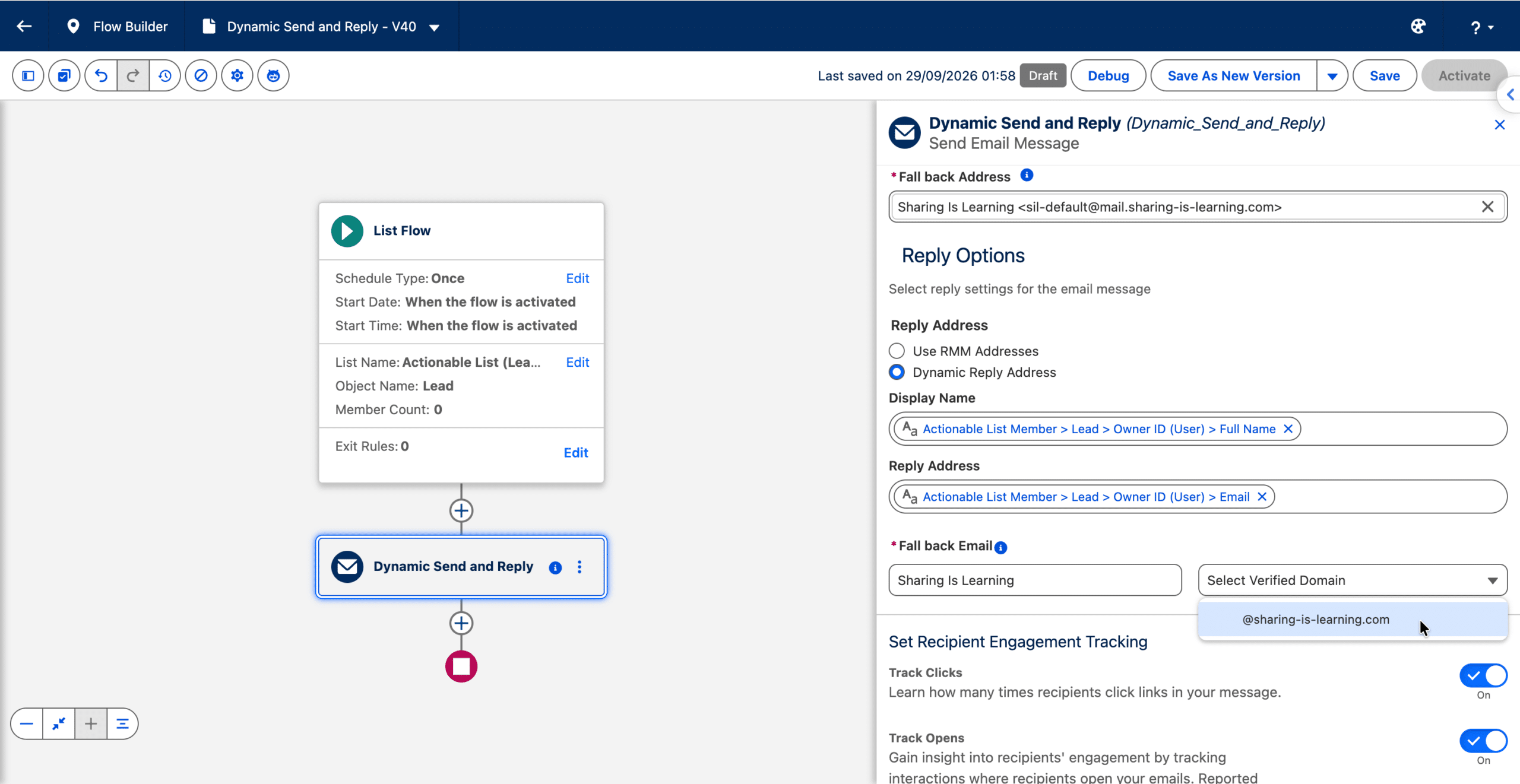
A configured fallback and a fallback being used are different things. Selecting one provides an alternative when the dynamic address can’t be used; it doesn’t mean every reply should go there. Salesforce documents fallback behavior for missing or empty dynamic values. Salesforce fallback mechanism
Validate with a controlled live send
There’s an important testing trap: Salesforce states that test emails and Flow debug mode show fallback addresses. To check the actual dynamic values, use a controlled live send to a recipient you manage. Salesforce testing guidance
For Sharing Is Learning, the final check is:
- The From address is
[email protected]. - The Reply-To address is
[email protected]. - An actual reply arrives in the sales representative’s corporate inbox.
Inspect the message headers if your email client doesn’t display both addresses clearly.
Recap: two addresses, two domain requirements
| Configuration | Sharing Is Learning’s setup | Requirement |
|---|---|---|
| Dynamic From | [email protected] | Authenticated sending domain |
| Dynamic Reply-To | [email protected] | Authorized and verified reply domain |
| From fallback | Selected authenticated sender | Alternative when the dynamic sender can’t be used |
| Reply fallback | Explicitly selected in reply settings | Alternative when the dynamic reply can’t be used |
When troubleshooting, remember these two rules:
Sender domain not authenticated → From fallback.
Reply domain not authorized → Reply fallback.
Missing dynamic values can also trigger fallback behavior, and test sends don’t validate live dynamic resolution.
Sharing Is Learning can now keep its marketing sends on a dedicated subdomain while making each message personal and each reply useful. The recipient sees a sender associated with their sales representative, and the conversation continues in that representative’s regular corporate inbox.