
For quite a while, adding Google Tag Manager (GTM) to Salesforce Marketing Cloud Next (MCN) felt like a mystery. There’s no obvious place to add global scripts and trying to force JavaScript into MCN components usually leads nowhere.
It took me some time to figure it out, but once you understand how MCN pages are actually delivered, the solution turns out to be pretty simple.
The trick is not to try and add scripts directly in Marketing Cloud Next, but to use the Experience Builder for the site that hosts your landing pages.
The Key Insight: MCN Pages Run on Experience Cloud
Marketing Cloud Next landing pages are served through an automatically generated Experience Cloud site, typically called Marketing Landing Pages. This means that:
- MCN itself doesn’t control theor page-level scripts
- Experience Cloud does
- Global tools like Google Tag Manager should live at the site level, not inside MCN
Step-by-Step: Adding Google Tag Manager
1. Access the Experience Builder
- Go to Salesforce Setup
- Navigate to Digital Experiences → All Sites
- Find the site used for Marketing Cloud Next landing pages (usually Marketing Landing Pages)
- Click Builder
2. Enable Relaxed Security (Important)
Before scripts like GTM can run, you’ll need to relax the site’s security configuration:
- In Experience Builder, open Settings
- Go to Security & Privacy
- Set the Security Level to: Relaxed CSP: Permit Access to Inline Scripts and Allowed Hosts
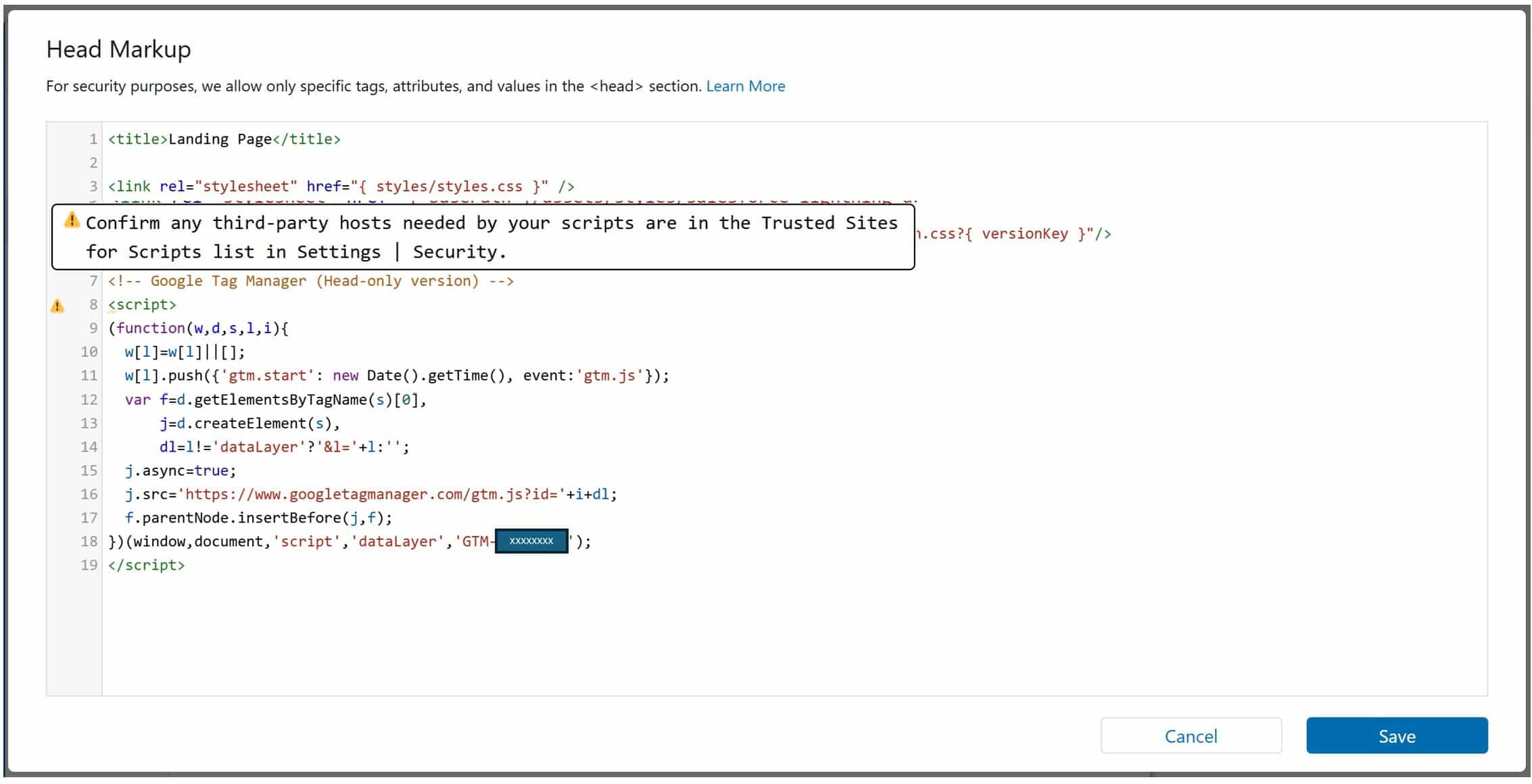
3. Add the GTM Script to the Head Markup
- In Settings, go to Advanced
- Click Edit Head Markup Paste the Google Tag Manager snippet (from Google) into the head markup block:
					 <script data-noptimize>(function(w, d, s, l, i) {
 w[l] = w[l] || [];
 w[l].push({
 'gtm.start': new Date().getTime(),
 event: 'gtm.js'
 });
 var f = d.getElementsByTagName(s)[0],
 j = d.createElement(s),
 dl = l != 'dataLayer' ? '&l=' + l : '';
 j.async = true;
 j.src = 'https://www.googletagmanager.com/gtm.js?id=' + i + dl;
 f.parentNode.insertBefore(j, f);
 })(window, document, 'script', 'dataLayer', 'GTM-XXXXXX');</script>
Make sure your GTM container ID is correct. This ensures GTM loads on every MCN landing page hosted on this site.
4. Publish and Verify
- Publish the Experience Cloud site
- Open one of your Marketing Cloud Next landing pages
- Check Google Tag Manager (or use Tag Assistant / browser DevTools)
- Double-check the GTM ID
- Refresh a few times
- Give it some time
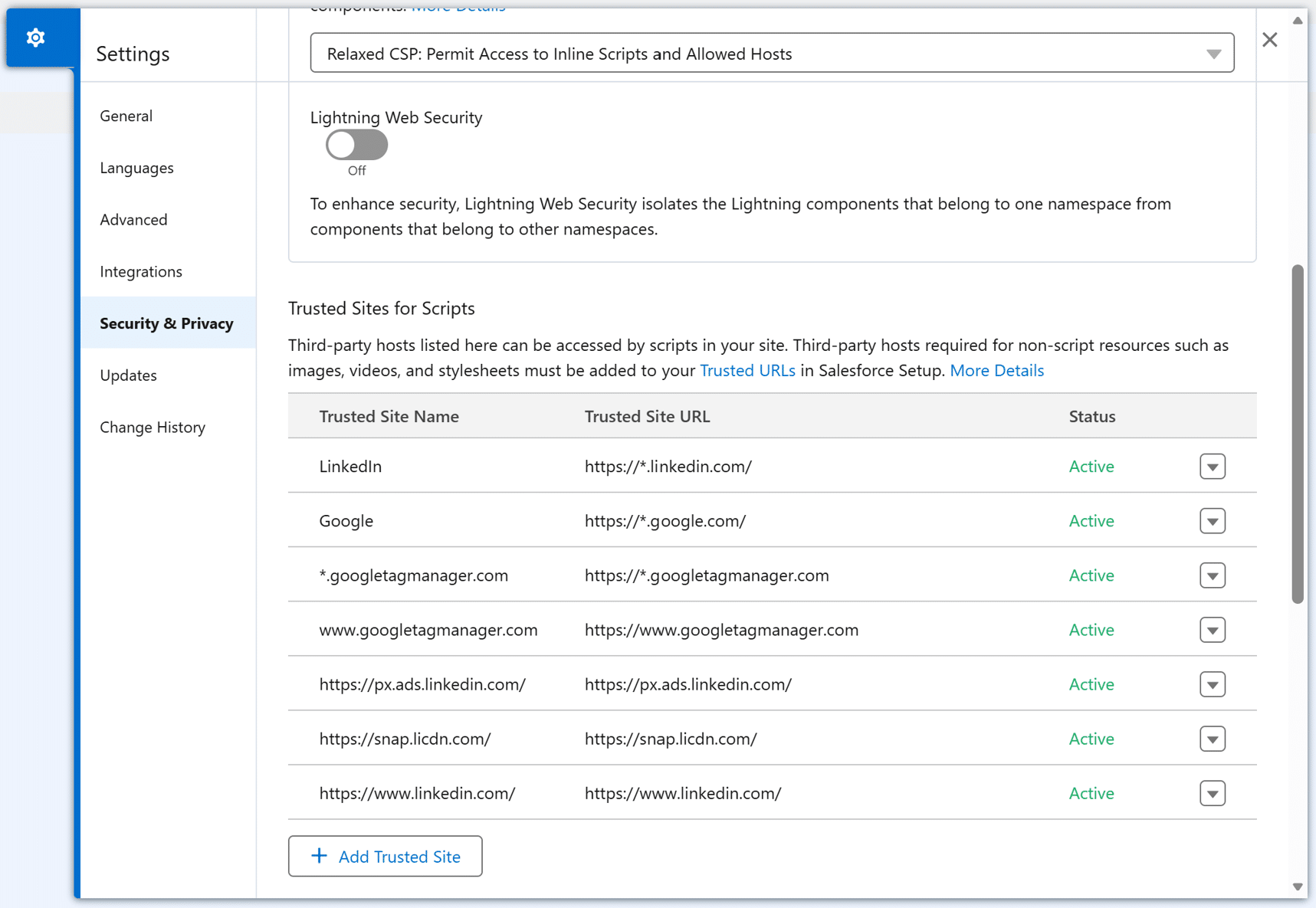
5. Whitelist Required Domains
After GTM starts loading, you’ll likely see new warnings in: Settings → Security & Privacy. These warnings indicate external domains being accessed (via GTM and its tags). Make sure to:
- Review the listed domains
- Whitelist only the ones you actually need
What I learned from this
Trying to force scripts directly into Marketing Cloud Next is a dead end. MCN isn’t meant to manage global scripts Experience Cloud is.
Once you leverage the Experience Builder correctly, adding Google Tag Manager becomes a clean, supported, and scalable solution. Sometimes the problem isn’t how to do it, it’s knowing where to do it.