
Surfacing marketing insights directly on Salesforce records isn’t new — many of us have been doing this for years with Account Engagement (Pardot). Having activity history, scoring, and consent data at your fingertips on a Lead, Contact, or Prospect record makes it easier for sales and marketing to stay aligned.
What’s exciting is that Marketing Cloud Next also supports this approach. You can bring the same level of visibility into the core Salesforce objects, ensuring that critical marketing data lives right where your teams are already working.
In this article, I’ll showcase the different elements that can be surfaced on the Prospect, Lead, and Contact page layouts, and also highlight a couple of useful options for the Campaign object. To round things out, I’ll share an example of how Data Cloud related lists and copy fields can be added to page layouts for specific use cases — giving you even more flexibility in how you expose marketing data across Salesforce.
1. Data Cloud Profile Engagement / Data 360 Engagement Timeline
The Data Cloud Profile Engagement widget lets you surface Unified Individual engagement data directly on Prospect, Lead, and Contact objects. From a Prospect, Lead or Contact go to Setup -> Edit Page:
From here, the page editor will open, allowing you to search and add elements to the page layout. On the left pane type “Data Cloud Profile Engagement” in the Search bar, and choose the “Data Cloud Profile Engagement” option under the Standard components. Hold and drag it across to the place on the page you would like to add it to, here we have added it on the right top side of the page layout:

Now, we need to configure that element:
- Match On: Contact ID (Lead or Prospect ID, respectively)
- Data Space: default (as long as you only have one)
- Unified Individual DMO: Unified Individual
- Unified Individual Link: Unified Link Individual
- Select Engagement DMOs: Choose the data you’d like to show, here, we have chosen Website Engagement, Email Engagement, Flow Run, Message Engagement
Once you have completed the configuration, don’t forget to “Save” and “Activate” it, I will show this at the end of the article, once we have added all elements.
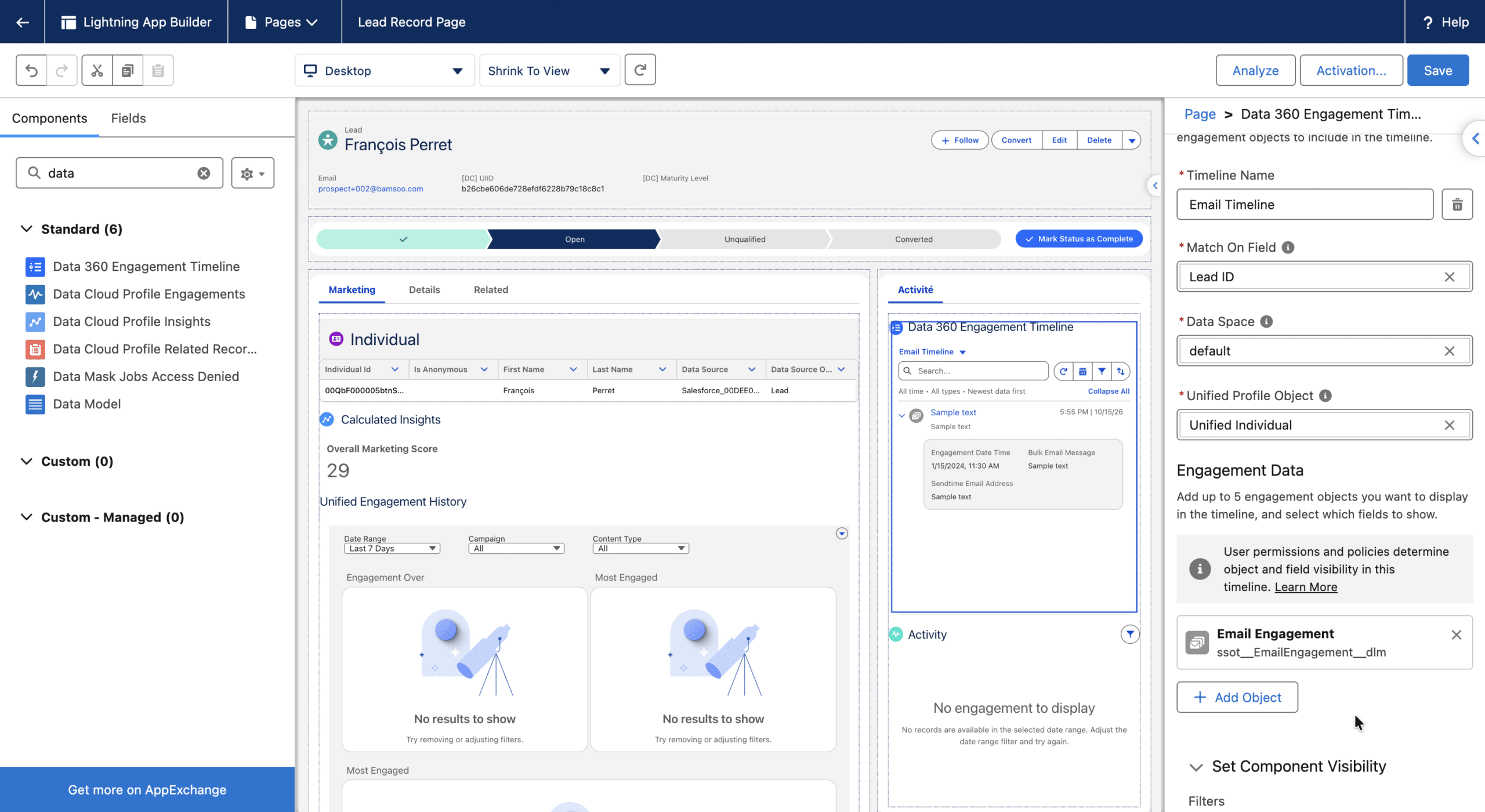
[Edit 2026/10/15] A new Widget has been introduced in MC Next to display Activity. It is called Data 360 Engagement Timeline. It offers much more setting options and supports Person Accounts:
- Multiple timelines: create separate views for Sales, Marketing, web, or email engagement, switchable through a dropdown.
- Customizable event display: configure icons, titles, subtitles, timestamps, and expandable detail fields.
- Combined, filtered activity: display website visits, purchases, cart actions, and email interactions together, with filters per engagement object.
2. Data Cloud Profile Insights
The next element that we can surface is the Data Cloud Profile Insights element, also known as Calculated Insight. OOTB, Marketing Cloud Next comes with Overall, Fit & Engagement Score Calculated Insights, however other typical Calculated Insights that you might want to build and surface are:
- Customer Lifetime Value, read François’ how to build a CLV guide here
- Email Click Through Rate
- Form Completion Rate
to name a few.
We can add multiple Data Cloud Profile Insights elements to each Prospect, Lead or Contact page and choose different Calculated Insights to be surfaced on the page.
Once again, from a Prospect, Lead or Contact go to Setup -> Edit Page. Once the page editor opens, search for “Data Cloud Profile Insights” in the Search bar, and choose it. Hold and drag it across to the place on the page you would like to add it to, here we have added it right underneath the Profile Engagements:

Now, we need to configure that element:
- Match On: Contact ID (Lead or Prospect ID, respectively)
- Data Space: default (as long as you only have one)
- Unified Individual DMO: Unified Individual
- Unified Individual Link: Unified Link Individual
- Calculated Insight: Choose the Calculated Insight you would like to display, here Overall Marketing Score
- Measure: Choose the Measure you’d like to surface, i.e. Engagement or Fit Score
Once you have completed the configuration, don’t forget to “Save” and “Activate” it.
3. Privacy Consent Status
Consent is also handled in Data Cloud for Marketing Cloud Next and the Privacy Consent Status for the different Email, SMS or Whatsapp preferences of the Prospect, Lead or Contact, can also be surfaced on these pages.
Once again, from a Prospect, Lead or Contact go to Setup -> Edit Page. Once the page editor opens, search for “Privacy Consent Status” in the Search bar, and choose it. Hold and drag it across to the place on the page you would like to add it to, here we have added it right underneath the Calculated Insights:

No additional configuration is needed here; you will see the email addresses and phone numbers added to your records.
4. Data Cloud Profile Related Records
The Data Cloud Profile Related Records component can also be added to the Prospect, Lead, or Contact page layout. As the name suggests, it allows you to surface any profile DMO–related records tied to a Unified Individual. In this example, we’ve chosen to display email addresses — a valuable view when a Unified Individual has multiple addresses. This makes it easier to understand which emails are associated with the same profile (see François’ article for a deeper dive on this use case).

Like the Data Cloud Profile Engagement & Insight, we need to configure that element:
- Match On: Contact ID (Lead or Prospect ID, respectively)
- Data Space: default (as long as you only have one)
- Unified Individual DMO: Unified Individual
- Unified Individual Link: Unified Link Individual
- Related Data Model Object: Choose the Profile Data Model Object you would like to surface, here Unified Indv Contact Point Email
- Select Fields: Select the fields you would like to surface from your chosen DMO, here Email Address
Once you have completed the configuration, don’t forget to “Save” and “Activate” it, by clicking the two buttons after each other in the top right corner. When activating, you can choose if you’d like to activate your settings based on org, app or record type / profile default.

5. Campaign Object Related Lists
Similar to Account Engagement, you can add related lists to the Campaign object to provide direct visibility into campaign assets. The Landing Pages related list surfaces the pages created and tied to a specific campaign, while the Flows related list shows which automated journeys or segment-triggered flows are associated. To access these, simply navigate to the Related tab on the Campaign record. There, you’ll find a consolidated view of all connected assets, helping both marketers and sales teams quickly understand the full scope of campaign activity.

To add these Related Lists to the Campaign Object, from a Campaign record, navigate to Setup -> Edit Object. Click on Page Layout, and if you have more than one Page, select the correct Page Layout and click on it. (You can find out through Page Layout Assignment in the top right corner, which one is assigned to your Profile.) Once the page layout editor opens, click on “Related Lists” in the top left section and find and hold down the mouse button to drag the “Landing Page” and “Flow” Related Lists to the canvas from the right top section. Save the Page Layout.


6. Data Cloud Related Lists and Data Cloud Copy Fields
With Data Cloud enrichments, you can bring cleaned and harmonized data directly into your Salesforce CRM record pages. There are two main options: Related Lists, which display one-to-many data from Data Cloud objects (for example, all email engagements tied to a contact); and Copy Fields, which let you pull one-to-one values, such as a score or a Customer Lifetime value from a Calculated Insight, into a standard Salesforce field. Both approaches allow you to surface Data Cloud insights exactly where users work every day. Follow this link to learn more about these features.
A great example of this in action is François’ article on surfacing consent onto Person Account page layouts. Since the Data Cloud Profile and Engagement widgets aren’t yet available for Person Accounts, adding a Data Cloud Related List provides a simple and effective way to expose this information. Please note, that this example only works with Marketing Cloud Advanced, since the Unified Account is needed to surface the data to Person Accounts.


And that’s it – these are all the components you can add today to enrich your Salesforce data. Do you have any other ideas on how to enrich it with other Copy Fields or Related Lists? Would love to hear your ideas.